12 min read
How to Expand Mac Storage With an External SSD (What to Move and What Not To)
What you can move to an external SSD on a Mac (apps, Photos, Music, Logic, Docker, AI models), the exact setting for each, and what you should never move.
- Storage
- How-to
- Buying guide
The SSD inside a Mac can't be upgraded, so when a 256 GB or 512 GB machine fills up, an external SSD is the cheapest way to add space. It works well for the right data and badly for the wrong data. This guide covers setting the drive up, the exact setting that moves each kind of data, what not to move, and what happens the day you open your laptop without the drive.
The short version
- Format the drive as APFS (or APFS (Encrypted)) in Disk Utility, give it a name, and never rename it afterwards. Apps remember the path.
- Move whole libraries and big data through each app's own setting: App Store apps over 1 GB, Photos, Music and TV media, Logic Pro's sound library, Final Cut Pro and iMovie libraries, Docker's disk image, Xcode's DerivedData, and local AI models.
- Don't move your home folder,
~/Library, Mail, Messages, iCloud Drive's local copy or the macOS system. iPhone backups can only be moved with an unsupported workaround. - Keep Time Machine on a different drive. Apple says Photos, iMovie and Final Cut Pro libraries can't live on a drive used for Time Machine backups.
- Plug the drive in before opening the apps that use it. Without it, App Store apps on the drive won't open, and Photos and iMovie quietly start new, empty libraries on the internal disk.
1. Prepare the drive
Speed: match the drive to the job
A USB 3.2 Gen 2 (10 Gb/s) SSD tops out around 1 GB/s. That's plenty for a Photos library, music, App Store games and AI models. Thunderbolt and USB4 drives (40 Gb/s) are worth the extra cost if you'll edit video from the drive or stream large sample libraries in Logic. Check your Mac's tech specs before paying for speed its ports can't use. Avoid USB flash drives and SD cards for libraries: Apple advises against them for Photos and iMovie.
Format it as APFS
New drives often arrive formatted for Windows. Reformat before you put anything on it, because erasing deletes everything on the drive.
- Open Disk Utility (Applications → Utilities).
- Choose View → Show All Devices, then select the drive itself (the top line), not a volume under it.
- Click Erase. Set Scheme to GUID Partition Map, Format to APFS, and type a name.
- Click Erase, then Done.
APFS is what the setup needs: the App Store only installs large apps to APFS disks, Photos and iMovie accept only APFS or Mac OS Extended, Apple recommends APFS for Logic's sound library, and Apple's file system guide describes it as optimised for SSDs. Choose APFS (Encrypted) if the drive leaves the house; FileVault protects your internal disk, not external drives. Use exFAT only for a drive you share with a Windows PC, and keep none of the libraries below on it.
Name it once
Every setting in section 2 stores a path such as /Volumes/Studio SSD/.... Apple's Logic Pro article warns against renaming the drive after moving the sound library, and the same applies to Docker, Xcode and your AI models.
Keep Time Machine separate, and back this drive up
Time Machine reserves its entire APFS volume, and Apple's Time Machine guide says to create a second APFS volume if you want other files on the same physical drive. But Photos, iMovie and Final Cut Pro libraries can't go on a drive used for Time Machine at all, so use a second drive for backups. Then make sure the working SSD is backed up: in System Settings → General → Time Machine → Options, if the drive appears in the excluded list, select it and click Remove.
2. What you can move, and the exact setting for each
App Store apps over 1 GB
Open the App Store, choose App Store → Settings, tick Download and install large apps to a separate disk, and pick the SSD from the pop-up menu. Per Apple's App Store guide, this applies to apps larger than 1 GB, works only with APFS disks, and the apps still appear in your Applications folder. It arrived in macOS Sequoia 15.1 and is all-or-nothing for qualifying apps. It works at download time, so to move a big app you already have, delete it and download it again.
Apps from outside the App Store are less predictable. Many self-contained apps run fine from another disk, but apps that install helpers, drivers or their own updater usually expect /Applications. Move only big, simple ones, and test.
Photos library
Apple's steps: quit Photos, drag Photos Library from your Pictures folder to the SSD, then double-click it in its new location. If you use iCloud Photos, go to Photos → Settings → General and click Use as System Photo Library, because only the System Photo Library syncs. When everything is there, drag the original to the Trash and empty it. If the move gives a permissions error, select the drive in Finder, choose File → Get Info, and under Sharing & Permissions make sure Ignore ownership on this volume is selected. Our Photos library guide covers shrinking the library first.
Music and TV media
In Music, choose Music → Settings → Files, click Change, and pick a folder on the SSD. New imports go there from then on. To bring existing files across, choose File → Library → Organize Library → Consolidate files. Apple notes that this copies files and leaves the originals where they were, so delete the old media folder only after checking that songs play from the SSD. Leave the Music folder itself in place; Apple recommends against moving it. The TV app has the same control under TV → Settings → Files → Media folder location → Change.
Logic Pro's sound library
In Logic Pro 12 and MainStage 4 or later, the whole library is a single file, Logic Pro Library.bundle, in your Music folder. Apple's instructions are to drag it to the SSD and then delete the original. On Logic Pro 11.2.2 and earlier, choose Logic Pro → Sound Library → Relocate Sound Library instead. Apple recommends APFS, and the library can't go on a Time Machine volume. If Logic says the content can't be relocated, turn on Removable Volumes for Logic in System Settings → Privacy & Security → Files and Folders.
Final Cut Pro and iMovie libraries
Final Cut Pro: select the library, choose File → Reveal in Finder, quit the app, and drag the library file to the SSD. Then double-click it there. Media you imported without copying lives outside the library, so check Library Properties and consolidate it before deleting the original (Apple).
iMovie: quit iMovie, open the Movies folder in your home folder (Go → Home in Finder), drag iMovie Library to the SSD, and double-click it there. Once you've checked that everything is in it, trash the original (Apple).
Developer files
- Docker Desktop: Settings → Resources → Advanced → Disk image location. Choose a folder on the SSD; if that folder already holds a disk image, Docker asks whether to use or replace it (Docker docs).
- Xcode: Xcode → Settings → Locations, set Derived Data to Custom and pick a folder on the SSD. Archives has its own location in the same pane.
The developer cleanup guide shows how to shrink these before you move them.
Local AI models
- Ollama keeps models in
~/.ollama/models. Recent versions of the Mac app let you change the model directory in its settings (the option arrived in v0.9.5). Otherwise, the Ollama FAQ says to setOLLAMA_MODELSwithlaunchctland restart the app. Alaunchctl setenvvalue doesn't survive a restart, which makes the app setting the better choice.
launchctl setenv OLLAMA_MODELS "/Volumes/Studio SSD/ollama-models"
- LM Studio keeps models in
~/.lmstudio/modelsand lets you change the models directory from its My Models tab. - Hugging Face caches downloads in
~/.cache/huggingface/hub. PointHF_HUB_CACHEat the SSD in~/.zshrc.HF_HOMEwould move your access token to the drive too (Hugging Face docs).
export HF_HUB_CACHE="/Volumes/Studio SSD/huggingface/hub"
Quit the app before moving existing model folders across. The AI tools guide lists every other place AI apps store data.
Archives
Finished projects, edited raw footage, old disk images: copy them in Finder, open a few to check, then delete the originals.
3. What not to move
- Your home folder,
~/Library, or anything inside it via symlinks. Apps keep their databases, preferences and keychains there and expect them at login, so every unplug would break apps across your account. - Mail and Messages. Neither has a setting for another disk, and both live in
~/Library. Shrink them in place instead. - iCloud Drive's local copy. There's no setting to store it elsewhere. Use Optimize Mac Storage or Remove Download, as the iCloud Drive guide explains.
- iPhone and iPad backups. Finder has no location setting. The only route is a symbolic link, which Apple doesn't support; the backups guide shows how, along with the catches.
- macOS and Apple Intelligence. Both live on the protected system volume. If they're what filled your disk, see what you can do about Apple Intelligence's space.
- Libraries on network drives or cloud storage. Apple's Photos and iMovie articles both advise against it.
4. What happens when the drive isn't connected
| What's on the SSD | What you'll see without it | Fix |
|---|---|---|
| App Store apps | Prompted to download the app again | Connect the drive and open the app |
| Photos library | Photos stops using it and creates a new, empty library in ~/Pictures | Quit, connect the drive, open Photos holding ⌥ and choose the library |
| iMovie library | A new, empty library in Movies; new imports land there | Connect the drive and double-click the library |
| Logic sound library | A choice: Retry, Ignore (missing sounds play as basic tones), or Reset (reinstalls the library on the Mac) | Connect and click Retry; Reset puts it back on the internal disk |
| Music and TV media | Items on the drive can't be found | Connect the drive |
| Docker, Xcode, Ollama, Hugging Face | Errors about the missing folder | Connect the drive and restart the app |
The last row fails loudly rather than silently. Only root can create folders in /Volumes, so an app can't recreate /Volumes/Studio SSD on your internal disk and fill it behind your back. Photos and iMovie are the ones to watch: their fresh, empty library looks normal until you notice what's missing.
5. Can you run macOS from the external SSD?
Yes, but it doesn't add space to your current setup: it's a second, separate macOS with its own apps and files. According to Apple, on Apple silicon (the only kind of Mac that runs macOS 27 Golden Gate) starting up from an external drive still needs a working built-in disk. The install is tied to that Mac model, and Background Security Improvements only arrive when the Mac starts up from its built-in storage. It's handy for testing a beta, not for escaping a small internal drive. If you're still choosing a Mac, the storage buying guide helps you avoid needing this.
Finding what to move with Disk Clean AI
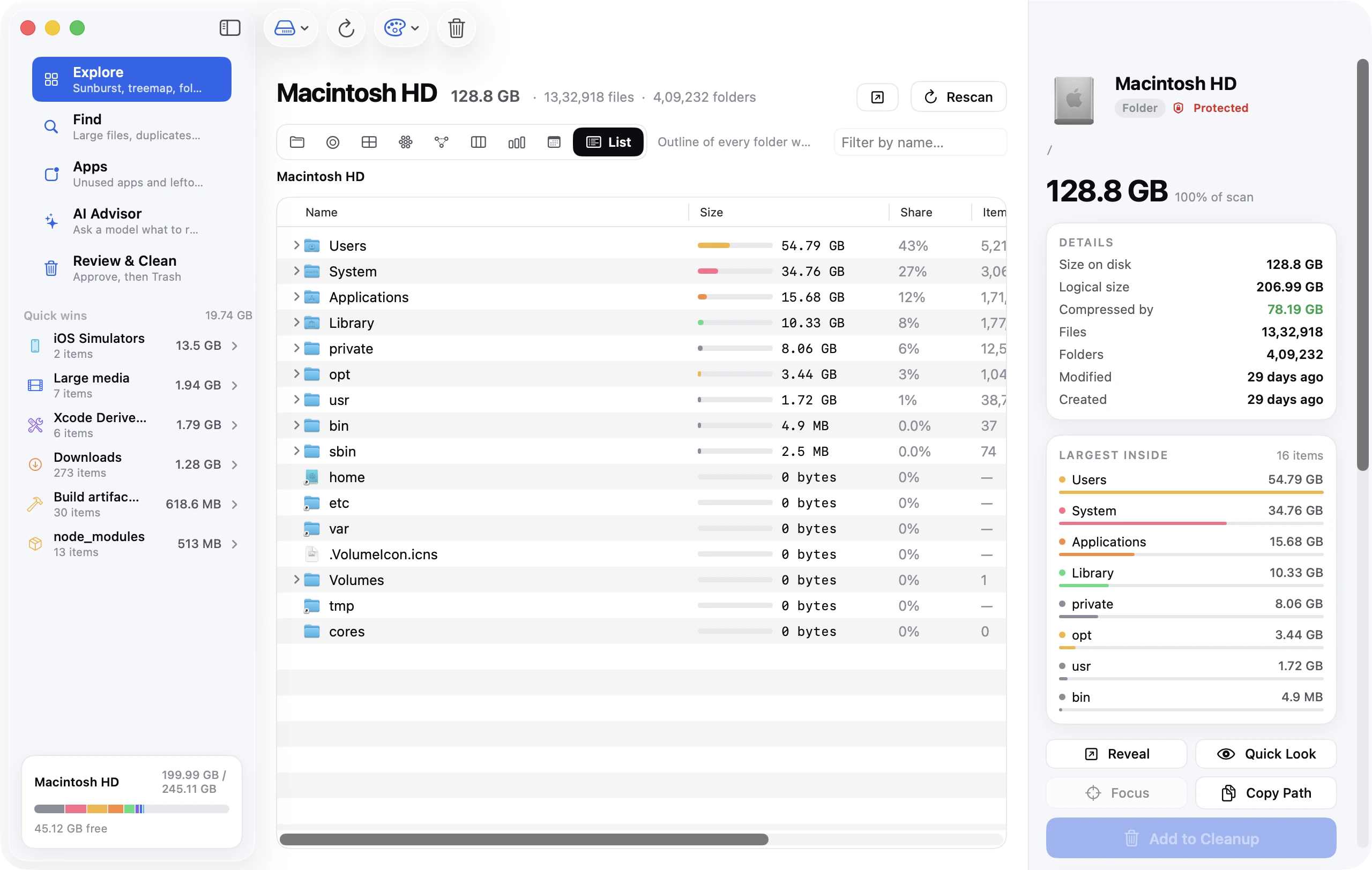
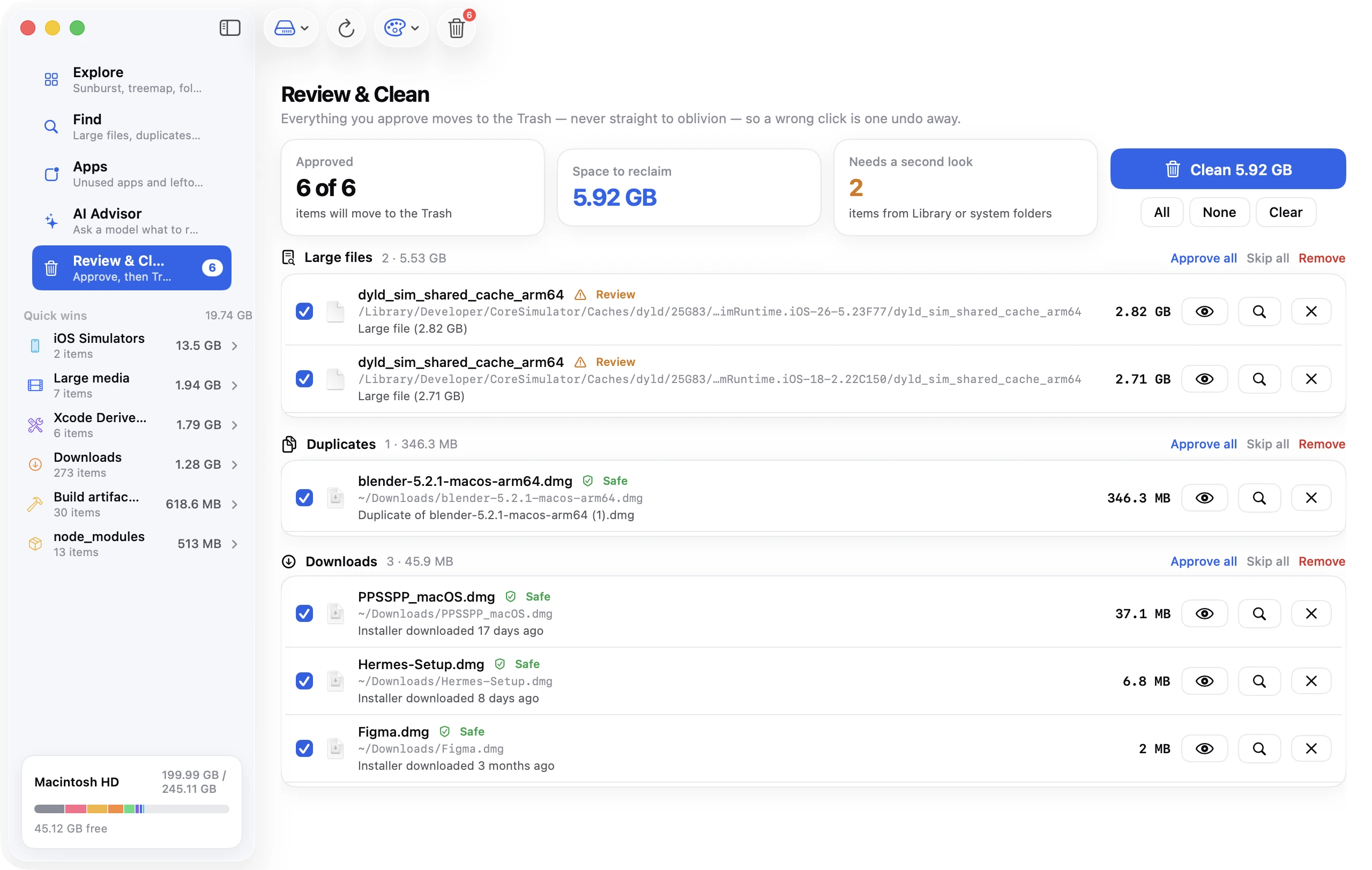
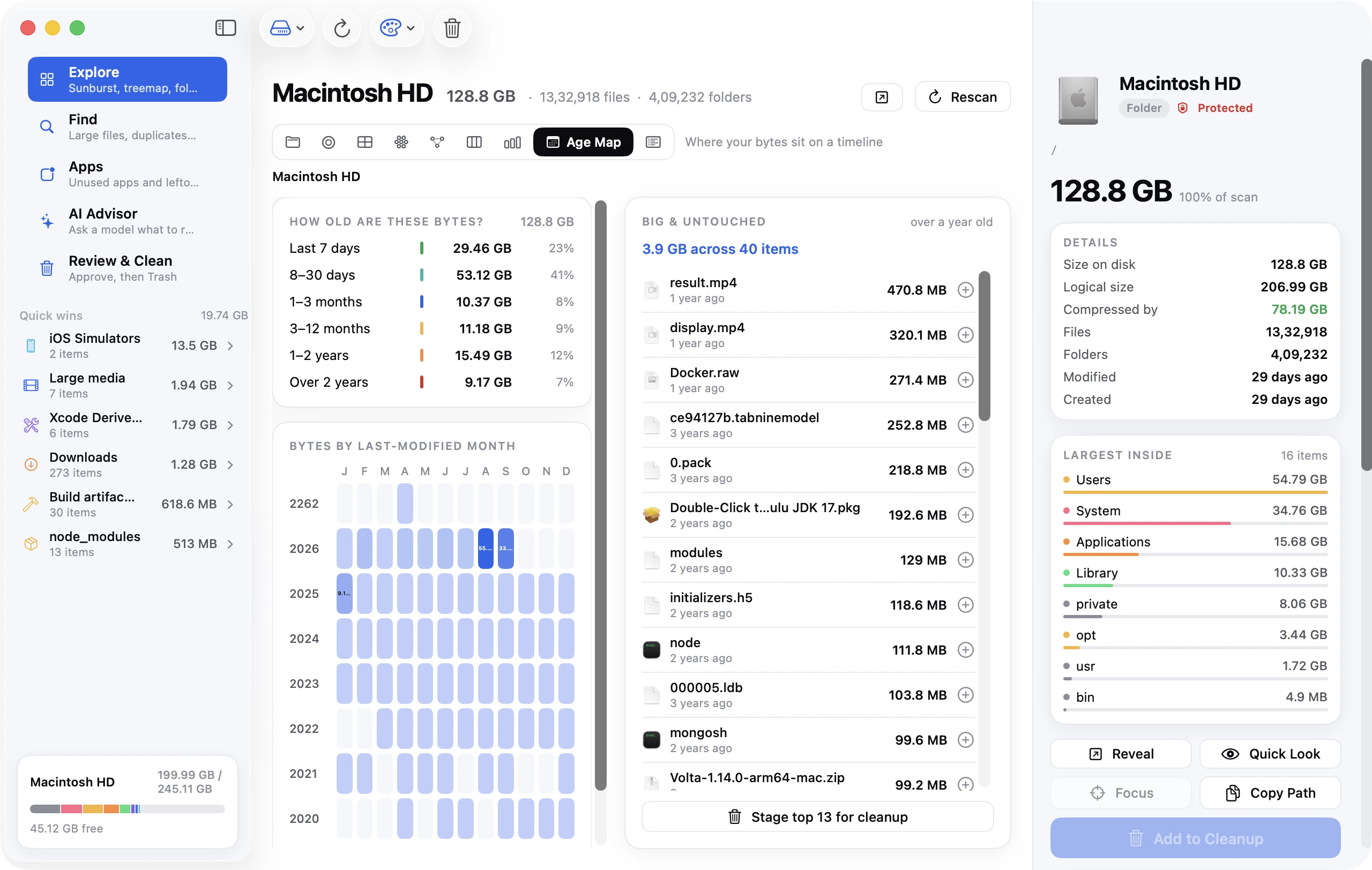
Disk Clean AI doesn't move files, but it shows you which ones are worth moving. It scans your startup disk, home folder or any folder, including the SSD afterwards to confirm everything arrived. Find Large Files and the Large media Quick Win list the videos, disk images and archives that make the best candidates. The Age Map view groups your data by last-modified date and lists big files untouched for over a year: the ones you won't miss from the internal disk. Every feature is included in the 7-day free trial; after that, a license is a one-time payment with no subscription ($19 at launch, usually $39, for up to 3 Macs).
FAQ
Can I move apps to an external drive on a Mac?
App Store apps larger than 1 GB, yes: turn on Download and install large apps to a separate disk in App Store → Settings and pick an APFS drive, which must be connected to open them. Other apps vary; those with helpers or drivers expect /Applications.
Can I keep my Photos library on an external SSD?
Yes. Apple supports it on an APFS or Mac OS Extended drive that isn't used for Time Machine. Quit Photos, drag the library across, open it from the SSD and, if you use iCloud Photos, make it the System Photo Library again.
Should I format the SSD as APFS or exFAT?
APFS for anything a Mac app manages: the App Store only installs large apps to APFS, and Photos and iMovie need APFS or Mac OS Extended. Use exFAT only for a drive shared with Windows, and then only for plain files.
Can I run macOS from an external SSD?
Yes, but on Apple silicon it still needs a working internal disk, and it's a separate system rather than more space for your current one. For extra space, move libraries instead.
What happens if the drive is unplugged?
App Store apps on it won't open, Photos and iMovie open new empty libraries on the internal disk, and Logic offers to retry, ignore or reinstall its sounds. Reconnect the drive and reopen the app; for Photos, hold ⌥ while opening and choose your library.
Can I move iPhone backups to an external drive?
Not with a setting. Finder always backs up to ~/Library/Application Support/MobileSync/Backup, and the only way to redirect it is a symbolic link, which Apple doesn't support. If you'd rather not, back up to iCloud and delete the local backups instead.