9 min read
How to Find and Delete Duplicate Files and Photos on Mac
Duplicates quietly eat gigabytes. Learn how macOS Photos finds duplicate pictures, how to catch duplicate files with Smart Folders or fdupes, and how to remove them without losing an original.
- How-to
- Duplicates
Duplicates are the quietest kind of clutter. Each copy looks like a real file, so the Storage settings never flag them, and they accumulate through completely reasonable behaviour: downloading an attachment twice, importing the same SD card again, copying a project folder before a risky change, exporting photos into a folder you'd already exported into. On a Mac that's been in use for a few years, 5–20 GB of exact duplicates is typical.
This guide covers the three cases separately, because they need different tools: photos, ordinary files, and near-duplicates that aren't byte-for-byte identical.
What counts as a duplicate
A true duplicate is a file whose contents are identical to another file's — the name, folder and dates don't matter. IMG_4021.jpg and IMG_4021 (1).jpg are duplicates if their bytes match; two files both called report.pdf are not duplicates if one is a newer revision.
That distinction matters because any tool that compares names is guessing. Reliable duplicate finders hash the file contents (SHA-256 or similar) and group files with identical hashes. Everything below works that way.
Duplicate photos: use the Photos app
Since macOS Ventura, Photos finds duplicates itself.
- Open Photos.
- In the sidebar, under Utilities, click Duplicates. (If it isn't there yet, Photos hasn't finished analysing the library — leave the app open and plugged in overnight.)
- Each group shows the copies side by side with their resolution and file size. Click Merge to keep the highest-quality version and move the rest to Recently Deleted. Merge All does the whole library.
Merging keeps the best copy and combines any metadata (captions, keywords, albums) from the others, so it's safe to run on the entire list. The deleted copies stay in Recently Deleted for 30 days.
Photos' detection also catches near-duplicates: the same shot saved as HEIC and JPEG, or a resized copy. It won't touch photos outside your library — for folders of images, see the next section.
Duplicate files: three ways
1. Finder Smart Folder (quick, manual)
Finder can't compare contents, but it can narrow the field. Create a Smart Folder (File → New Smart Folder) with rules like Name contains " (1)", Name contains "copy" or Name contains " 2.". That finds the classic Finder- and browser-generated copies. Sort by size, check each pair, delete the extra.
It's manual and misses duplicates with different names, but it takes two minutes and catches the low-hanging fruit.
2. fdupes or jdupes in Terminal (free, thorough)
Both tools hash files and print groups of identical ones. Install with Homebrew:
brew install jdupes
Then scan a folder (this walks the whole Downloads folder recursively):
jdupes -r ~/Downloads
Each group of identical files is printed together. To have it delete duplicates and keep one copy per group, add -d (interactive — it asks which to keep) or -dN (keep the first, delete the rest, no questions):
jdupes -rdN ~/Downloads ~/Documents
Two things to know: it deletes permanently (not to the Trash), and "first" means the one it found first, which isn't necessarily the one in the folder you'd prefer. Run it without -d first and read the list.
fdupes works the same way with the same flags (fdupes -rdN) and is the older, slower tool. jdupes is a faster rewrite.
3. A duplicate finder app (safest for most people)
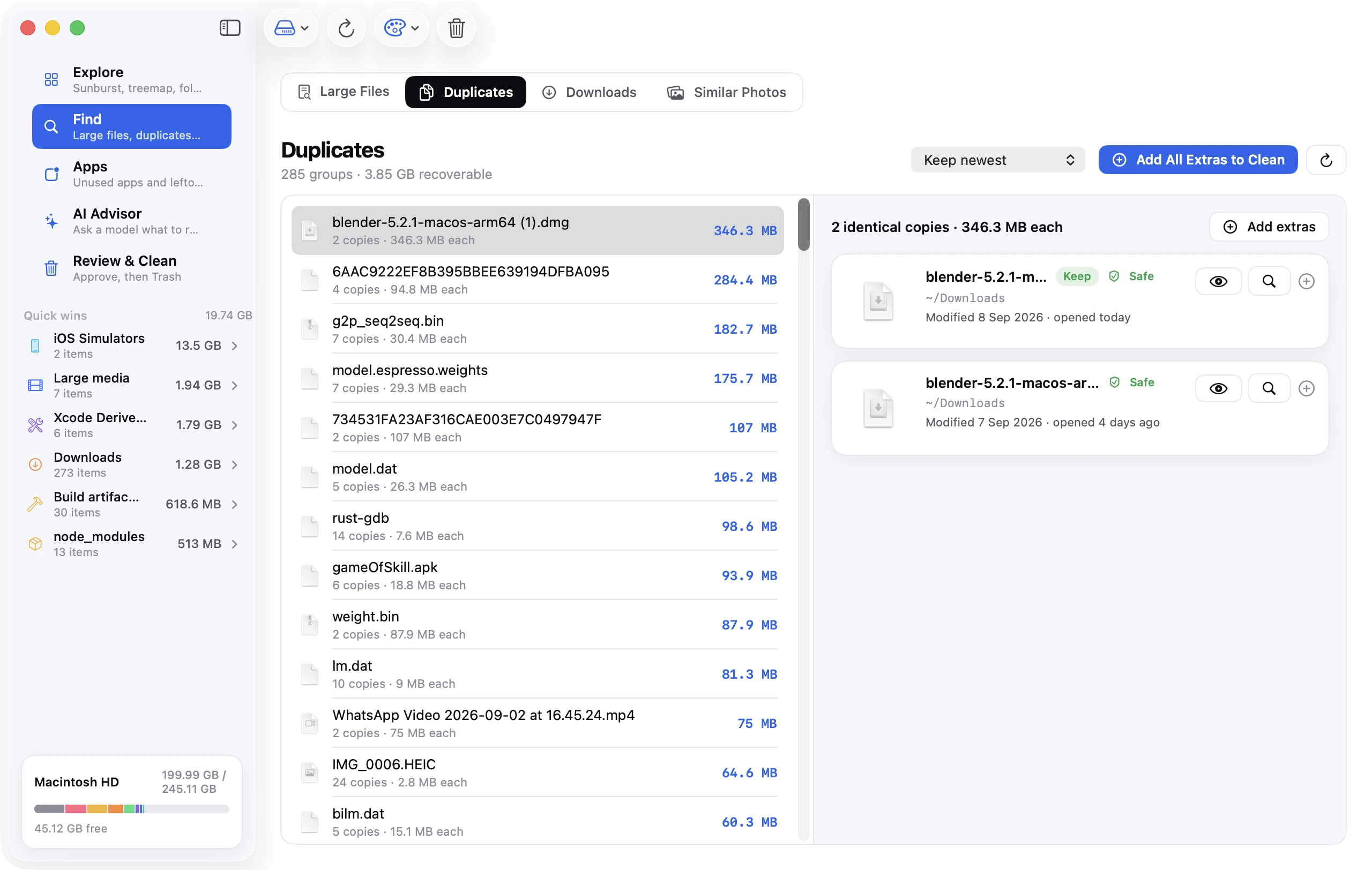
A graphical tool does the hashing for you and, crucially, shows you the groups before anything is removed. Disk Clean AI's Find Duplicates tool groups identical files by SHA-256 content hash (after cheap size and prefix checks, so it's fast), skips app bundles and system paths automatically, and lets you pick a keep rule — newest, oldest or shortest path — before it marks the extra copies. You can tick or untick individual files, and removed copies go to the Trash, so a wrong choice is reversible. Find Similar Photos does the same for images that aren't byte-identical — resized, re-encoded or slightly edited versions of the same shot — with a Strict / Balanced / Loose setting and a side-by-side preview.
Other apps in this space (Gemini 2, dupeGuru, Duplicate File Finder) work on the same principle; the differences are in how they pick the copy to keep and whether they can compare images visually.
Near-duplicates: same photo, different file
Byte-identical duplicates are easy. The expensive ones are visually identical images in different files:
- The same photo as HEIC (from the phone) and JPEG (exported for a website).
- A 24-megapixel original and a 2,000-pixel copy made for email.
- Burst shots where six frames are almost the same.
- A screenshot and the same screenshot after cropping.
Content hashing can't see these. Tools that do use perceptual hashing: they scale the image down to a tiny greyscale thumbnail, compute a fingerprint of its structure and compare fingerprints. Photos' Duplicates feature does this within the library; Disk Clean AI's Find Similar Photos does it across any folder, with a Strict / Balanced / Loose setting so you decide how close two images have to be.
Keep the largest file in each group — it's the original or the highest-quality export — unless you specifically need the smaller version.
Where duplicates hide
Check these locations first:
| Location | Why duplicates end up there |
|---|---|
~/Downloads | Browsers add " (1)", " (2)" when you download a file again |
~/Desktop | Files dragged from Downloads "temporarily" and then re-downloaded |
~/Pictures outside Photos | Camera imports done twice, exports from Photos into folders you'd already exported into |
~/Documents project folders | "Project copy", "Project FINAL", "Project FINAL 2" |
| Cloud sync folders (Dropbox, Google Drive, OneDrive) | Sync conflicts create "conflicted copy" files |
~/Library/Mail | Every attachment is stored per message, so an attachment forwarded around the office is stored several times — leave Mail alone, though |
| External drives | Backups copied by hand, then copied again |
Safety rules
- Never let a tool delete permanently on the first run. Use a preview, or a tool that moves to the Trash. Empty the Trash a week later.
- Exclude system and app folders.
~/Library,/Applicationsand any.appbundle contain legitimately identical files (frameworks, localisation files) that are not clutter. Deleting them breaks things. Good tools exclude these by default; if you're usingjdupes, point it at your own folders only. - Don't dedupe inside a Photos library, an iMovie library or a Lightroom catalogue by hand. Use the app's own tools; the folder structure is a database.
- Cloud folders: delete the duplicate on one machine only and let it sync. Deleting the same file on two machines at once can confuse the sync client.
- Back up first if you're about to remove more than you're comfortable losing. Time Machine is fine.
Prevention
- In Safari and Chrome, set downloads to ask where to save (or check Downloads before downloading again).
- When importing from a camera or phone, tick Delete items after import (Photos) or Import only new (Image Capture).
- Use aliases (⌘⌥-drag) or links instead of copying a file into a second folder.
- Keep one canonical location per kind of thing: photos in Photos, projects in one Projects folder, downloads cleared monthly.
FAQ
Does macOS have a built-in duplicate file finder?
Only for photos, inside the Photos app (Utilities → Duplicates, macOS Ventura and later). For files in general there's no built-in tool; Finder Smart Folders can find name-based copies, and jdupes or a duplicate finder app can compare contents.
Is it safe to delete duplicate files?
Yes, when the tool compares contents and you keep one copy from each group. It's unsafe inside app bundles, ~/Library and app libraries (Photos, iMovie), where identical files are part of the structure.
Why does my duplicate finder report duplicates inside Applications?
Because apps contain many identical files (frameworks, icons, localisations). They're not clutter and removing them breaks the app. Exclude /Applications and ~/Library from scans.
How do I find similar but not identical photos?
Use a tool with perceptual (visual) matching: the Photos app's Duplicates feature within your library, or Disk Clean AI's Find Similar Photos for any folder.