12 min read
How to Free Up Space Used by AI Tools on Your Mac (Claude Code, Codex, Ollama, Hugging Face)
Where Claude Code, Codex, Cursor, Ollama and Hugging Face keep sessions, caches and models on a Mac, what's safe to delete, and the commands that clear them.
- AI tools
- Developers
- How-to
If you use AI tools every day, your Mac is probably carrying several gigabytes you never asked for. Coding agents keep a transcript of every session. AI desktop apps built on web technology cache like browsers, and some download whole virtual machines. Every local model you've tried is a multi-gigabyte file that stays put after you stop using it. None of it shows up under a name macOS recognises, so it all lands in System Data.
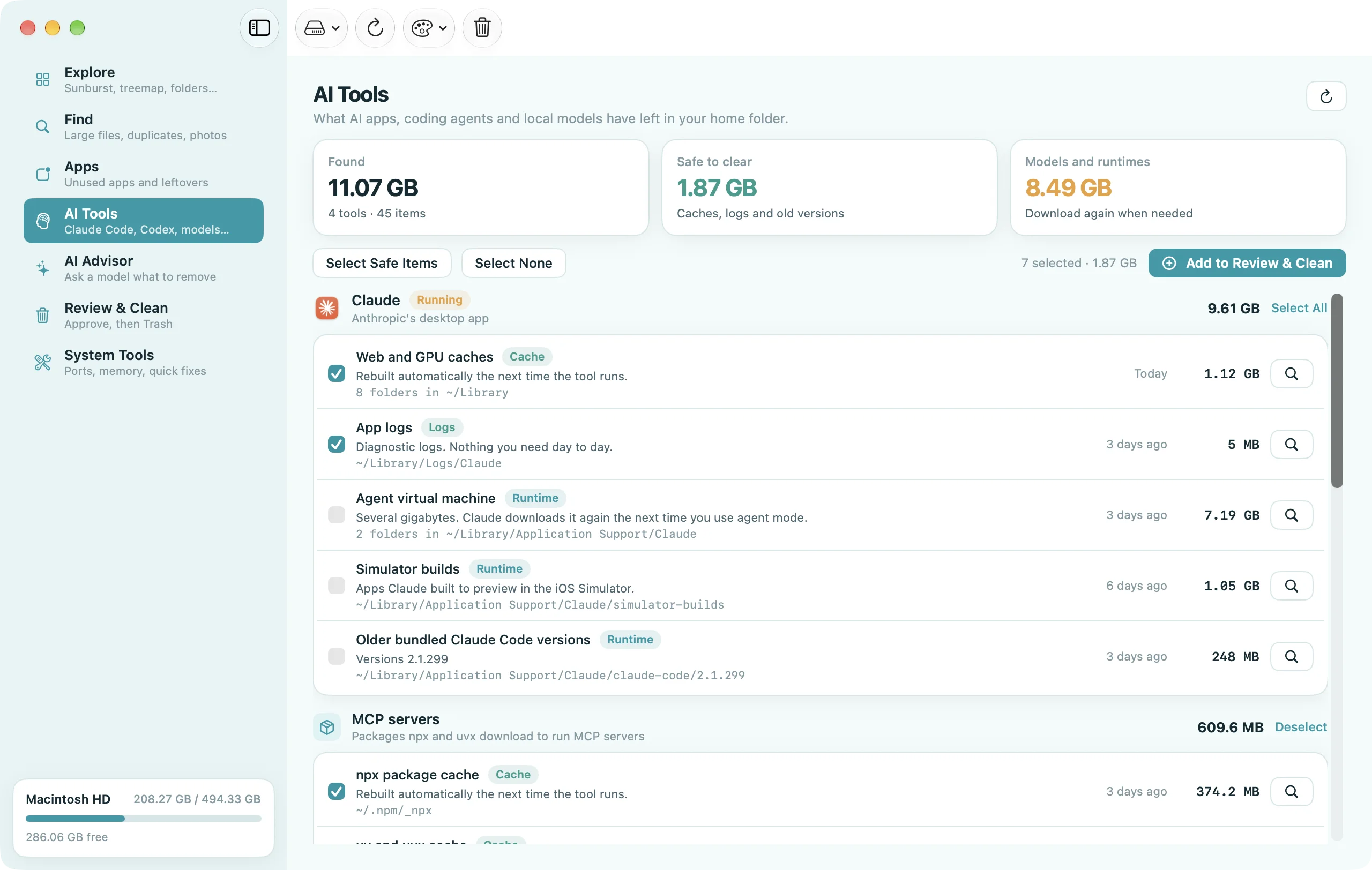
This guide goes tool by tool: where each one keeps its files, which ones are safe to delete, what you lose if you delete the rest, and the command that does it. On one developer's Mac we checked, four AI tools had left 11 GB behind, 7 GB of it a single virtual machine image.
The short version
- Caches, logs and old versions are safe to delete. They're rebuilt the next time the tool runs, or they're copies nothing uses any more.
- Session history is your call. Claude Code transcripts, Codex sessions and Cursor chats are what let you resume or search old conversations. Delete them and that history is gone.
- Models and runtimes download again. Removing an Ollama, LM Studio or Hugging Face model, or the Claude app's agent VM, is safe, but you'll wait for the download the next time you need it.
- Quit the app first. Deleting a cache while the app is writing to it can confuse it until the next restart.
- Move things to the Trash rather than
rm -rfif you're unsure. Nothing is gone until you empty it.
Measure first
Start with the sizes so you clean the right thing. This lists every location in this guide that exists on your Mac, biggest first:
du -sh ~/.claude ~/.local/share/claude/versions ~/.codex ~/.gemini \
      ~/.ollama/models ~/.lmstudio/models ~/.cache/huggingface ~/.cache/torch \
      ~/.cache/whisper ~/.npm/_npx ~/.cache/uv ~/Library/Caches/llama.cpp \
      ~/Library/Application\ Support/Claude ~/Library/Application\ Support/Cursor \
      ~/Library/Application\ Support/Windsurf 2>/dev/null | sort -rh
Every path here lives in your home folder, and most of the folders start with a dot, so Finder hides them. Press ⇧⌘. in a Finder window to show hidden files, or ⇧⌘G and paste a path to jump straight to it.
Claude Code
Claude Code keeps everything under ~/.claude in your home folder, plus its program files elsewhere.
| What | Where | Kind |
|---|---|---|
| Session transcripts, one folder per project | ~/.claude/projects/ | History |
| Rewind checkpoints | ~/.claude/file-history/ | History |
| Session to-do lists | ~/.claude/todos/ | History |
| Shell snapshots and caches | ~/.claude/shell-snapshots/, ~/.claude/statsig/, ~/.claude/cache/ | Cache |
| Debug logs | ~/.claude/debug/ | Logs |
| MCP server logs | ~/Library/Caches/claude-cli-nodejs/ | Logs |
| Old versions of the native install | ~/.local/share/claude/versions/ | Old versions |
Transcripts are the big one. Each project you've run Claude Code in gets a folder in ~/.claude/projects/ named after its path (/Users/you/code/app becomes -Users-you-code-app), full of .jsonl files, one per session. They're what claude --resume and claude --continue read. Delete a project's folder and those sessions can't be reopened; nothing else breaks. Claude Code already removes transcripts that have been inactive for longer than its cleanupPeriodDays setting (30 days by default). To keep less, lower it in ~/.claude/settings.json:
{ "cleanupPeriodDays": 7 }
Caches and logs are always safe once no Claude Code session is running:
rm -rf ~/.claude/shell-snapshots ~/.claude/debug ~/Library/Caches/claude-cli-nodejs
Old versions. The native installer keeps each version it downloads in ~/.local/share/claude/versions/, and ~/.local/bin/claude is a link to the one you run. Each version is a few hundred megabytes. Keep the active one and the newest, and remove the rest:
readlink ~/.local/bin/claude          # the version in use
ls ~/.local/share/claude/versions     # every version kept
rm -rf ~/.local/share/claude/versions/2.1.198   # an old one, never the one in use
Leave ~/.claude/settings.json, ~/.claude/CLAUDE.md, and any agents, commands, skills or plugins folders alone: that's your configuration, not clutter.
The Claude desktop app
The Claude app keeps its data in ~/Library/Application Support/Claude/. Quit it from the menu bar first (Claude → Quit Claude).
- Web and GPU caches:
Cache,Code Cache,GPUCacheand theDawn…/Graphite…cache folders inside it, plus~/Library/Caches/com.anthropic.claudefordesktop. Safe; rebuilt on the next launch. Often 1 GB or more. - Logs:
~/Library/Logs/Claude. Safe. - Agent virtual machine:
vm_bundlesandclaude-code-vm. This is the virtual machine the app runs agent tasks in, and it's usually the single largest item: 7 GB on the Mac we measured. Deleting it is safe; Claude downloads it again the next time you use agent mode. If you never use that feature, it's the easiest win on this page. - Simulator builds:
simulator-buildsholds apps Claude built to preview in the iOS Simulator. Safe to delete once you no longer need those previews. - Bundled Claude Code:
claude-codekeeps a copy of Claude Code per version. The app can still be running an older copy while a newer one waits to install, so only remove versions older than the newest two.
Your conversations live in your Claude account, not in these folders, so none of this deletes chat history.
The ChatGPT desktop app
ChatGPT keeps its caches in ~/Library/Caches/com.openai.chat. Quit the app and delete the folder; it's rebuilt on launch. Conversations are stored in your OpenAI account, so they aren't affected.
OpenAI Codex
The Codex CLI keeps its files in ~/.codex/, and the Codex app adds caches in your Library.
| What | Where | Kind |
|---|---|---|
| Session transcripts | ~/.codex/sessions/, ~/.codex/archived_sessions/ | History |
| Prompt history | ~/.codex/history.jsonl | History |
| Generated images | ~/.codex/generated_images/ | History |
| Caches | ~/.codex/cache/, ~/Library/Caches/com.openai.codex | Cache |
| CLI logs | ~/.codex/log/ | Logs |
Sessions are filed by date as .jsonl rollouts, and they're what codex resume lists. To drop the ones older than a month, review first and then delete:
find ~/.codex/sessions -name '*.jsonl' -mtime +30 -print
find ~/.codex/sessions -name '*.jsonl' -mtime +30 -delete
generated_images holds pictures Codex made for you, so look before you remove it. Leave config.toml, auth.json and the .sqlite databases in ~/.codex/ alone: they're your settings, your sign-in, and files Codex keeps open while it runs.
Cursor and Windsurf
Both are built on VS Code, so they keep the same set of folders in ~/Library/Application Support/Cursor/ and ~/Library/Application Support/Windsurf/. Quit the editor first.
- Caches:
Cache,CachedData,CachedExtensionVSIXs,Code CacheandGPUCache. Safe;CachedDataandCachedExtensionVSIXsin particular grow with every update. - Logs:
logs. Safe. - Workspace state:
User/workspaceStoragehas one folder per project you've opened, holding editor state and, in Cursor, your AI chat history for that project. Delete a project's folder and you lose its chats and things like open tabs; the project files themselves aren't touched.
Gemini CLI
Gemini CLI writes checkpoints and saved chats per project into ~/.gemini/tmp/. Delete it if you don't need to restore those checkpoints or resume saved chats. Keep ~/.gemini/settings.json.
Ollama
Ollama stores every model in ~/.ollama/models as layers in blobs/ plus small files in manifests/ that say which layers make up each model. Layers can be shared between models, so never delete files in blobs/ by hand. Use Ollama instead:
ollama list            # every model with its size
ollama rm llama3.1:8b  # remove one, along with any layers nothing else uses
Deleting the whole ~/.ollama/models folder removes every model at once, which is fine if you'd rather start over. Server logs live in ~/.ollama/logs and are safe to delete. To keep models on an external drive instead, set the OLLAMA_MODELS environment variable to a folder there.
LM Studio
LM Studio keeps models in ~/.lmstudio/models/<publisher>/<model>/ (older versions used ~/.cache/lm-studio/models). Each model is a folder, so you can delete one in Finder, or in the app's My Models list. lms ls lists what's downloaded. Re-downloading is one click in the app.
Hugging Face
Anything that downloads from the Hugging Face Hub, including transformers, diffusers, MLX and sentence-transformers, shares one cache in ~/.cache/huggingface/:
hub/models--<org>--<name>is one model.models--meta-llama--Llama-3.2-1Bismeta-llama/Llama-3.2-1B.hub/datasets--…anddatasets/are datasets.xet/is a download chunk cache. Safe to delete.
The Hugging Face CLI lists and deletes cache entries for you:
huggingface-cli scan-cache     # every cached model and dataset with its size
huggingface-cli delete-cache   # pick which ones to delete
If your version says huggingface-cli is deprecated, hf --help shows the equivalent cache commands. Deleting a models--… folder directly is also safe; the library downloads it again the next time code asks for it. Set HF_HOME to move the whole cache to another drive.
PyTorch, Whisper and llama.cpp
- PyTorch hub saves checkpoints from
torch.hubin~/.cache/torch/. - Whisper keeps its speech models in
~/.cache/whisper/as.ptfiles, from 75 MB fortinyto about 3 GB forlarge. - llama.cpp saves models fetched with
llama-cli -hforllama-server -hfin~/Library/Caches/llama.cpp/.
All three are downloads: safe to delete, and fetched again on next use.
Image generators and GPT4All
- Draw Things: models in
~/Library/Containers/com.liuliu.draw-things/Data/Documents/Models/. Delete them from the app's model list if you can. - DiffusionBee:
~/.diffusionbee/downloaded_assets/. - GPT4All:
.ggufmodels in~/Library/Application Support/nomic.ai/GPT4All/.
Image models are often 2–7 GB each, so a few experiments add up quickly.
MCP servers: the npx and uvx caches
Most MCP servers run with npx -y some-server or uvx some-server, and every one downloads its packages into a cache that never shrinks:
rm -rf ~/.npm/_npx    # every package npx has fetched; they download again on next use
uv cache prune        # remove unused entries from ~/.cache/uv
uv cache clean        # or empty the whole uv cache
The uv cache is shared with every Python project that uses uv, so uv cache prune is the gentler option. rm -rf ~/.npm/_npx only affects packages run through npx, not your projects' node_modules.
What's safe, at a glance
| Kind | Examples | Safe to delete? |
|---|---|---|
| Cache | Electron and editor caches, ~/.npm/_npx, ~/.cache/uv | Yes. Rebuilt automatically. |
| Logs | Claude Code debug and MCP logs, ~/.codex/log, editor logs | Yes. |
| Old versions | ~/.local/share/claude/versions except the one in use | Yes. Keep the active version. |
| History | ~/.claude/projects, ~/.codex/sessions, Cursor workspaceStorage | Only if you won't resume or search them. |
| Models | Ollama, LM Studio, Hugging Face, Whisper, GPT4All | Yes, but they download again when you use them. |
| Runtime | The Claude app's agent VM and simulator builds | Yes, downloaded again when you use the feature. |
Do it in one place with Disk Clean AI
Doing this by hand means remembering a dozen hidden folders, which ones are history, and which version is in use. Disk Clean AI's AI Tools screen knows every location in this guide. It measures them in a few seconds, tags each item Cache, Logs, Old versions, History, Models or Runtime, and selects only the caches, logs and old versions for you; history, models and runtimes wait for you to tick them. It keeps the Claude Code version you're running, flags apps that are still open, and lists LM Studio and Hugging Face models one by one. Everything you choose goes through Review & Clean to the Trash, and Undo puts it back. Seeing the sizes is free; clearing them is part of Disk Clean AI Pro.
FAQ
Is it safe to delete the ~/.claude folder?
Not the whole folder: it also holds your settings, CLAUDE.md memory and any custom agents, commands and skills. The safe parts to remove are the caches and logs (shell-snapshots, statsig, cache, debug). projects is session history, safe to delete only if you don't need to resume those sessions.
Will deleting Claude Code or Codex sessions break anything?
No. The tools keep working; you just can't reopen those old sessions with claude --resume or codex resume. Your code and settings are untouched.
Why is the Claude app using so much space?
Usually the agent virtual machine in ~/Library/Application Support/Claude/vm_bundles, which can be several gigabytes, plus Electron caches. Both are safe to delete with the app quit; the VM downloads again the next time you use agent mode.
How do I delete all Ollama models?
ollama list shows them; ollama rm <name> removes one. To remove them all, quit Ollama and delete ~/.ollama/models.