11 min read
How Much Storage Do You Need on a MacBook? 256 GB vs 512 GB vs 1 TB
A practical way to pick MacBook storage: what macOS and Apple Intelligence take, real sizes for photo libraries, dev tools and games, and when iCloud or an external SSD lets you go smaller.
- Buying guide
- Storage
Storage is the one MacBook decision you can't undo. Memory and storage are soldered to the board, so the SSD you pick at checkout is the SSD you have for the life of the machine, and Apple charges a steep premium for every step up. This guide gives you a way to answer "256, 512 or 1 TB?" based on what you actually do, with real numbers for how much space macOS, common apps and typical libraries take, and an honest look at when cloud and external storage make a smaller drive work and when they don't.
The short version
- In 2026 the lineup splits cleanly: MacBook Neo starts at 256 GB, MacBook Air (M5) starts at 512 GB, and MacBook Pro starts at 512 GB with 1 TB and up common in the higher configurations.
- A fresh macOS install plus Apple Intelligence assets uses roughly 25 to 45 GB before you add anything. On a 256 GB drive that leaves about 210 GB; keep 10 to 15 percent free for the system to work well, and you're planning around 180 GB.
- 256 GB works for browsing, documents, streaming, school and office work, if you use iCloud Photos with optimised storage and don't keep large local media or developer tools. It requires ongoing housekeeping.
- 512 GB is the comfortable default for most people, including light photo editing, a moderate Photos library, and a developer setup without heavy container or VM use.
- 1 TB or more is for video editing, large photo libraries kept locally, games, virtual machines, machine-learning models and anyone who's ever run out on a previous Mac.
- External SSDs and iCloud offset a small internal drive for archives, not for the things you use daily.
What the base storage actually gives you
Apple quotes capacity in decimal gigabytes, and macOS reports it the same way, so a "256 GB" Mac shows 256 GB (roughly 245 GB after the file system's own overhead). The space you can actually fill is what's left after the operating system.
A clean install of macOS 27 Golden Gate takes roughly 20 to 25 GB. Apple Intelligence downloads its models after setup; early reports for Golden Gate range from about 13 GB to 35 GB depending on which features are enabled and the language. Add the recovery and preboot volumes and the working space the system needs, and a new Mac out of the box has approximately:
| Configuration | Free out of the box | Usable with 15% headroom |
|---|---|---|
| 256 GB | ~210 GB | ~175 GB |
| 512 GB | ~465 GB | ~390 GB |
| 1 TB | ~975 GB | ~825 GB |
| 2 TB | ~1,985 GB | ~1,680 GB |
The headroom matters. APFS, swap, Time Machine snapshots and the installer for the next macOS version all need free space, and a Mac running under about 10 percent free gets slower and starts throwing "startup disk almost full" alerts. Treat the last column as your real budget.
What things actually take
These are typical, measured sizes rather than Apple's minimums, because the minimum is never what you end up with.
Everyday apps. Safari, Mail, Notes and the iWork suite are included in the OS. Microsoft Office is about 3 GB. Chrome is 1 GB plus a cache that grows to several. Slack, Zoom, Teams, Spotify and Discord are 0.5 to 1 GB each, plus caches of 1 to 5 GB apiece over time. An office-and-web Mac carries about 10 GB of apps and, unmanaged, 10 to 20 GB of caches.
Photos library. The wildcard. An iPhone shooter with five years of photos and videos typically has 60 to 150 GB in iCloud Photos. With Optimise Mac Storage on, the Mac keeps 10 to 30 GB of that locally. With it off, or with iCloud Photos off, the whole library lives on the Mac. Somebody with a mirrorless camera shooting raw adds 30 to 100 GB a year.
Messages and Mail. Both keep every attachment ever received. Five years of iMessage group chats is commonly 10 to 40 GB. A busy work email account with attachments downloaded is 10 to 30 GB.
iPhone backups. A local backup of a 128 GB iPhone is 40 to 90 GB, and Finder keeps one per device. Back up to iCloud instead and this is zero.
Developer tools. Xcode is about 15 GB installed, plus iOS simulators at 7 to 10 GB each and DerivedData that grows to 10 to 50 GB. Docker Desktop's disk image starts at a few gigabytes and grows to 30 to 100 GB under regular use. Homebrew, node_modules across projects, Python environments and language toolchains add another 10 to 30 GB. A working developer Mac realistically needs 100 to 150 GB just for tooling and projects.
Creative work. Final Cut Pro is 4 GB plus 10 to 20 GB of optional content; Logic Pro is 1 GB plus up to 70 GB of sound library; the Adobe suite is 2 to 4 GB per app plus media caches that Premiere and After Effects will happily grow to 50 GB. Raw 4K video is 400 MB per minute at typical iPhone settings and far more from a cinema camera. A single project can be 100 GB.
Games. Modern Mac titles are 30 to 100 GB each. Three games is a 256 GB drive.
Virtual machines and models. A Windows or Linux VM is 30 to 80 GB. Local large language models are 4 to 40 GB each. Both categories only grow.
Choosing by what you do
256 GB: the "cloud-first" Mac
Fits: students and office workers whose files are documents; anyone who streams rather than downloads; people who use iCloud Photos with Optimise Mac Storage and iCloud Drive with Optimise Mac Storage; secondary or travel Macs.
Doesn't fit: anyone who keeps a photo library locally, edits video, develops software with Xcode or Docker, plays games, or plans to keep the Mac for five years without thinking about storage.
The 256 GB Mac is a workable machine with a habit attached. Every few months you'll delete iOS backups, clear caches, empty Recently Deleted, and evict iCloud folders before a macOS update. If that's fine with you, and the price difference matters, it's a reasonable choice, especially on the MacBook Neo, where the 512 GB step is a large fraction of the machine's cost. If you'd rather never think about it, it isn't.
512 GB: the sensible default
Fits: most people. Office and school work with room to spare; a moderate Photos library kept locally or a large one optimised; a developer setup with Xcode and a couple of simulators; light photo editing; a game or two; a laptop you'll keep for five or six years.
Doesn't fit: regular video editing, large raw photo archives kept locally, several VMs, heavy Docker use, or a game library.
Apple's move to 512 GB as the MacBook Air base in 2026 reflects where actual usage landed. For the Air and the Pro this is the tier to start from, and stepping down to 256 on a Neo should be a conscious trade rather than a default.
1 TB: creative and developer comfort
Fits: video editors working on projects locally; photographers keeping originals on the Mac; developers running Docker, VMs or machine-learning workloads; gamers; anyone whose current Mac has more than 350 GB used.
Doesn't fit: nothing, really. The question at this tier is only whether you'd have been fine with 512.
2 TB and up: when the work is the media
Full-time video production, motion graphics, large sample libraries, multi-VM development, or local AI models beyond a couple. If you're asking whether you need 2 TB, you probably already know the size of the projects that would fill it.
The two-minute check on your current Mac
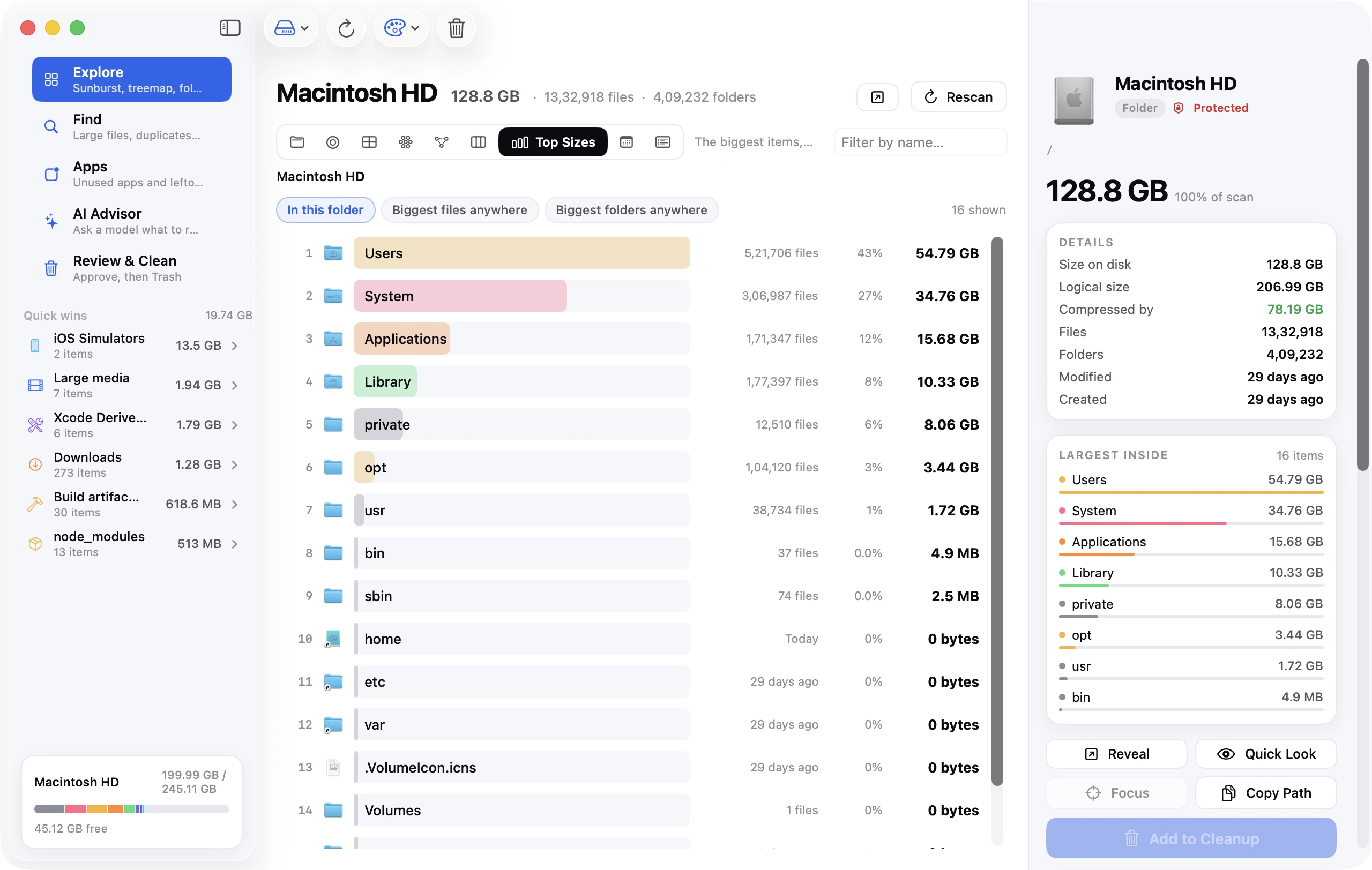
The best predictor of future use is present use. On the Mac you have now, open System Settings → General → Storage and note the used total. Then:
- Add 30 percent for growth over the life of the new Mac.
- Subtract things you'll move to the cloud or an external drive (old iPhone backups, a Photos library you'll optimise, a video archive).
- Compare with the "usable with headroom" column above.
If your current Mac has 200 GB used, a 256 GB replacement is a bad idea and 512 is the floor. If it has 350 GB used, 512 is tight and 1 TB is the comfortable pick. If it's a Windows PC, run the same arithmetic on its C: drive.
When cloud and external storage make a smaller drive work
They work for archives: things you keep but don't open daily. They don't work for working sets: the things you use constantly.
iCloud Photos with Optimise Mac Storage is the single most effective way to run a small drive, because the Photos library is usually the largest item on a Mac. It costs iCloud+ subscription money (200 GB or 2 TB plans) and it means browsing old photos needs an internet connection. For most people that trade is invisible.
iCloud Drive with Optimise Mac Storage does the same for documents, and Finder's Remove Download lets you evict any folder on demand. Works well for finished projects; poorly for a folder you're actively working in, which macOS will keep downloading.
External SSDs are fast and cheap per gigabyte, and a 1 TB Thunderbolt or USB4 drive costs a fraction of Apple's internal upgrade. They're excellent for a video archive, a second Photos library, a game library or a Time Machine backup. They're awkward as a permanent home for things a laptop uses daily, because the drive has to be attached. Photos libraries, Docker data and VM images can live on an external SSD; your Documents folder shouldn't.
What can't move: the operating system, the Applications folder in any practical sense, the iCloud Drive local mirror, caches, Mail and Messages data, and whatever project you're currently editing. That's the working set, and it needs to fit on the internal drive with room to spare.
The upgrade-tax question
Apple's storage tiers cost far more than the same capacity as an external SSD, and the gap is the whole reason this question exists. Two ways to think about it.
Per year of ownership. A 512-to-1 TB upgrade spread over five years is a small monthly number. Compare it with an iCloud+ plan you'd otherwise need, and the internal upgrade often wins outright for people who'd be paying for 2 TB of iCloud anyway.
Resale. Higher-storage Macs hold value better and sell faster. Some of the premium comes back.
The argument for skimping is strongest on the Neo, where the base price is low and a storage step is a large percentage, and for people whose usage is genuinely cloud-first. The argument for spending is strongest on a Pro that'll be a primary machine for years, where running out of space costs time every month for the life of the computer.
Frequently asked questions
Is 256 GB enough for a MacBook in 2026? For web, documents, streaming and school work with photos optimised in iCloud, yes, with regular cleanup. For photo or video libraries kept locally, development with Xcode or Docker, or games, no.
Is 512 GB enough for a MacBook Air? For most people, comfortably. It's the base configuration on the M5 Air for a reason. Move up to 1 TB if you edit video, keep raw photos locally, or run virtual machines.
How much storage does macOS take? Roughly 20 to 25 GB for macOS 27 Golden Gate itself, plus 13 to 35 GB of Apple Intelligence assets if those features are on. Budget about 40 GB before you install anything.
Can I upgrade MacBook storage later? No. The SSD is soldered on every current MacBook. External drives and iCloud are the only expansion routes, which is why this decision matters at purchase time.
Is 1 TB overkill for a MacBook Air? Not if you edit video, keep a large photo library locally, or develop with containers. Otherwise 512 GB will do the same job for less.
How much storage do I need for a MacBook for college? 512 GB covers almost every degree, including design and engineering programmes that use large applications. 256 GB works for writing-heavy courses with cloud-based files. Film and photography programmes should look at 1 TB.
Does more storage make a Mac faster? Not directly, but a nearly full drive is slower than one with headroom, because APFS and swap need free space to work with. In practice, more storage means fewer slowdowns from a full disk, not a faster SSD.
Whatever you choose, keep 15 percent free
The MacBooks that feel cramped aren't always the 256 GB ones. They're the ones where nobody has looked at the Storage panel in a year and iPhone backups, caches, snapshots and message attachments have quietly consumed the margin. Pick the tier that fits your working set with room to grow, then keep the recurring clutter in check. The complete guide to freeing up space on a Mac is the maintenance side of this decision, and it's what makes a 512 GB Mac feel like a 1 TB one.