9 min read
Messages Taking Up Space on Mac? How to Clear iMessage Attachments Safely
Messages stores every photo and video you've ever been sent at full size. Where it hides, the built-in tool for clearing it, and how to free the Mac without deleting from your iPhone.
- How-to
- Apps
- Storage
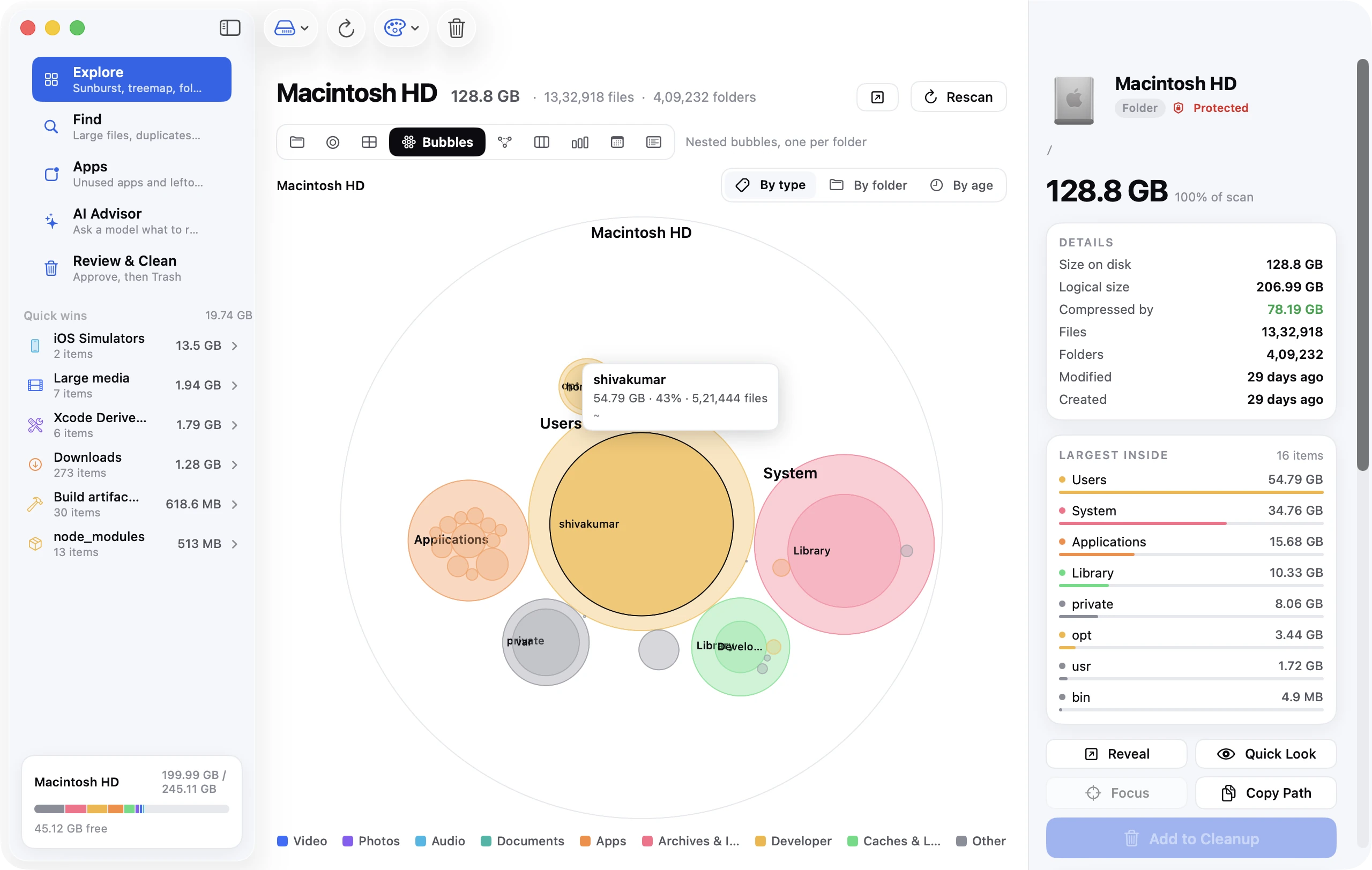
Messages is the app nobody expects to see at the top of the Storage list, and yet "Messages taking up 57 GB" and "Messages using 80 GB, unsure why" are among the most upvoted storage threads on r/MacOS. The reason is that every photo, video, voice memo, sticker and screen recording anyone has ever sent you is stored on your Mac at full size, in a folder you never see, and nothing removes it unless you do. This guide shows where that data lives, the built-in tool for clearing the worst of it, how to set messages to expire automatically, and the one approach that frees the space on your Mac without deleting anything from your iPhone.
The short version
- Messages stores its database and every attachment at
~/Library/Messages/. TheAttachmentsfolder is where the gigabytes are. - The fastest cleanup is built in: System Settings → General → Storage → Messages ⓘ, which lists photos, videos, GIFs and stickers, and your largest conversations, and lets you delete them by category.
- Set Messages → Settings → General → Keep messages to 30 Days or One Year to stop the archive growing forever.
- If Messages in iCloud is on, deleting on the Mac deletes everywhere. To clear the Mac only, turn off Messages in iCloud for this Mac first, then remove the local store.
- Signing out of iMessage does not delete the local copy. People try it, see no change, and ask why. The answer is below.
Where Messages stores its data on a Mac
Everything is under one hidden folder:
~/Library/Messages/
Inside:
chat.dbis the SQLite database of every conversation and message. On a long-lived account it can reach a few gigabytes on its own, but it's rarely the problem.Attachments/holds every file ever sent or received, sorted into nested folders with random names. Photos are stored at the resolution they were sent; videos are stored in full. This folder is the problem.chat.db-walandchat.db-shmare the database's working files.
To see how big each part is, run:
du -sh ~/Library/Messages/* 2>/dev/null
If Attachments is 20 GB and the rest is 500 MB, you know where to focus.
Why Messages gets so big
Three compounding causes:
Attachments are never expired. By default Keep messages is set to Forever. Every image from every group chat since you first signed in is still here, including the 40 near-identical photos your family shared from a single dinner.
Messages in iCloud downloads everything. When Messages in iCloud is enabled, your Mac syncs the full history from every device, not just what was sent while it was on. Set up a new Mac, sign in, and within a day it's downloaded ten years of attachments that were previously only on your phone's iCloud backup.
Videos and screen recordings are huge. A single one-minute video sent from an iPhone is 100 to 200 MB. A hundred of those over a few years is 15 GB.
The reason "sign out of Messages" doesn't help is that signing out only stops new messages arriving. It leaves chat.db and Attachments intact so that everything is there when you sign back in.
Step 1: Use the built-in Messages storage tool
Since macOS Ventura the Storage panel has a Messages review tool modelled on the one in iOS.
- Open System Settings → General → Storage.
- Wait for the categories to finish calculating, then click the ⓘ next to Messages.
- You'll see sections for Photos, Videos, GIFs and Stickers, Other Files and Top Conversations, each with a size.
- Click a category. Sort by size, select the items you don't need (⌘A selects all), and click Delete.
- Under Top Conversations you can delete whole conversations by size. Group chats that have been running for years are usually at the top.
This is the same data as the Attachments folder, presented so you can delete the biggest items without going through them chronologically. Deleting here removes the attachment from the message; the text stays.
Step 2: Delete conversations and attachments from inside Messages
For a more surgical pass, work in Messages itself.
Delete a whole conversation: right-click it in the sidebar and choose Delete Conversation. Everything in it, attachments included, goes.
Delete specific attachments in a conversation: open the conversation, click the ⓘ (details) button at the top right, and scroll through the Photos and other attachments listed there. Right-click any item and choose Delete. This is the quickest way to strip the videos out of a conversation while keeping the messages.
Find the biggest attachments across all conversations without the Storage tool:
find ~/Library/Messages/Attachments -type f -size +20M -exec ls -lh {} \; | awk '{print $5, $9}' | sort -rh | head -30
This lists every attachment over 20 MB with its size and path. Don't delete from here directly; note what's large, then remove it through Messages so the database stays consistent.
Step 3: Set messages to expire automatically
This is the setting that keeps Messages small permanently.
- Open Messages → Settings → General.
- Set Keep messages to One Year or 30 Days.
- Confirm the prompt. Messages older than the window are deleted right away, then continuously.
If Messages in iCloud is on, this setting is shared across your devices, so a 30-day window on the Mac is a 30-day window on your iPhone too. Choose the shortest window you're comfortable with everywhere. If you want a longer history on the phone than on the Mac, use the approach in Step 4 instead.
A useful middle ground for many people: One Year. It keeps the recent context you actually scroll back to and drops the years of accumulated group-chat photos.
Step 4: Free the space on the Mac without deleting from your iPhone
This is the most-asked version of the question and the one with the least clear answer online. Here's the approach that works.
The goal is to detach this Mac from the shared iCloud history, wipe its local copy, and let it carry only new messages going forward.
- Confirm your messages are in iCloud. On your iPhone: Settings → your name → iCloud → Show All → Messages in iCloud → on. If it's off, your phone has the only copy of its history and nothing about this process touches it; but also nothing protects it. Consider turning it on and letting it finish syncing before you continue.
- Turn off Messages in iCloud on the Mac only. Messages → Settings → iMessage → untick Enable Messages in iCloud. When asked, choose Disable This Device. The Mac stops syncing; other devices are unaffected.
- Sign out of iMessage on the Mac. Same settings pane → Sign Out.
- Quit Messages (⌘Q), and make sure it isn't running in the background.
- Move the local store to the Trash. In Finder press ⇧⌘G, go to
~/Library/Messages/, selectchat.db,chat.db-wal,chat.db-shmand theAttachmentsfolder, and move them to the Trash. Empty the Trash. - Sign back in to iMessage in Messages → Settings → iMessage, but leave Messages in iCloud off on the Mac.
From here the Mac receives new messages as they arrive and stores only those. Your iPhone keeps its full history in iCloud. If you later re-enable Messages in iCloud on the Mac, it will download the full history again, so treat that as a deliberate choice.
Step 5: Deal with the leftovers
After a big deletion, check two things.
Did free space actually come back? Run df -h / before and after. If Messages shrank but free space didn't, a Time Machine local snapshot is holding the deleted attachments until it expires. The snapshot guide shows how to clear it in one command.
Is there a second copy in Photos? If you've been saving images from Messages to Photos with the "Save" button, those are now in your Photos library too. Messages and Photos don't share storage; deleting from one doesn't touch the other. The duplicate photos guide covers finding those.
Frequently asked questions
Why is Messages taking up so much storage on my Mac?
Because every attachment ever sent or received is stored in ~/Library/Messages/Attachments at full size and never expires unless you set Keep messages to something other than Forever. With Messages in iCloud on, that includes attachments from before you owned this Mac.
How do I delete Messages storage on Mac without deleting on iPhone?
Turn off Messages in iCloud for the Mac (Disable This Device), sign out of iMessage, delete the contents of ~/Library/Messages, then sign back in with iCloud sync left off. Step 4 above walks through it.
Will signing out of Messages on Mac free up space? No. Signing out leaves the local database and attachments in place so they're available when you sign back in. You have to remove them separately.
Can I just delete the Attachments folder? Only with Messages quit and, ideally, Messages in iCloud disabled on the Mac first. Deleting attachments while sync is on can leave the database pointing at files that no longer exist, and the space may be re-downloaded from iCloud. The Storage tool in Step 1 is the safer route when sync is on.
Does "Keep messages: 30 days" delete messages on my iPhone too? If Messages in iCloud is on, yes: it's one shared history. If it's off, the setting is per device.
Where are Messages attachments stored on Mac?
~/Library/Messages/Attachments/. The path hasn't changed across recent macOS versions including Sequoia and Tahoe.
Messages says it's 30 GB but the Attachments folder is 5 GB. Why?
The Storage panel's Messages figure includes data in ~/Library/Containers/com.apple.MobileSMS and sticker and app caches in ~/Library/Containers/com.apple.MobileSMS/Data/Library/. Check those with du if the numbers don't add up. A restart also recalculates the Storage figures, which are sometimes stale.
Where this fits in a full cleanup
Messages is one of four apps that keep a private, complete archive in your Library folder without asking: the others are Mail (offline copies of every attachment), Photos (the library itself), and Finder (iPhone backups). If your disk is full, check all four; each has its own guide here, and the complete guide to freeing up space on a Mac ties them together.