11 min read
How to Delete Time Machine Local Snapshots on Mac (and Get Your Space Back)
Time Machine local snapshots quietly hold on to files you've deleted. Learn what they are, how to list and delete them with tmutil or Disk Utility, and which one to keep.
- Storage
- Time Machine
- How-to
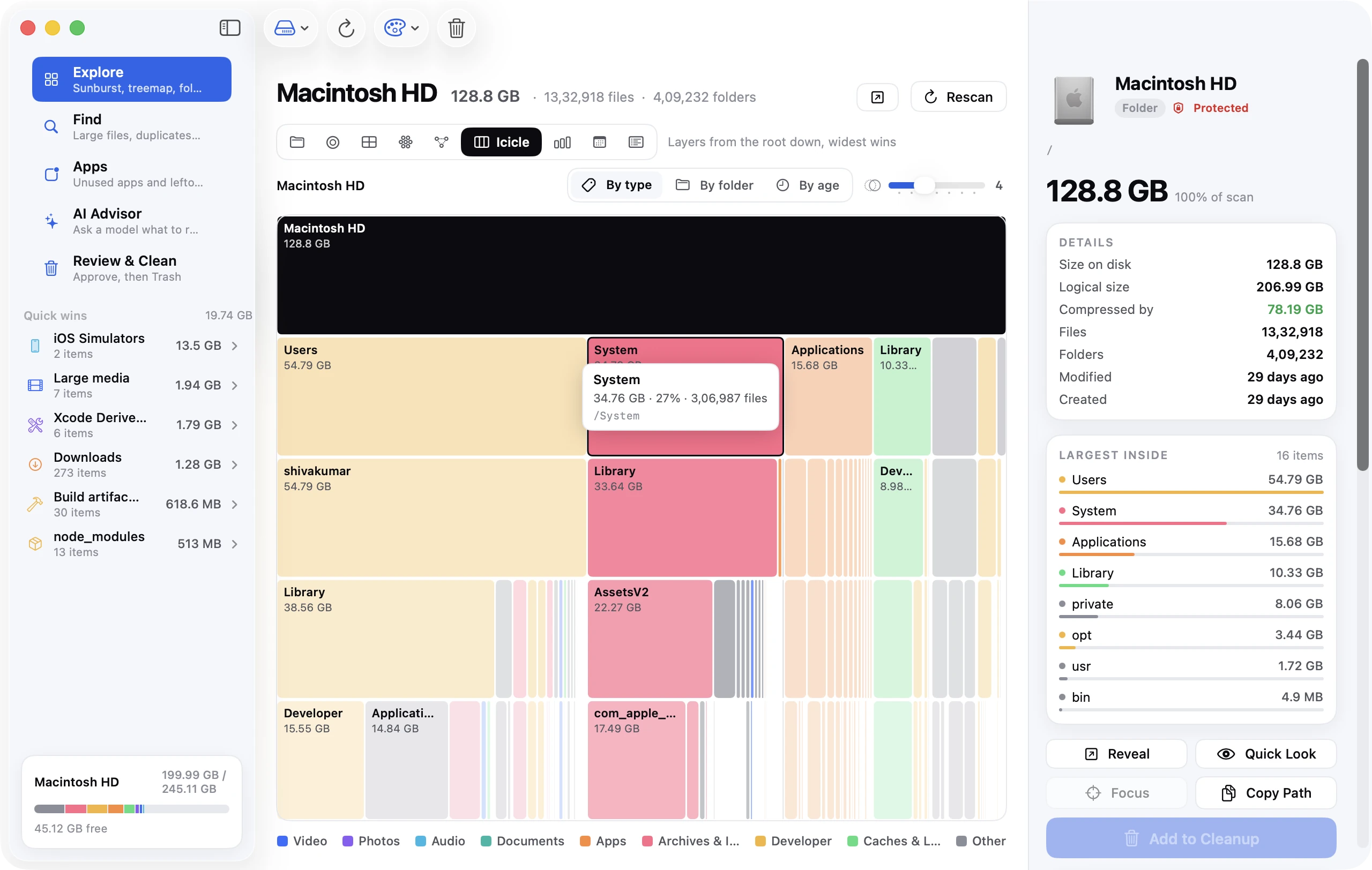
You deleted a 40 GB folder, emptied the Trash, and your Mac's free space didn't move. Or System Data is sitting at 90 GB and nothing you do makes it smaller. In both cases the most likely culprit is the same: Time Machine local snapshots, the hidden hourly copies of your disk that macOS keeps on the disk itself. This guide explains what they are, how to see exactly how much space they hold, how to delete them safely with Terminal or Disk Utility, and when you should leave them alone.
The short version
- Local snapshots are point-in-time copies of your startup disk that Time Machine makes every hour, stored on the same disk, so you can restore files even when your backup drive isn't plugged in.
- They're normally deleted after 24 hours, but a snapshot taken before you deleted something keeps that something alive on disk until the snapshot goes.
- To see them:
tmutil listlocalsnapshots / - To delete them all:
tmutil deletelocalsnapshots /(or delete individual ones by date) - It's safe to delete every snapshot except the most recent one, as long as your Time Machine backup drive is healthy.
- Snapshots count as used space (usually inside System Data), not "purgeable" space, which is why they hide so well.
What a Time Machine local snapshot actually is
Since macOS High Sierra every Mac startup disk uses APFS, Apple's file system, and APFS can take a snapshot: a frozen, read-only record of every file on the volume at one instant. A snapshot costs almost nothing to create because it doesn't copy anything. It just tells the file system "keep the blocks that exist right now, even if the live files change or get deleted."
Time Machine uses this to give you hourly restore points that don't depend on your backup drive. If you're on a MacBook away from your Time Machine disk, you can still open Time Machine, scroll back a few hours and pull out the earlier version of a document. That's the local snapshot doing its job.
The catch is where the space goes. When you delete a 5 GB video, the blocks it occupied can't be reused while a snapshot still references them. The Finder shows the file as gone, the Trash is empty, and yet 5 GB stays allocated until the snapshot that remembers the file is removed. Multiply that by a day of edits, downloads and deletions and a snapshot can quietly pin tens of gigabytes.
Apple's own rule is that Time Machine deletes local snapshots when they're more than 24 hours old (except the very last one) and also thins them out when the disk gets close to full. In practice it doesn't always do that as aggressively as you'd like, snapshots taken before a big deletion can hang around, and some snapshots are created by other things entirely (macOS installers, Carbon Copy Cloner, some antivirus and backup tools) and never get thinned by Time Machine at all.
Where snapshots show up in the Storage settings
Open System Settings → General → Storage. Snapshot space isn't listed on its own. It's folded into System Data (or "macOS" on some versions), which is why so many "System Data is huge" threads end with someone discovering it was snapshots all along. If System Data is much larger than the sum of the things you can actually find on disk, snapshots are the first thing to check.
Older guides say snapshots are "purgeable" space. That's not right on current macOS. Purgeable space is data macOS can throw away on its own (certain caches, optimised iCloud files); snapshots are under Time Machine's control and are counted as used. The purgeable space guide covers the difference in more depth.
Step 1: See how many snapshots you have and how big they are
Open Terminal (Applications → Utilities → Terminal, or search "Terminal" in Spotlight) and run:
tmutil listlocalsnapshots /
You'll get a list like this:
Snapshots for disk /:
com.apple.TimeMachine.2026-09-18-101512.local
com.apple.TimeMachine.2026-09-18-111603.local
com.apple.TimeMachine.2026-09-18-121533.local
com.apple.TimeMachine.2026-09-19-081204.local
Each line is one snapshot, named by the date and time it was taken (year-month-day-hourminutesecond). Four or five entries spanning the last day is normal. Twenty entries, or entries from days ago, means thinning isn't keeping up.
tmutil doesn't tell you the size. For that, use diskutil:
diskutil apfs listSnapshots /
This lists every APFS snapshot on the startup volume, including ones not made by Time Machine, with a Purgeable line (yes or no) for each. It does not show sizes; Disk Utility (below) does, and the quickest accurate way to see the total is to compare the free space Finder reports before and after deleting snapshots.
Step 2: Delete snapshots with Terminal
There are three levels of aggression. Pick the one that matches your situation.
Delete one specific snapshot
Copy the date portion from the list (everything between TimeMachine. and .local) and pass it to deletelocalsnapshots:
tmutil deletelocalsnapshots 2026-09-18-101512
You'll see Deleted local snapshot '2026-09-18-101512'. This is the right move when you know which snapshot is holding the big file: the one taken just before you deleted it.
Delete every snapshot on the startup disk
tmutil deletelocalsnapshots /
Passing a mount point instead of a date removes all Time Machine local snapshots on that volume in one go. Free space appears within a few seconds, though Finder's number can lag; open a new Finder window or run df -h / to see the updated figure.
To keep the most recent snapshot and delete the rest, list them, then delete each older one by date. A one-liner that does exactly that:
tmutil listlocalsnapshots / | grep -o '[0-9-]\{17\}' | sed '$d' | xargs -n1 tmutil deletelocalsnapshots
(sed '$d' drops the last, newest line before the deletions run.)
Ask Time Machine to thin snapshots itself
thinlocalsnapshots tells Time Machine to free up a target amount of space, with an urgency from 1 (gentle) to 4 (aggressive):
tmutil thinlocalsnapshots / 20000000000 4
That asks for roughly 20 GB (the number is in bytes) at maximum urgency. It's the closest thing to what macOS does automatically when the disk fills up, and it's useful if you'd rather let Time Machine pick which snapshots go.
Step 3: Delete snapshots with Disk Utility (no Terminal)
Disk Utility has had a snapshot browser since macOS Big Sur, and it's the easiest way to see sizes.
- Open Disk Utility (Applications → Utilities).
- In the sidebar select your startup volume. It's usually Macintosh HD - Data under the Macintosh HD container; select the Data volume, since that's where user files and snapshots live.
- Choose View → Show APFS Snapshots from the menu bar.
- A table appears below the volume info listing every snapshot with its date, size and whether it's "tidemark" (private to the file system) or not.
- Click a snapshot and press the – (minus) button, or right-click it and choose Delete. You can ⌘-click several to delete them together.
Disk Utility shows the same snapshots diskutil does, so system-update and third-party snapshots appear here too. Deleting a com.apple.os.update snapshot from Disk Utility is possible but pointless unless it's weeks old; it removes the ability to roll back the update and usually saves little.
Step 4: Confirm the space came back
Run:
df -h /
and compare the Avail column with what it was before. If Finder's Get Info still shows the old number, that's just Finder caching the figure; it catches up after a minute or when you open a new window. Then re-check System Settings → General → Storage. System Data should have dropped by roughly the total snapshot size.
If free space didn't change, the snapshots weren't the problem. Work through the startup disk full even after deleting files checklist: the Trash on external drives, Mail and Messages caches, and old iOS backups are the usual next suspects.
Should you keep the most recent snapshot?
Yes, if it's cheap to do so. Two reasons:
It's your only local restore point. If something goes wrong in the next hour and your backup drive isn't attached, the newest snapshot is the one you'd want. It's also almost always the smallest, because it differs least from what's on the disk right now.
Time Machine may want it for the next backup. Since macOS Catalina, Time Machine works out what changed using the file system's events database rather than comparing snapshots, so deleting snapshots doesn't normally break anything. But if that database is damaged, Time Machine falls back to comparing the last backup's snapshot with the current one. Without it, the next backup can be much larger than it needs to be. Keeping the newest snapshot avoids that.
If you're desperate for space, deleting everything including the newest one is still safe in the sense that no data is lost; your actual backups on the external drive are untouched.
How to stop snapshots from piling up
Deleting snapshots is a fix; these settings stop the problem returning.
Keep your backup drive connected regularly. Snapshots are thinned after a successful backup. A MacBook that hasn't seen its Time Machine disk in a week accumulates more than one that backs up daily. Network Time Machine (a NAS, or a Mac on the same Wi-Fi) counts.
Don't disable Time Machine just to stop snapshots. Turning off automatic backups (System Settings → General → Time Machine → Options → Back up frequency: Manually) does stop hourly snapshots, and macOS removes the existing ones shortly afterwards. But you lose hourly backups too. If you want backups without snapshots, that isn't a supported combination on macOS; the better trade is to leave Time Machine on and clear snapshots when needed.
Watch what you delete in bulk. If you're about to move 100 GB of video off the internal disk, do it, then immediately run tmutil deletelocalsnapshots / so the space comes back now rather than tomorrow.
Exclude churny folders from Time Machine. Snapshots still capture excluded items, so exclusions don't shrink snapshots directly. But if you exclude folders that change constantly (VM disk images, Docker data, build output), backups finish faster and thinning runs on schedule.
Frequently asked questions
Is it safe to delete Time Machine local snapshots? Yes. Snapshots are a convenience layered on top of your real backups. Deleting them doesn't touch the backups on your external drive, and it doesn't delete any current file. The only thing you lose is the ability to restore a version from the last 24 hours without the backup drive.
Why does Time Machine take up space on my Mac when it backs up to an external drive? Because of local snapshots. Time Machine writes hourly snapshots to the internal disk in addition to the external backup. They're usually small and short-lived, but they can balloon after big deletions.
Do local snapshots exist if I don't use Time Machine?
Time Machine's snapshots won't, but macOS still creates snapshots before system updates, and any third-party backup app may make its own. diskutil apfs listSnapshots / shows all of them regardless of origin.
Does clearing snapshots make System Data smaller? Usually, yes. Snapshot space is reported under System Data in the Storage settings. If System Data stays large after clearing them, the System Data guide walks through the other categories that hide there.
Can I delete snapshots on an external APFS drive?
Yes. Replace / with the drive's mount point, for example tmutil deletelocalsnapshots /Volumes/External. Time Machine only creates local snapshots on the drives it backs up, so most external drives won't have any unless a cloning tool made them.
How much space should this free up? Anywhere from nothing to hundreds of gigabytes. A typical day's snapshots hold 1 to 10 GB. After a large deletion or a macOS upgrade they can hold whatever you removed. There's no way to know without checking, which is why listing them is the first step.
Snapshots are one line item, not the whole picture
If you got here because your disk is full, snapshots may be the entire answer or just a chunk of it. The usual companions are caches (~/Library/Caches can hold 20 GB on its own), old iPhone and iPad backups, a bloated Photos library, and Mail's offline copies of every attachment you've ever received. Each has its own guide on this blog, and the complete guide to freeing up space ties them together in the order that recovers the most space fastest.