10 min read
What Is “System Data” on Mac and How to Reduce It
System Data eating 50, 100 or 200 GB? Here's what macOS actually counts in that category, why it grows, and the safe ways to shrink it — Time Machine snapshots, caches, logs and more.
- Storage
- macOS
Open System Settings → General → Storage on almost any Mac and you'll find a grey bar labelled System Data that is bigger than you expected — 30 GB is common, 100 GB isn't rare, and people regularly report 200 GB or more. There is no folder called "System Data" you can open, and Apple's own explanation is a single sentence. This guide explains what's in it, why it grows, and how to shrink it safely.
What macOS counts as System Data
The Storage pane sorts your files into named categories: Applications, Documents, Photos, Mail, Messages, Music, iCloud Drive and so on, plus a fixed slice for macOS itself. System Data is everything left over — every file that doesn't belong to one of those categories. In practice that means:
| What | Where it lives | Typical size |
|---|---|---|
| App caches | ~/Library/Caches, /Library/Caches | 2–30 GB |
| App support files & databases | ~/Library/Application Support, ~/Library/Containers, ~/Library/Group Containers | 5–50 GB |
| Time Machine local snapshots | hidden APFS snapshots on the startup volume | 0–80 GB |
| Logs and diagnostics | ~/Library/Logs, /Library/Logs, /private/var/log, /private/var/db/diagnostics | 0.5–10 GB |
| iOS/iPadOS device backups | ~/Library/Application Support/MobileSync/Backup | 0–100 GB |
| Swap and sleep image | /private/var/vm | 1–20 GB |
| Developer tooling | ~/Library/Developer (Xcode DerivedData, simulators, device support) | 0–100 GB |
| Virtual machines & containers | Docker, Parallels, UTM disk images | 0–200 GB |
| Spotlight index, fonts, plug-ins, temporary files | various | 1–5 GB |
| Downloaded macOS installers | /Applications/Install macOS ….app (counted as an app), update payloads in /Library/Updates | 0–15 GB |
Anything that was a category on its own on an older macOS but no longer is — the "Other" of pre-Monterey days — ended up here too.
Why it gets so big
Three mechanisms explain almost every oversized System Data figure:
-
Time Machine local snapshots. When Time Machine is enabled but your backup disk isn't plugged in, macOS takes an hourly snapshot of the startup disk so it can back up the changes later. Snapshots are kept for up to 24 hours — but a snapshot holds onto every file that existed when it was taken, including the ones you delete afterwards. Delete a 40 GB folder and the space doesn't come back until the snapshot referencing it expires. Snapshots count as "purgeable", which the Storage pane rolls into System Data.
-
Apps that cache without limit. Browsers, Spotify, Slack, Teams, Discord, Adobe Creative Cloud, Steam, Dropbox, Google Drive and most Electron apps keep caches that only get cleaned when the app decides to. Some never do. Xcode is the champion: its DerivedData and simulator folders routinely pass 50 GB.
-
Leftovers from uninstalled apps. Dragging an app to the Trash leaves its Application Support folder, caches, containers and logs behind, and nothing ever removes them. Years of installing and removing software adds up.
How to reduce System Data, step by step
Work through these in order. The first two usually recover the most.
1. Thin Time Machine local snapshots
Check whether you have any:
tmutil listlocalsnapshots /
If the command lists dates, you can ask macOS to free space by deleting the oldest ones. This requests 30 GB with urgency level 4 (the highest):
tmutil thinlocalsnapshots / 30000000000 4
Or delete one directly using a date from the list:
tmutil deletelocalsnapshots 2026-09-10-093012
The cleanest fix is simply to plug in your Time Machine disk and let a backup finish — completed snapshots are removed once their contents are on the backup drive. If you don't use Time Machine at all, turn it off in System Settings → General → Time Machine and the snapshots stop.
2. Clear app caches
Open Finder, press ⇧⌘G, enter ~/Library/Caches and sort by size. Delete the contents of the largest folders, not the folders themselves, and quit the app first. Caches rebuild on the next launch; the only cost is a slower first start.
The equivalent Terminal command, for the brave:
du -sh ~/Library/Caches/* 2>/dev/null | sort -h | tail -15
Our cache guide covers browser caches and the ones you should leave alone.
3. Delete old device backups
Finder → select any iPhone/iPad in the sidebar (or open Finder → Settings → Sidebar → CDs, DVDs and iOS Devices if you don't see one) → Manage Backups…. Every backup listed lives on your Mac. Delete the ones for devices you no longer own or that you now back up to iCloud.
Without a device connected you can go straight to the folder: ~/Library/Application Support/MobileSync/Backup. Each subfolder is one backup; the folder's modification date tells you how old it is.
4. Remove leftovers from apps you've uninstalled
Look through ~/Library/Application Support, ~/Library/Containers and ~/Library/Caches for folders named after apps you no longer have. Anything with a company or app name you don't recognise is worth a search before deleting. The complete uninstall guide lists every location apps use.
5. Developer tooling
If Xcode is installed, this alone can be half of System Data:
rm -rf ~/Library/Developer/Xcode/DerivedData
xcrun simctl delete unavailable
rm -rf ~/Library/Developer/Xcode/iOS\ DeviceSupport/*
DerivedData is rebuilt on the next build, unavailable simulators are ones whose runtime you no longer have, and iOS DeviceSupport is re-downloaded the next time you plug in a device running that iOS version. Docker Desktop keeps its whole virtual disk in one file (Docker.raw) that only shrinks when you prune from inside Docker: docker system prune -a. The developer Mac guide covers Homebrew, npm, pip and more.
6. Logs
Logs are rarely huge but easy to clear. ~/Library/Logs and /Library/Logs can be emptied. Unified system logs in /private/var/db/diagnostics are managed by macOS and occasionally bloat after a crash loop; if that folder is over a few gigabytes, a restart usually lets macOS trim it.
7. Restart
Swap files in /private/var/vm are recreated on every boot. If you haven't restarted in weeks and System Data has crept up, a restart can drop it by several gigabytes on its own.
Reading the result
After all of this, give the Storage pane a few minutes, or close and reopen System Settings, before judging the effect. The categories are recomputed lazily.
A realistic target for a Mac without developer tools or VMs is 10–25 GB of System Data. Macs with Xcode, Docker or Parallels installed will sit higher, and that's fine as long as you know what's in there.
What you can't (and shouldn't) remove
- The macOS category is the operating system on its sealed system volume. You can't shrink it, and you don't need to.
/private/var/vm/sleepimage(the hibernation file, usually the size of your RAM) is recreated as needed. You can delete it, but it comes back; disabling hibernation withpmsetis a bad trade on a laptop.- Spotlight's index is small and rebuilding it costs hours of CPU. Leave it.
- Anything under
/Systemis read-only. Tools that claim to clean it are lying.
Doing this in one scan
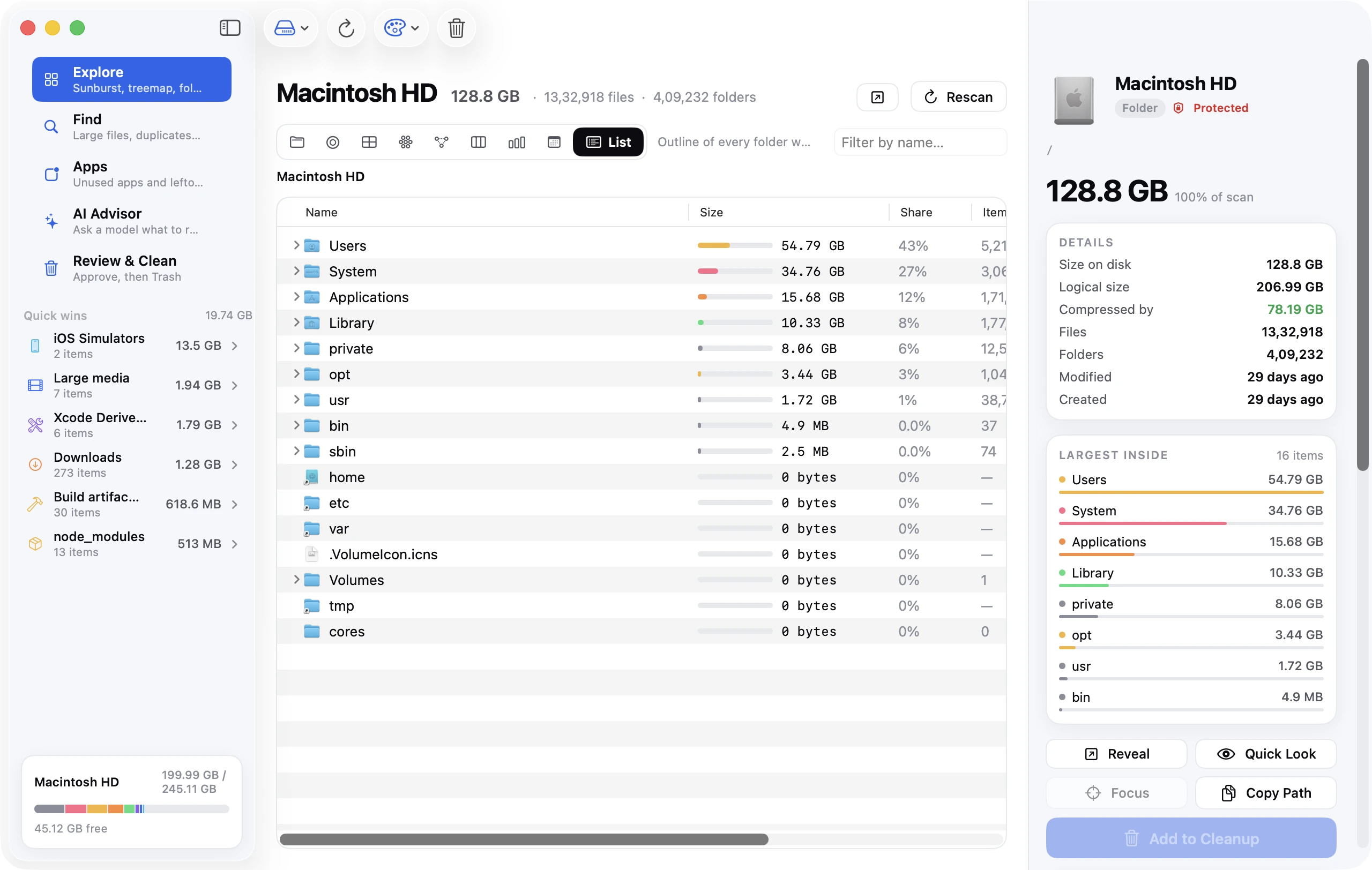
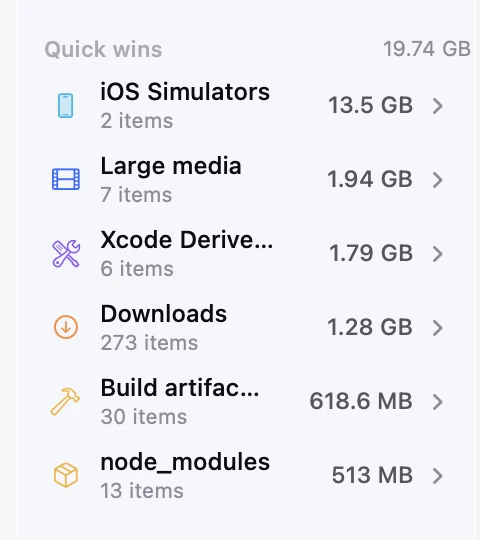
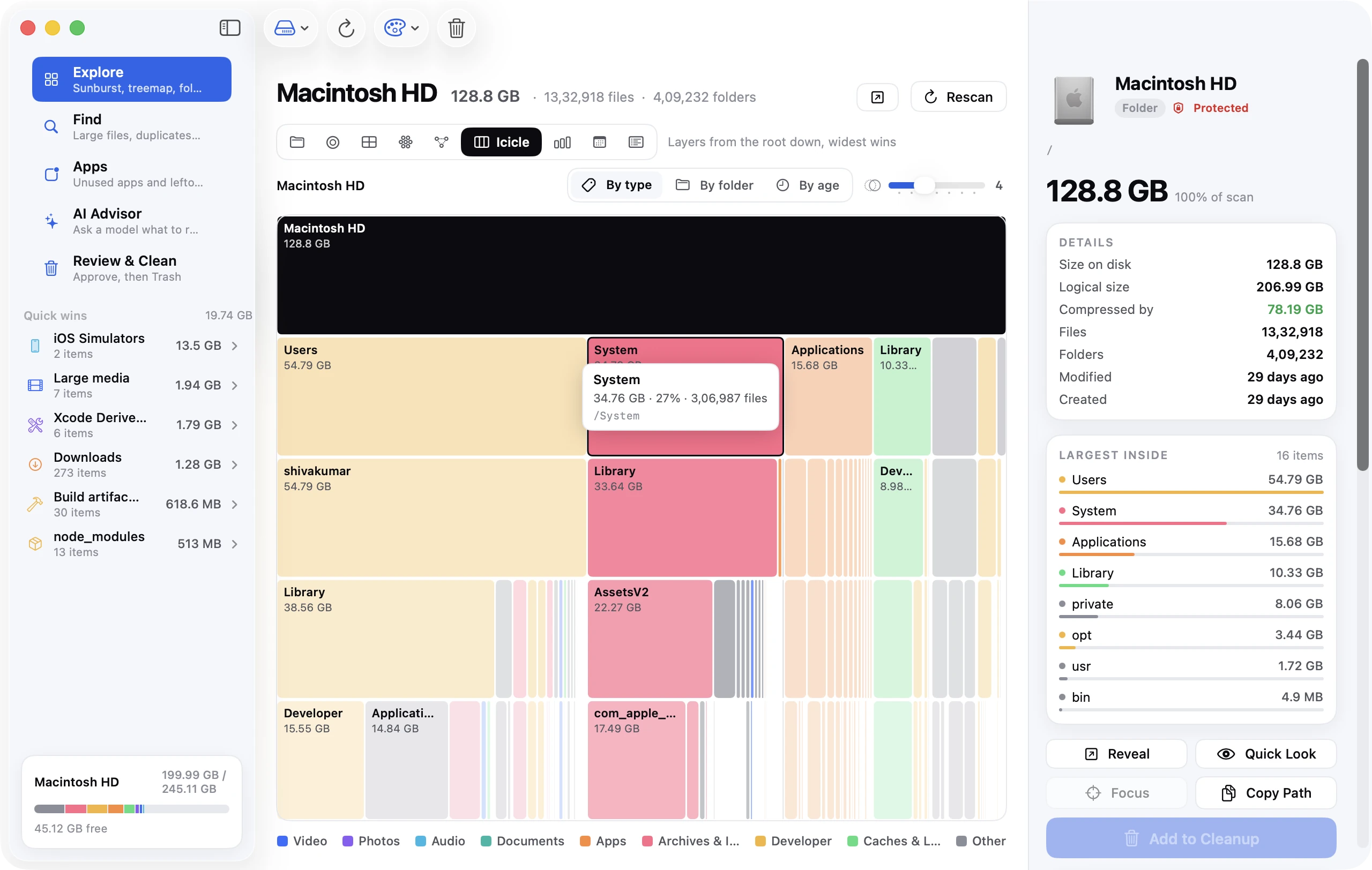
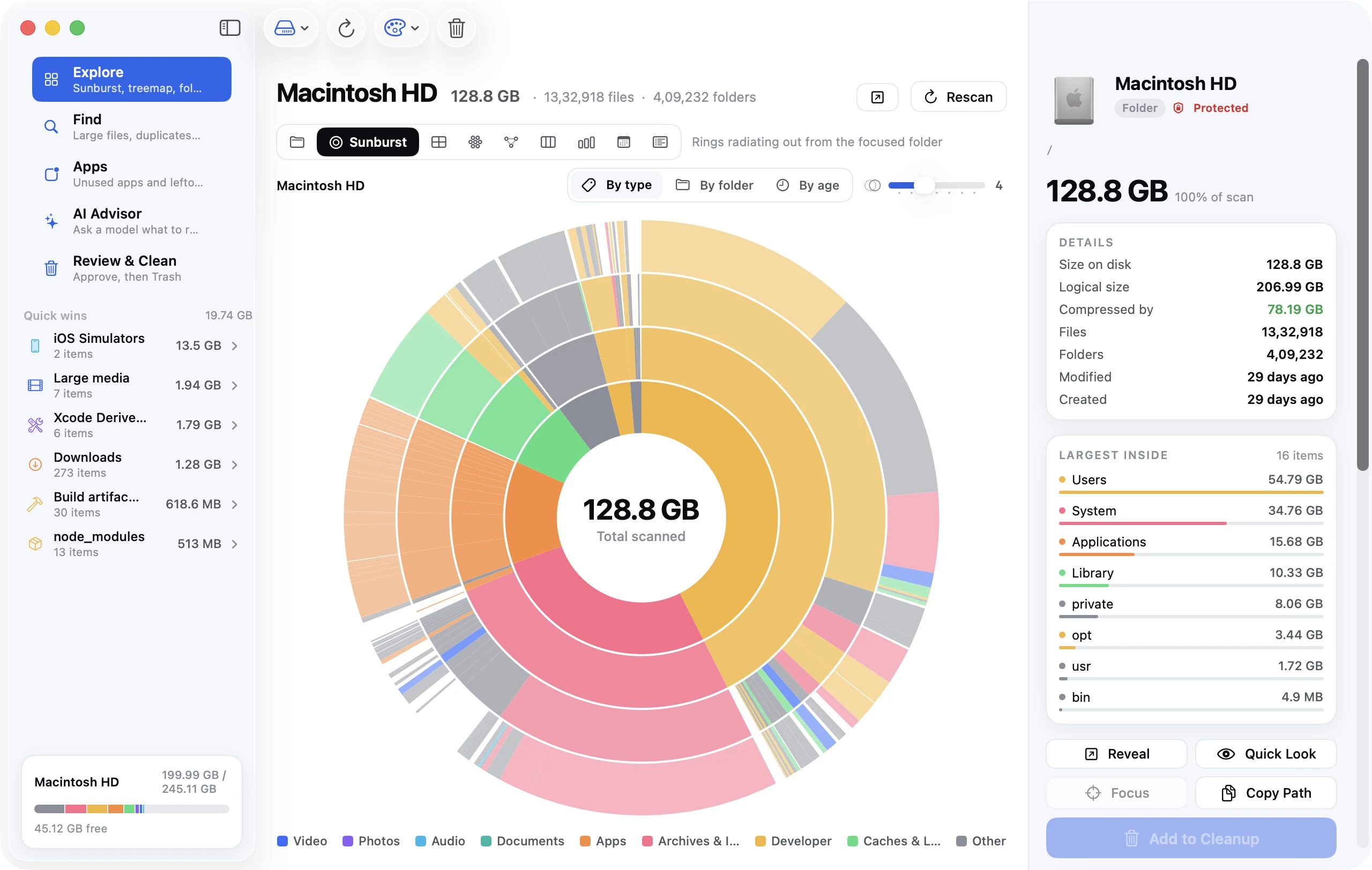
Disk Clean AI's Quick Wins list covers most of this article in one scan: caches and logs, the Trash, Xcode DerivedData, iOS simulators, build folders and node_modules, each shown with its size, and it removes only what you tick. The optional AI Advisor then goes through the rest of the scan's metadata (paths, sizes and dates — never file contents) and explains what the remaining big folders are. The Explore views then show what's left of System Data as a treemap so nothing stays mysterious. Nothing is deleted without your approval, and approved items go to the Trash first.
FAQ
Why is System Data 100+ GB on my Mac?
Almost always Time Machine local snapshots, a developer toolchain (Xcode, Docker), or one app caching without limit. Run tmutil listlocalsnapshots / first; if there are snapshots, thin them and re-check the pane.
Does deleting System Data delete macOS?
No. macOS lives in its own category and on a sealed, read-only volume. System Data is user-level and app-level files: caches, logs, snapshots, backups and support files.
Will System Data grow back?
Some of it: caches refill as you use apps, snapshots return until Time Machine backs up, swap is recreated. That's expected. What shouldn't come back is the multi-gigabyte junk from apps you've already removed.
Is "purgeable" space free space?
Not quite. Purgeable space (snapshots, iCloud-optimised files) can be reclaimed by macOS when it's desperate, but macOS waits until you're nearly out of disk. Treat it as space you have to ask for, and use the tmutil commands above to ask.