11 min read
Mac Photos Library Too Big? How to Shrink It or Move It to an External Drive
Why a Photos library is bigger than the photos in it, safe ways to shrink it without losing a picture, and how to move it to an external SSD without breaking iCloud Photos.
- How-to
- Photos
- Storage
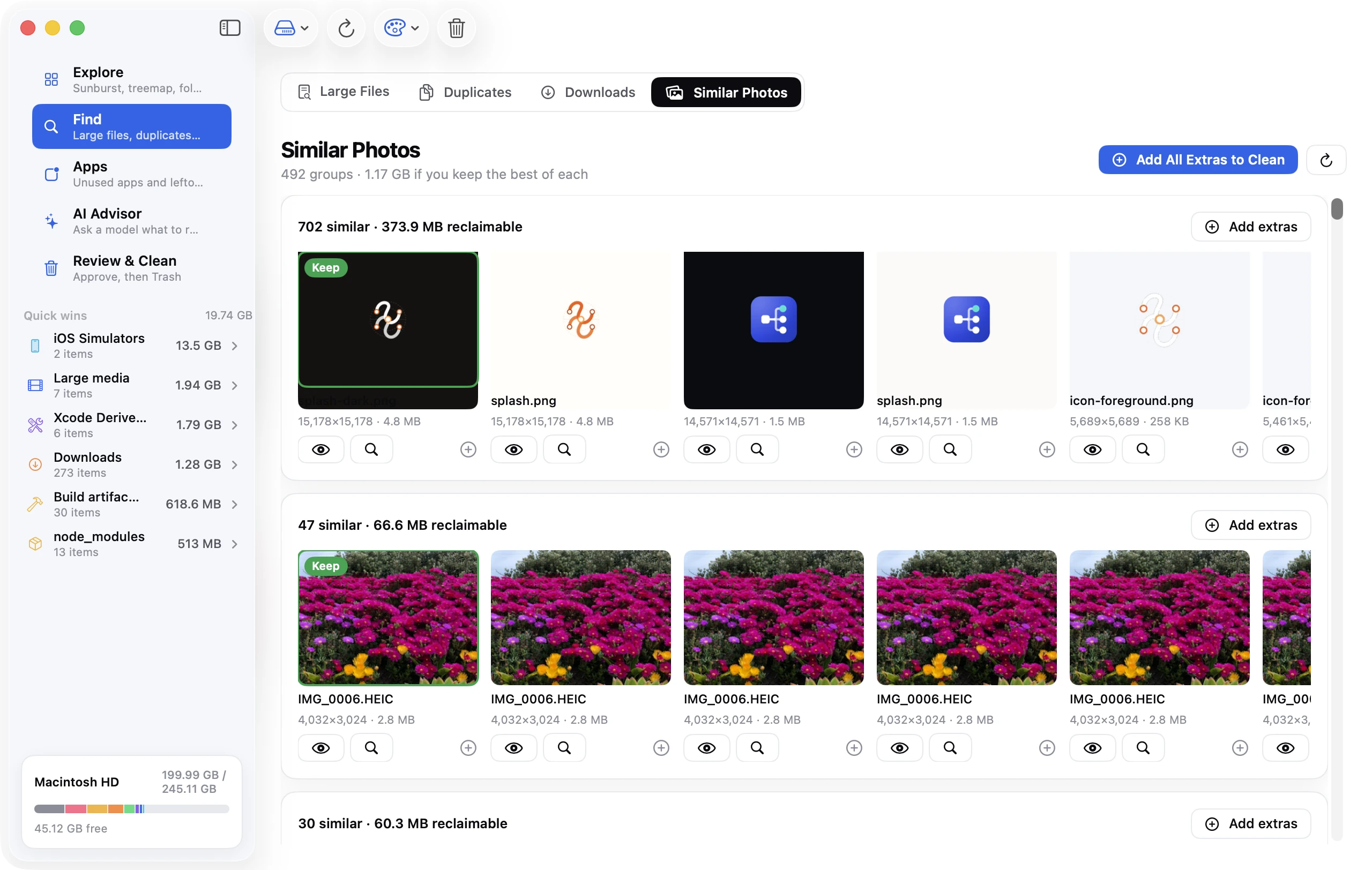
A Photos library is often the single largest thing on a Mac. On a 256 GB or 512 GB machine it's common for Photos Library.photoslibrary to hold 100 to 300 GB, and in the Reddit thread that starts many people's search, one owner found a 261 GB library holding what they believed was 152 GB of photos. This guide explains what's actually inside the library, why it's bigger than your photos, how to shrink it without losing a single picture, and how to move it to an external drive properly (there's a wrong way that breaks iCloud Photos).
The short version
- The library is a package at
~/Pictures/Photos Library.photoslibrary. It holds originals, plus a second copy of everything as previews and thumbnails, plus the database. The second copy is why it's larger than your photos. - The biggest safe wins, in order: empty Recently Deleted, merge the Duplicates album, turn on Optimise Mac Storage if you use iCloud Photos, and delete the handful of long videos that account for most of the size.
- To move the library to an external drive: quit Photos, copy the package to a Mac-formatted drive, open Photos while holding ⌥ and pick the new location, then set it as the System Photo Library. Only then delete the internal copy.
- Optimise Mac Storage won't free space instantly. It evicts originals gradually and only when the disk is under pressure. That's by design, not a bug.
What's inside a Photos library
The .photoslibrary file is a package, a folder that Finder displays as a single item. Right-click it and choose Show Package Contents to see:
originals/: every photo and video at full resolution, exactly as imported. This is what you'd expect the library to be.resources/derivatives/: previews and thumbnails Photos generates for every item, at several sizes, so browsing is instant. On a large library this folder can be 20 to 40 percent the size oforiginals. For videos, it holds transcoded preview versions that can be nearly as large as the original.database/: the SQLite database of albums, metadata, faces, places, memories and edit history. Usually a few hundred megabytes to a few gigabytes, but edits are stored non-destructively, so heavily edited libraries carry more here.private/,scopes/and other folders: iCloud sync state, shared library data and caches.
This is why a library can be 60 to 110 GB larger than the photos in it. It isn't an error and the extra data isn't safe to delete by hand.
Step 1: Check the real size and how it's split
System Settings → General → Storage shows a Photos category. That figure includes the library plus the Photos app's caches, so it's the number to watch.
For the split between originals and derivatives, Terminal is quicker than Finder's Get Info (which takes a long time to calculate on a large package):
du -sh ~/Pictures/Photos\ Library.photoslibrary/originals ~/Pictures/Photos\ Library.photoslibrary/resources 2>/dev/null
If originals is most of the total, the wins are in Steps 2 to 5. If resources is unexpectedly large (bigger than originals), the derivatives cache may be bloated; see the repair note near the end.
Step 2: Empty Recently Deleted
Deleting a photo moves it to the Recently Deleted album, where it stays for 30 days. On a Mac where someone has just cleared out a few thousand screenshots, that album alone can hold gigabytes that don't come back until the timer runs out.
In Photos' sidebar under Utilities, click Recently Deleted, then Delete All (top right). If the sidebar's Utilities section is collapsed, hover over it and click Show.
Step 3: Merge the Duplicates album
Since macOS Ventura, Photos scans for exact and near-exact duplicates and lists them under Utilities → Duplicates. It catches the same image imported twice, a photo and its AirDropped copy, and bursts of identical frames.
Open the album, review the pairs, and click Merge for each (or select many and merge together). Photos keeps the highest-quality version and combines the metadata. Merged duplicates go to Recently Deleted, so return to Step 2 afterwards.
The album only finds duplicates Photos considers safe to merge. For near-duplicates that differ slightly (a burst, several attempts at the same shot), the duplicate and similar photos guide covers tools that go further.
Step 4: Find and delete the biggest items
Photos has no "sort by size," which makes this harder than it should be. Two approaches:
Start with videos. In the sidebar under Media Types, click Videos. Select a video and press ⌘I to see its duration and file size. Long 4K clips at 60 fps are 400 MB per minute; a library's fifty largest videos often outweigh its fifty thousand photos. Screen recordings and forgotten Live Photo videos also pile up here.
Find the largest originals from Terminal, then locate them in Photos:
find ~/Pictures/Photos\ Library.photoslibrary/originals -type f -size +500M -exec ls -lh {} \; | awk '{print $5, $9}' | sort -rh | head -20
The filenames in originals are UUIDs, not the names you know, so use the results for a sense of scale rather than identification. To track a specific large file down inside Photos, note its modification date from the ls output, open the Videos album, and scroll to that date; there is no list view or size column in Photos, so the date is the quickest handle.
Delete what you don't need in Photos (select → Delete key → confirm), then empty Recently Deleted again.
Step 5: Turn on Optimise Mac Storage (iCloud Photos users)
If iCloud Photos is on and you're paying for enough iCloud storage to hold the whole library, the Mac doesn't need to keep full-resolution originals locally.
- Photos → Settings → iCloud.
- Ensure iCloud Photos is ticked.
- Select Optimise Mac Storage (instead of Download Originals to this Mac).
From now on Photos keeps full-resolution originals for recent and frequently viewed items and replaces older ones with smaller versions, downloading originals on demand when you open or export them.
Three things people get wrong about this setting:
- It's gradual. Photos evicts originals in the background, mostly when the Mac is plugged in and idle, and mostly when free space is getting low. Turning it on doesn't free 100 GB in a minute. Leave the Mac on and plugged in overnight and check in the morning.
- It can't be forced. There's no "optimise now" button. If you need the space today, the alternative is moving the library (Step 6).
- It only helps if iCloud has everything. If iCloud Photos has been paused for lack of iCloud space, nothing can be evicted, because the cloud copy doesn't exist. Check for a "Not enough iCloud storage" banner at the bottom of the Photos window first.
The trade-off is that browsing older photos needs an internet connection to fetch the original, and exporting a large batch triggers a large download. For most people that's invisible; for photographers who edit offline it isn't.
Step 6: Move the library to an external drive
This is the right answer when the library is simply too big for the internal disk and you want to keep everything at full resolution.
Requirements for the drive: formatted as APFS or Mac OS Extended (Journaled). Not exFAT, not FAT32, not NTFS. Photos refuses to open a library on those, and a library on a NAS is unsupported (it usually works until it corrupts). An SSD is strongly recommended; a spinning disk makes browsing noticeably slower.
- Quit Photos.
- In Finder, open the drive and check File → Get Info → Sharing & Permissions. Make sure Ignore ownership on this volume is unticked. If it's ticked, Photos won't be able to open the library.
- Drag
Photos Library.photoslibraryfrom~/Picturesto the external drive. Wait for the copy to finish. On a 200 GB library over USB-C this takes 10 to 30 minutes. - Open Photos while holding the ⌥ (Option) key. In the library chooser click Other Library…, navigate to the copy on the external drive, and open it.
- Let Photos open and check that everything's there.
- If you use iCloud Photos: Photos → Settings → General → Use as System Photo Library. Only the System Photo Library syncs with iCloud, and iCloud Photos will now continue from the new location. Photos may take a while to re-verify against iCloud, but it doesn't re-upload.
- Once you've confirmed the external copy works and iCloud is syncing, move the internal
Photos Library.photoslibraryto the Trash and empty it.
Step 7: Consider a smaller internal library for everyday use
A hybrid approach many people settle on: keep the full archive on an external drive as a plain library, and keep a smaller System Photo Library on the internal disk with iCloud Photos and Optimise Mac Storage on. New photos flow into the small one; every year or so you export the year's originals to the archive library (File → Export → Export Unmodified Originals) and delete them from the small one. It's more work than either extreme, but it keeps the laptop light and the archive complete.
When the library is bigger than it should be
If resources/derivatives is larger than originals, or the library size keeps growing without new imports, the derivative cache or database may need rebuilding.
Repair the library: quit Photos, then open it while holding ⌥⌘ (Option and Command). Click Repair and enter your password. Photos checks the database and rebuilds what it needs to. It can take an hour on a large library, and it may temporarily increase the size while it works, so make sure there's free space first. Repair never deletes photos.
If the size doesn't come down after a repair, the bloat is real content, most likely video, and Step 4 is the answer.
Frequently asked questions
Why is my Photos library so much bigger than my photos? Because it stores previews and thumbnails alongside every original, plus edit history and metadata. A 40 to 70 percent overhead is normal; 100 percent or more suggests the derivatives cache needs a repair.
Does deleting photos on my Mac delete them from iCloud and iPhone? With iCloud Photos on, yes: it's one shared library. Deleted items sit in Recently Deleted on every device for 30 days first. With iCloud Photos off, the Mac library is independent.
Optimise Mac Storage isn't freeing any space. Why? Because it works gradually and only under disk pressure, and only for items already fully uploaded to iCloud. Check for an iCloud storage warning in Photos, leave the Mac plugged in overnight, and if you need the space today, move the library instead.
Can I keep the Photos library on iCloud only and nothing on the Mac? Not entirely. Photos always keeps the database and small versions of every item locally so the app can function. With Optimise Mac Storage on, a 200 GB library typically shrinks to 10 to 30 GB on the Mac, not zero.
Can I move the Photos library to a NAS or network drive? Apple doesn't support it and it corrupts libraries often enough that the answer is no. Use a directly attached APFS drive. If you need a network archive, export originals to the NAS as regular files rather than storing the library there.
Where is the Photos library located on Mac?
~/Pictures/Photos Library.photoslibrary by default. If it's been moved, Photos → Settings → General shows the current path under Library Location, with a Show in Finder button.
Is it safe to delete the Photos library after moving it? Only after you've opened the new copy, confirmed the photo count matches, and (if you use iCloud) designated it as the System Photo Library and seen it syncing. Then yes.
Photos is one of the big four
On most Macs the four largest single items are the Photos library, the Mail store, the Messages attachments folder and iPhone backups. Each is stored in a folder you never see and grows until you intervene. The complete guide to freeing up space on a Mac covers all four and the rest of the usual suspects in the order that returns the most space fastest.