Updated October 20, 202610 min read
Best Mac Cleaner Apps: Free and Paid Options Compared
An honest comparison of Mac cleaning tools — Apple's built-in Storage settings, free disk visualisers, subscription cleaners and AI-assisted apps — and how to pick one without getting scammed.
- Comparison
- Apps
Search for "Mac cleaner" and you get two kinds of result: slick subscription apps with a big "Scan" button, and forum threads insisting you don't need any of them. Both are partly right. macOS has decent built-in storage tools, plenty of free utilities show you where the space went, and a paid cleaner is worth it only if it saves you real time or catches things you'd miss. What you should avoid entirely is the third category — "cleaners" that are really adware.
We make one of these tools, so read this with that in mind. We've tried to be straight about where each approach is strong.
What a Mac cleaner can and can't do
Worth setting expectations first, because the marketing in this category is loose.
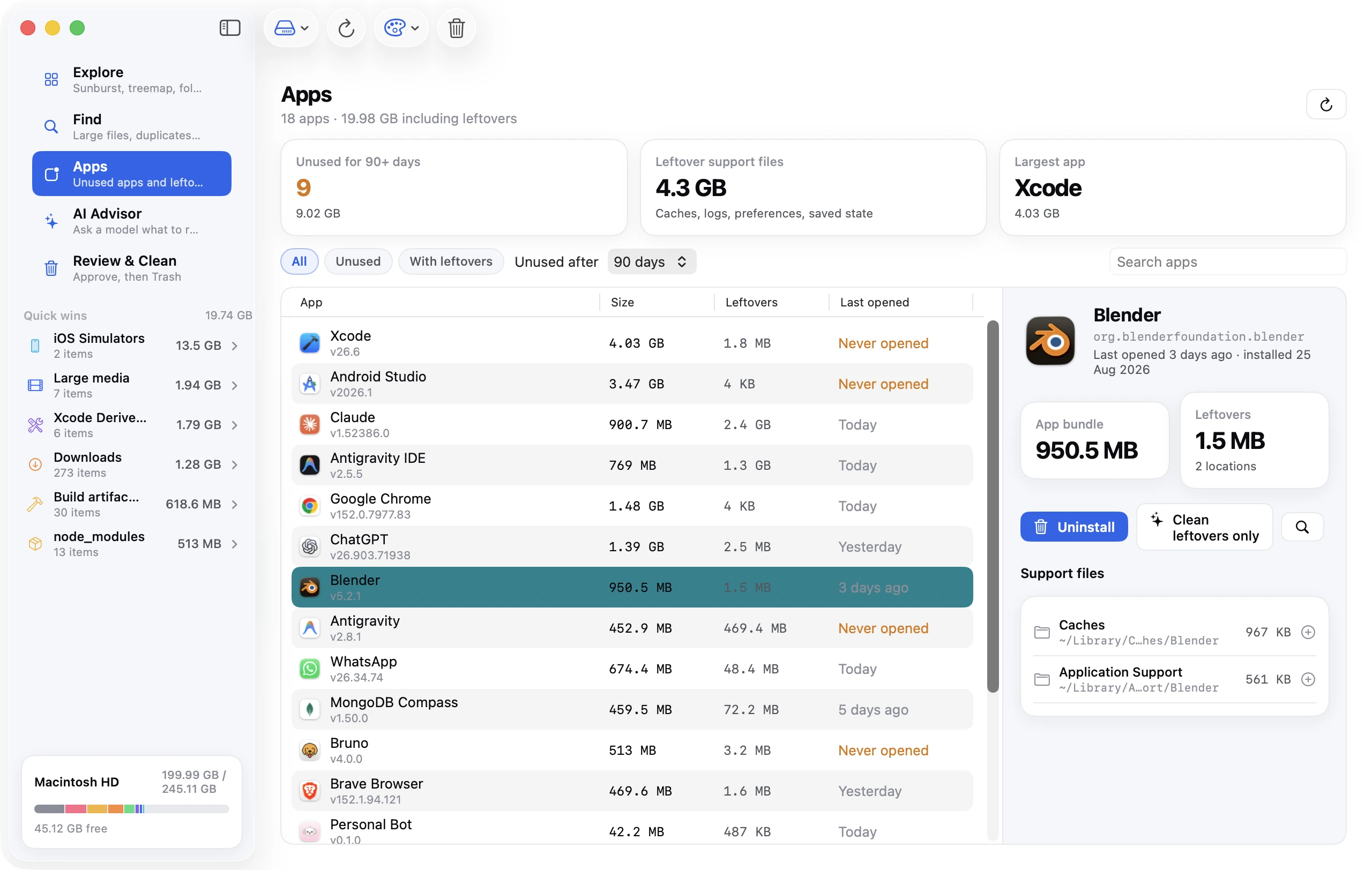
It can: show you which folders and files are using space, group the safely removable ones (caches, logs, Trash, old downloads, build products), find duplicate and similar files, list apps by size and last use, and remove app leftovers. That's the whole job, and it's a useful one.
It can't: make a Mac faster in general, "free up RAM" in any meaningful way, fix "system errors", stop malware (that's a different kind of software), or clean the macOS system volume — which is sealed and read-only on every Mac since Big Sur. Any app that claims those things is either confused or dishonest.
The five approaches
1. Apple's built-in tools (free)
System Settings → General → Storage shows a category breakdown with recommendations (Store in iCloud, Optimise Storage, Empty Trash Automatically, Reduce Clutter) and an ⓘ button per category that lists large files, downloads and apps by last use. Photos finds duplicate pictures on its own. tmutil handles Time Machine snapshots.
- Good for: the first pass on any Mac, and for people who'd rather not install anything.
- Falls short: it only sees files macOS can categorise — the "System Data" blob stays opaque — and it can't find duplicate files, app leftovers or developer clutter. Our free up space guide is essentially the manual version of what a cleaner automates.
2. Free disk visualisers
GrandPerspective (treemap), OmniDiskSweeper (size-sorted column browser), Disk Inventory X (treemap, older) and ncdu (Terminal) all do one thing: scan a folder and show you what's big. They don't judge anything, and they delete only what you explicitly select.
- Good for: finding the one 40 GB folder you'd forgotten about. Genuinely excellent at that, and free.
- Falls short: a treemap of
~/Libraryis a wall of bundle identifiers. You still have to know thatcom.apple.dt.Xcodeis Xcode, thatDerivedDatais safe, and thatContainers/com.docker.dockeris Docker's disk. No duplicate finding, no app uninstalling, no safety rails — OmniDiskSweeper will happily let you delete your Photos library.
3. Free single-purpose utilities
AppCleaner removes an app and its leftovers by dragging the app onto it. dupeGuru finds duplicate files and near-duplicate images. npkill hunts node_modules. Each is small, focused and has been around for years.
- Good for: one specific job, done well, for nothing.
- Falls short: you're assembling four tools and none of them gives an overview. Fine if you enjoy that; most people don't do it regularly.
4. Subscription cleaner suites
CleanMyMac (MacPaw), MacKeeper, CCleaner for Mac, Cleaner One and similar bundle a storage cleaner with a malware scanner, a "performance" module, an uninstaller, a privacy cleaner and a menu bar monitor, and charge yearly — typically in the $30–$60 a year range, with some offering a higher one-time price.
- Good for: one polished app that covers storage, app removal and duplicates with a clear interface and good safety defaults. CleanMyMac in particular is well made.
- Falls short: you pay every year for modules you may not want. The "speed up your Mac" and "free RAM" features are placebo on modern macOS. Aggressive marketing (pop-ups, upsells, scare-tactic scan results in some products) is common in this category — MacKeeper especially has a long history of it. And they're closed about what the scan decided to delete and why; you trust the label.
5. AI-assisted cleaners
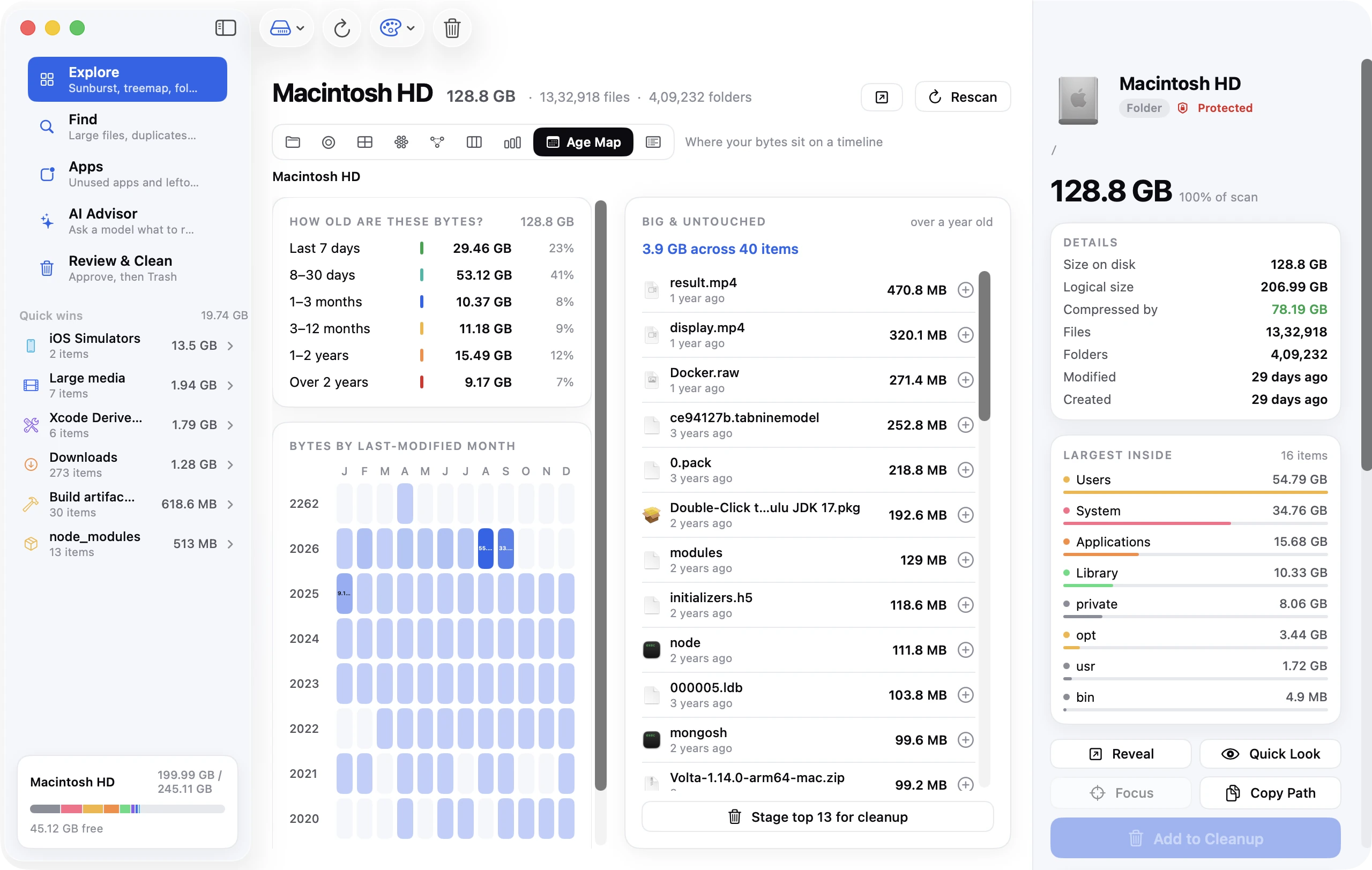
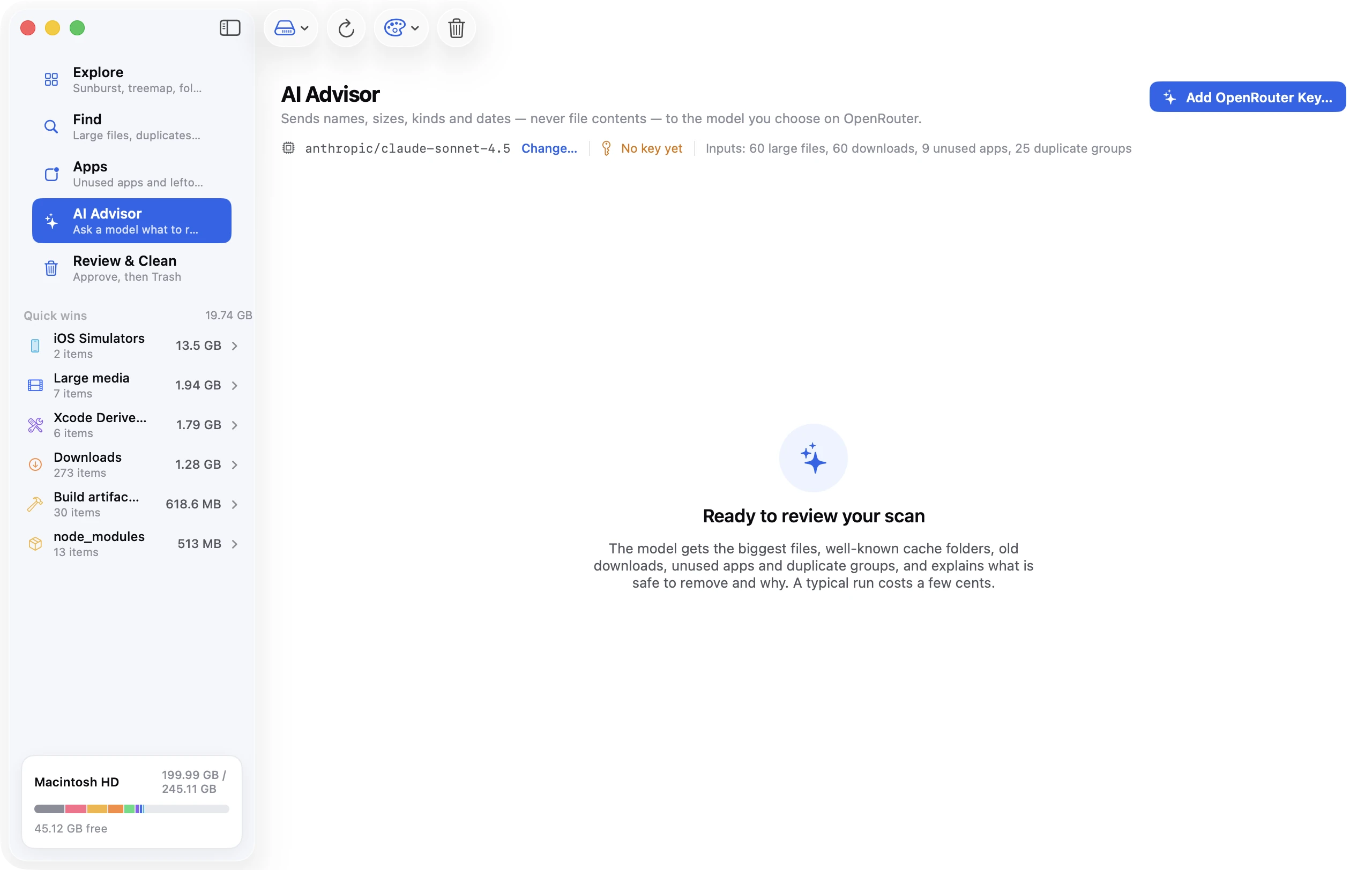
The newest category, and the one Disk Clean AI belongs to. The scan and safety rails are the same idea as a suite, but instead of a fixed rulebook the app hands the metadata of the scan — paths, sizes, dates, file types — to a language model and asks it to explain what things are and suggest what could go. So ~/Library/Application Support/com.electron.someapp/Cache/GPUCache gets a plain-English label ("GPU shader cache for an app you removed in March") rather than staying a mystery folder.
- Good for: the long tail that fixed rules miss, and for understanding rather than just deleting. Also for developers, where the clutter is idiosyncratic.
- Falls short: it needs an API key and a network connection for the AI part (the scan and every other tool work offline), and a model can be wrong — which is why nothing should ever be deleted on a model's say-so alone. In Disk Clean AI the model never sees file contents, sizes are always re-checked against the real file, and every suggestion is a checkbox you approve before it goes to the Trash.
Side by side
| Built-in | Visualiser | Single-purpose | Suite | Disk Clean AI | |
|---|---|---|---|---|---|
| Price | Free | Free | Free | Subscription, ~$30–60/yr | Free; Pro $19 once (launch price) |
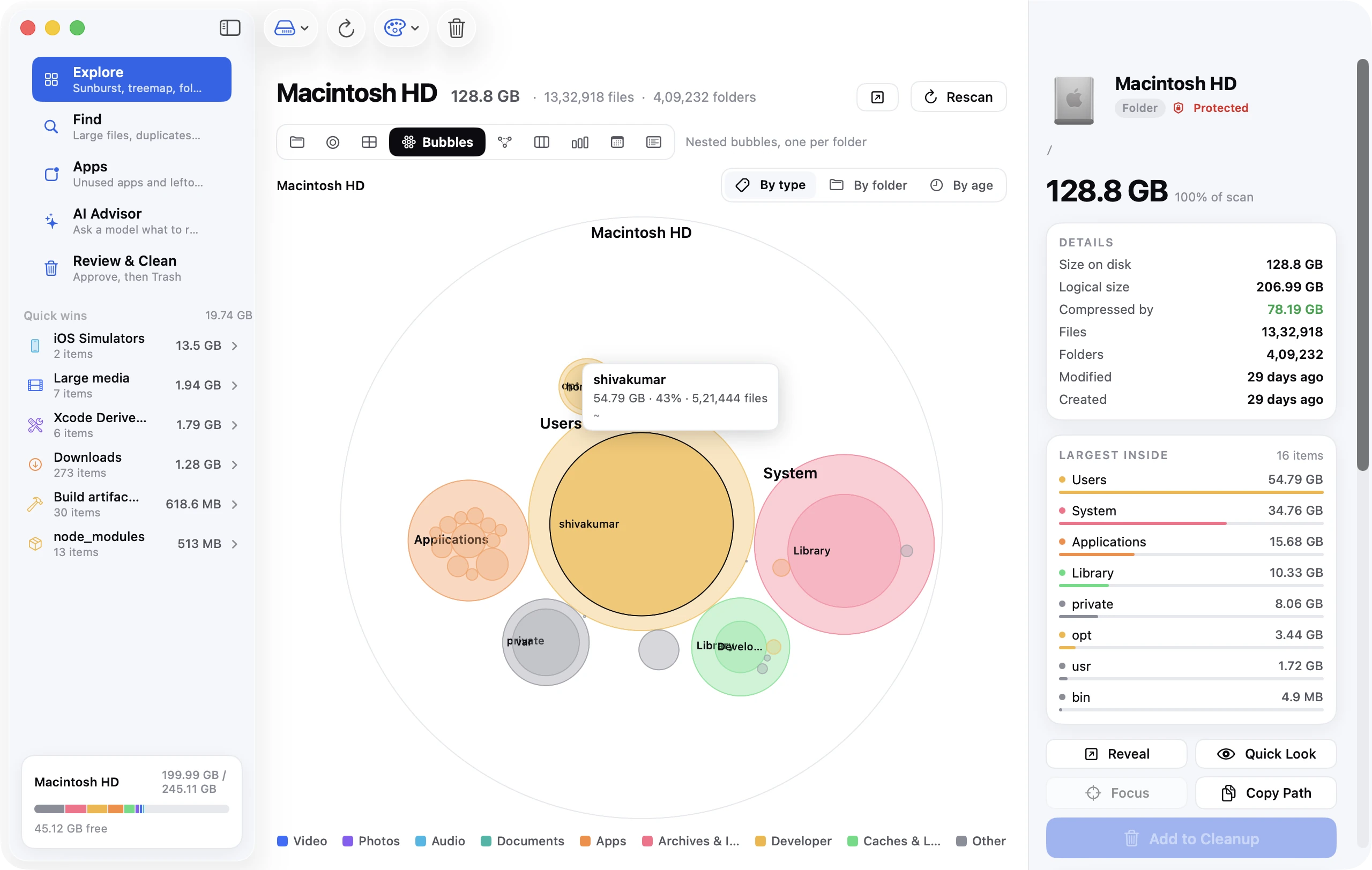
| Disk map | No | Yes | No | Basic | 9 views (3 free; sunburst, treemap, bubbles…) |
| Safe-to-delete grouping | Partial | No | No | Yes | Yes (Quick Wins) |
| Large file finder | Yes | Indirect | No | Yes | Yes, with age |
| Duplicate files | Photos only | No | dupeGuru | Yes | Yes (content hash, Pro) |
| Similar photos | Photos only | No | dupeGuru | Some | Yes (perceptual, Pro) |
| App uninstall + leftovers | Trash only | No | AppCleaner | Yes | Yes (Pro) |
| Developer clutter (Xcode, node_modules, Docker) | No | Visible, unlabelled | npkill | Partial | Yes, named |
| AI tool caches and models (Claude Code, Ollama…) | No | Visible, unlabelled | No | Rarely | Yes, named (Pro) |
| Explains what things are | No | No | No | Labels | Yes (AI, optional, Pro) |
| Deletes to Trash, needs approval | — | Varies | Varies | Yes | Yes, always |
| Extras you may not want | — | — | — | Malware scan, RAM "cleaner", menu bar | — |
How to spot a scam cleaner
The Mac cleaner category has a real problem with bad actors, so a checklist:
- It arrived via a pop-up. "Your Mac is infected / has 3,271 problems" in a web page is an ad, and often for adware. Legitimate cleaners don't advertise that way.
- It reports thousands of "issues" on a fresh Mac. Cookies and log files aren't problems. Scan results designed to scare you into paying are a red flag.
- It's hard to uninstall. A cleaner that installs launch daemons, menu bar agents and browser extensions you didn't ask for is behaving like the junk it claims to remove.
- It promises speed. Disk space and speed are only related when the disk is nearly full. Anything about "optimising RAM" or "boosting performance" is marketing.
- It's not notarized. If macOS warns that the app can't be checked for malicious software, stop. Every reputable Mac app is signed with a Developer ID and notarized by Apple.
- Check the reviews outside the app's own site. Reddit's r/mac and r/macapps and the MacRumors forums are blunt about this category.
What we'd recommend
- Casual use, no budget: the built-in Storage settings plus GrandPerspective for the occasional deep look. Read the System Data guide once so the big grey bar isn't a mystery.
- A Mac that's been full for a while: something that groups safe removals and finds duplicates and leftovers, because that's where the hours go. A suite or Disk Clean AI; pick on price (Disk Clean AI is free to download and clean with, and Pro is a one-time $19 rather than a subscription) and on whether you want the extras.
- Developers: the built-in tools don't see your clutter at all. Either learn the commands or use a tool that names
DerivedData,node_modulesandDocker.rawfor what they are. - Anyone: whatever you use, it should move files to the Trash rather than deleting them, and it should show you the list before it does anything. If it doesn't, don't use it.
FAQ
Do I need a Mac cleaner at all?
No — everything a cleaner does can be done by hand with Finder, System Settings and Terminal, and this blog shows how. A cleaner saves time and reduces the risk of deleting the wrong thing. Whether that's worth $30–60 a year is a personal call — or use a free one, or a one-time purchase.
Is CleanMyMac safe?
CleanMyMac is a legitimate, well-made app from MacPaw, notarized by Apple, with sensible defaults. The objections to it are price and bundled features, not safety. The same isn't true of every product in the category, so check any cleaner against the list above.
Can a cleaner damage my Mac?
A badly behaved one can delete app data or settings; none can damage macOS itself, which lives on a read-only volume. Using a cleaner that moves to the Trash rather than deleting, and reviewing its list before confirming, removes almost all the risk.
Does Disk Clean AI send my files to the AI?
No. The optional AI Advisor receives file paths, names, sizes, types and dates — never file contents — and only when you run it. Every other tool in the app works entirely offline. Suggestions are checkboxes; nothing is removed until you approve it, and approved items go to the Trash.