10 min read
Mac Startup Disk Full Even After Deleting Files? Here's Why and How to Fix It
Deleted files, emptied the Trash, disk still full? Six causes in order of likelihood — snapshots, hidden Trashes, open files, stale Storage figures — each with a check and a fix.
- Storage
- Troubleshooting
- How-to
You've deleted the files. You've emptied the Trash. The "Your startup disk is almost full" alert is still there, and the Storage bar hasn't moved a pixel. This is one of the most confusing experiences a Mac can offer, and it has a small number of well-understood causes. This guide goes through them in the order they're most likely, with a check and a fix for each, and finishes with what to do when the disk is so full the Mac won't even let you delete anything.
The short version
- Time Machine local snapshots are the number one cause. A snapshot taken before you deleted the files still references them.
tmutil deletelocalsnapshots /releases the space. - The Trash isn't really empty. External drives have their own Trash, other user accounts have theirs, and Mail, Photos and Messages each have a Recently Deleted or Trash of their own.
- A running process is holding a deleted file open. The space stays allocated until the process quits. A restart fixes it.
- The Storage panel is stale. It caches numbers and recalculates slowly.
df -h /in Terminal is the truth. - You deleted the wrong thing. The space was never in the folder you cleared. A disk map finds where it actually is.
First: get a number you can trust
Before chasing causes, stop looking at the Storage bar. It's calculated in the background, cached, and known to lag by minutes or show figures that don't add up. Open Terminal and run:
df -h /
Note the Avail figure. That's the free space macOS will actually let you use. Run it again after each fix below; when it moves, you've found the cause.
If df says you have plenty of space but the Storage panel or Finder disagree, the panel is wrong. Restarting the Mac forces a recalculation, and that alone resolves a surprising share of "storage full" reports.
Cause 1: Time Machine local snapshots
When Time Machine is on, macOS takes a snapshot of the startup disk every hour. A snapshot freezes the state of every file at that moment, and the file system can't reuse the blocks of a deleted file while any snapshot still references it. So you delete 40 GB, the Finder shows it gone, and the space stays allocated until the snapshot that remembers those files is removed. Normally that's within 24 hours. If Time Machine hasn't completed a backup recently, or thinning didn't run, it can be days.
Check:
tmutil listlocalsnapshots /
Any output at all means snapshots exist. Several entries, or entries older than a day, means they're likely holding space.
Fix:
tmutil deletelocalsnapshots /
Run df -h / again. This is often the whole answer. The snapshot guide explains how to keep the newest one, how to delete them from Disk Utility, and how to stop them accumulating.
Cause 2: The Trash you didn't empty
"Empty Trash" empties the Trash of the current user on all mounted volumes. There are four places it doesn't reach.
Other user accounts. Each account has its own ~/.Trash. If a family member or an old admin account deleted a lot, it's waiting in their Trash. Log in as that user and empty it, or from an admin account run sudo du -sh /Users/*/.Trash to see the sizes.
Mail. Deleted messages sit in Mail's Trash mailbox, locally, until erased. Mailbox → Erase Deleted Items → In All Accounts. Same for Junk.
Photos. Deleted photos and videos stay in Recently Deleted for 30 days, at full size. Photos sidebar → Utilities → Recently Deleted → Delete All.
Messages. Deleted conversations are gone immediately, but attachments removed through the Storage panel or Messages can linger in Recently Deleted (Messages → View → Recently Deleted) since macOS Ventura.
External drives' Trash when the drive isn't connected. Files deleted from an external drive go into a hidden .Trashes folder on that drive. If you deleted them, ejected the drive, and then emptied the Trash, they're still on the drive. Reconnect it and empty the Trash again.
Cause 3: A process is holding a deleted file open
On Unix systems, including macOS, deleting a file that a program still has open doesn't free its space; it just removes the name. The space comes back when the program closes the file or quits. The classic case is a log file: an app writes a 10 GB log, you delete it, the app keeps writing to the now-invisible file, and df doesn't budge.
Check:
sudo lsof +L1 2>/dev/null | awk '$7 > 100000000 {print $1, $2, $7/1073741824 " GB", $NF}'
This lists open-but-deleted files over 100 MB, with the process name and PID.
Fix: quit the process (or, if it's a background service, restart the Mac). Restarting is the shotgun version of this fix and is worth doing early, because it also clears swap and corrects the storage figures.
Cause 4: The space was never where you deleted
A full disk feels like it should be in Documents or Downloads, so that's where people delete. Often the bulk is somewhere they never look. In rough order of likelihood on a full Mac:
~/Library/Caches: app caches, regularly 10 to 30 GB. Safe to clear with apps closed; see the cache guide.~/Library/Application Support/MobileSync/Backup: iPhone and iPad backups, 20 to 150 GB. See the iOS backups guide.~/Pictures/Photos Library.photoslibrary: often the largest item on the disk. See the Photos library guide.~/Library/Mail: every attachment ever received, downloaded. See the Mail guide.~/Library/Messages/Attachments: every photo and video sent over iMessage. See the Messages guide.~/Library/Containersand~/Library/Group Containers: sandboxed app data, including some apps' caches and databases that don't show up under Caches.~/Library/Developer: Xcode's DerivedData, simulators, archives and device support, 20 to 100 GB on a developer Mac. See the developer Mac guide.- Virtual machine disks (Docker's
Docker.raw, Parallels and VMware.pvmand.vmwarevmbundles, UTM images): these grow when you add data and don't shrink when you delete inside the VM.
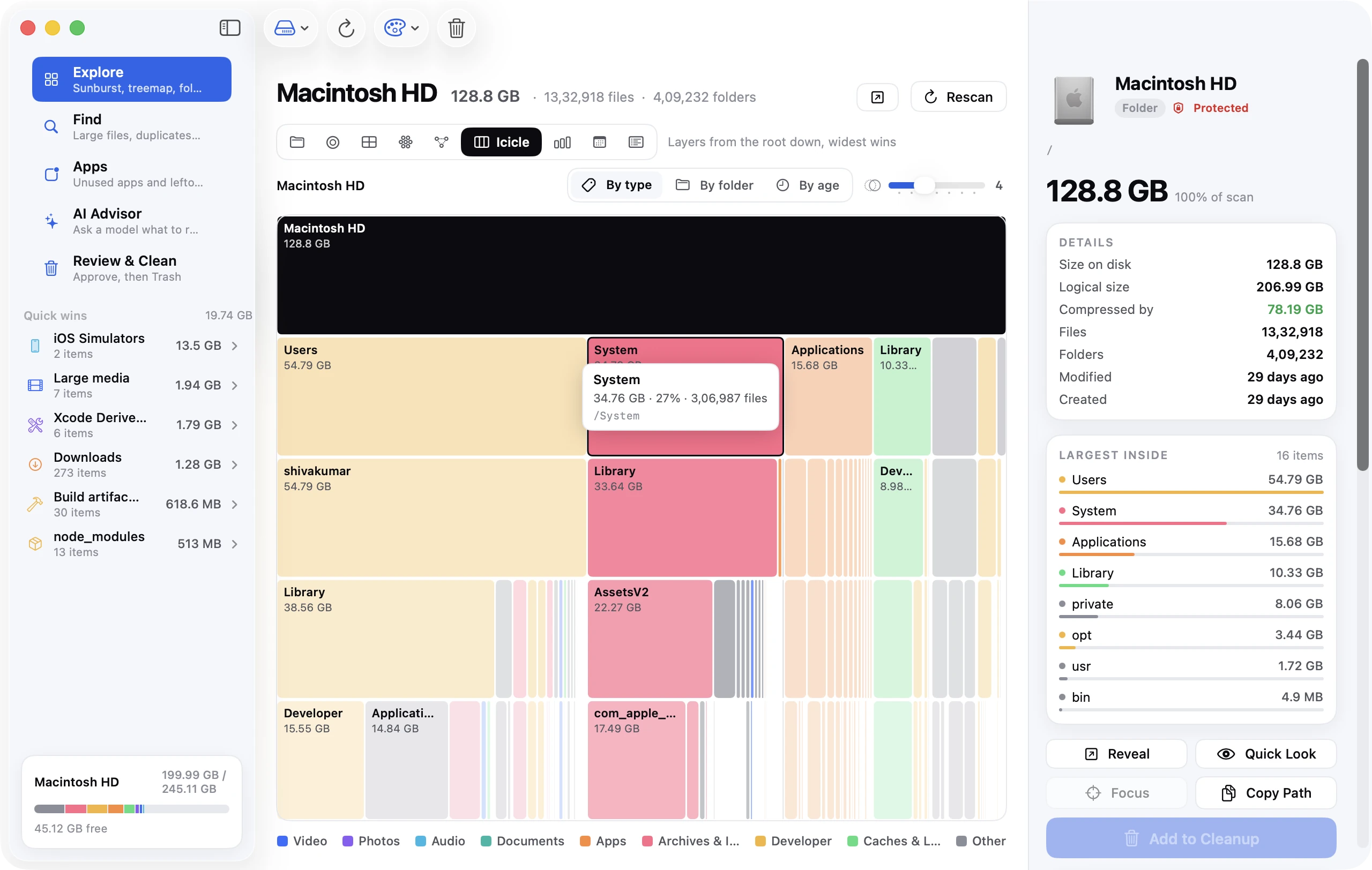
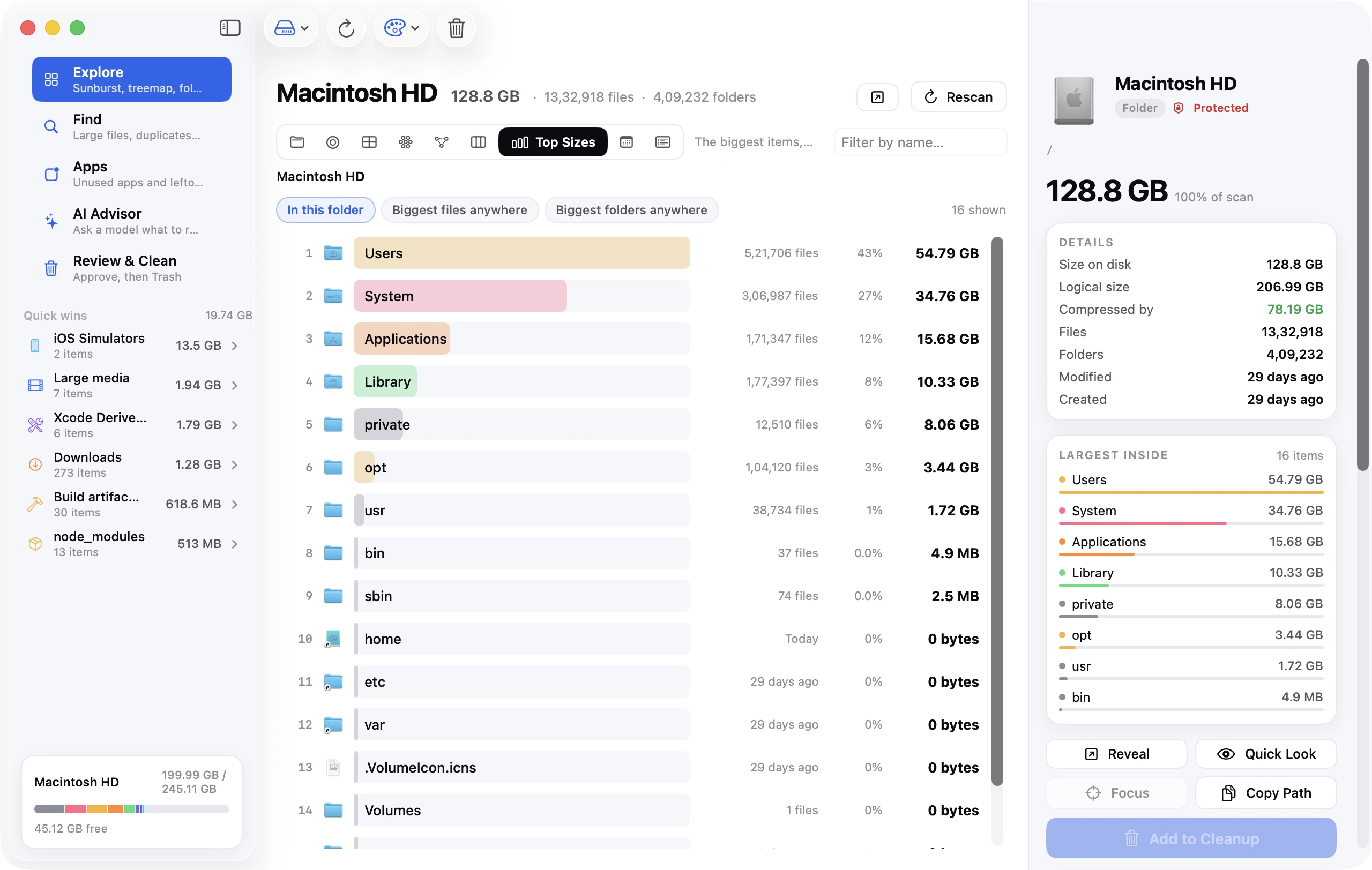
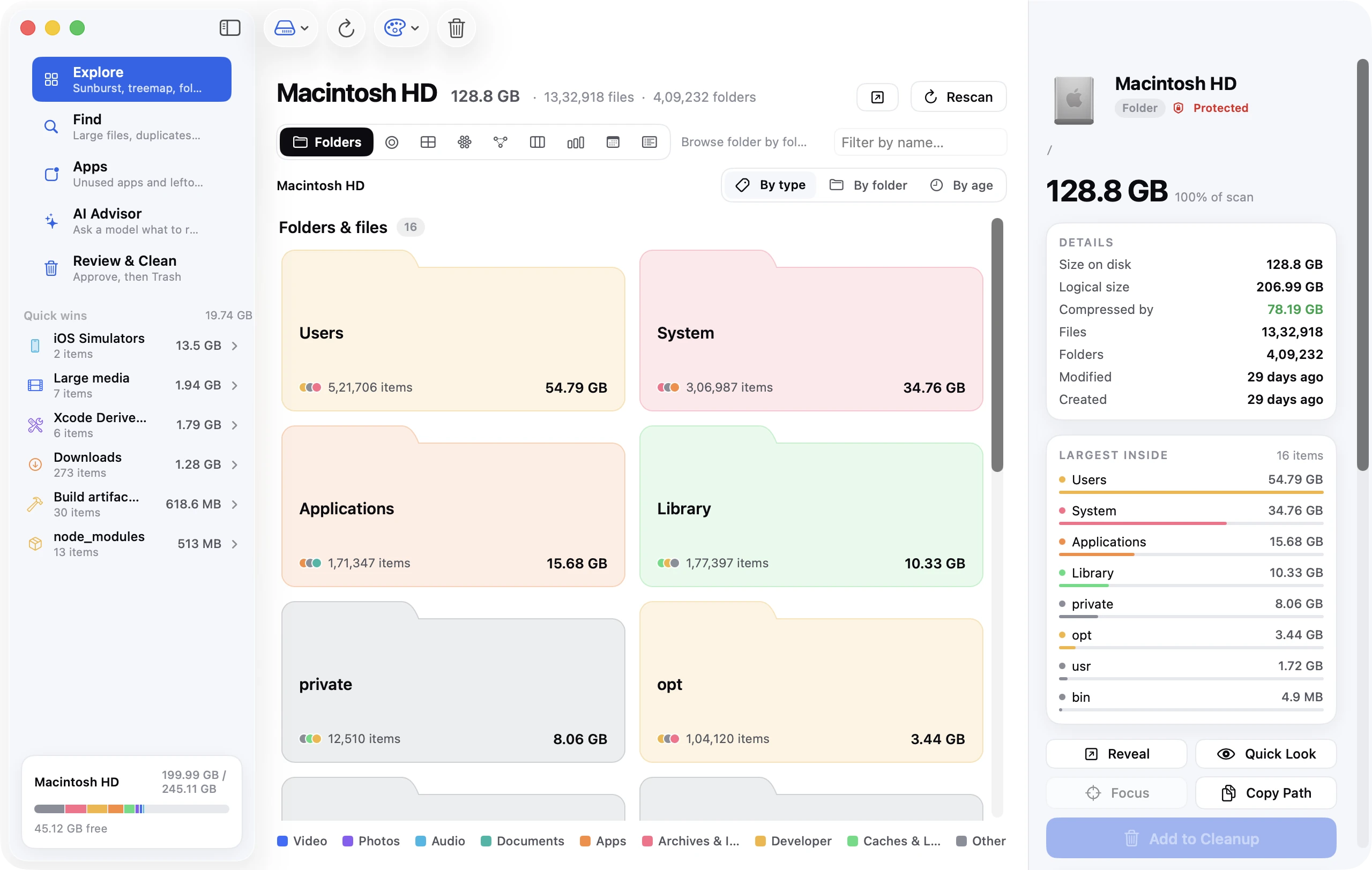
Check: the fastest way is a disk map that shows the whole disk as sized blocks, or from Terminal:
du -sh ~/* ~/Library/* 2>/dev/null | sort -rh | head -25
That lists the 25 largest items in your home folder and Library. If one of the paths above is at the top, its guide has the fix. The large files guide covers Finder search, the Storage panel and disk maps for going further.
Cause 5: System Data is the problem, and it isn't what you think
If the Storage panel shows System Data at 80, 150 or 250 GB, the space is in one of the places macOS lumps into that category: snapshots (Cause 1), caches, logs, the swap file, Spotlight indexes, container data, and everything the panel couldn't classify. It's not one thing and there's no single delete button. The System Data guide breaks it into parts, each with a check and a fix. Start with snapshots; on a full Mac they're usually most of it.
Cause 6: A stale Spotlight index or a confused Storage panel
Occasionally the disk isn't full at all: the Storage panel and Finder are reporting an old figure. Symptoms are df disagreeing with Finder by a wide margin, or a category in the Storage panel that stays at "Calculating…" forever.
Fix: restart. If it persists, rebuild the Spotlight index, which the Storage panel relies on for some categories:
sudo mdutil -E /
Indexing takes a while (an hour or more on a large disk) and the Mac may feel slower while it runs.
When the disk is so full the Mac can't function
At 100 percent full, macOS can't write the small temporary files it needs to run. Symptoms: you can't empty the Trash (it errors), you can't log in, apps crash on launch, or the Mac boots to a spinning wheel. The way out is to free a small amount of space without relying on the normal interface.
Option A: Safe mode. Shut down. On Apple silicon, press and hold the power button until Loading startup options appears, select your startup disk, then hold Shift and click Continue in Safe Mode. (On Intel, hold Shift at the chime.) Safe mode clears system caches on the way up, which usually frees enough to log in, empty the Trash and delete snapshots with tmutil.
Option B: Delete from Recovery. Shut down, hold the power button until the options screen appears, choose Options → Continue to boot into Recovery, then Utilities → Terminal. Your Data volume is mounted at /Volumes/Macintosh HD - Data (or /Volumes/Data). Delete something large you're sure about, for example:
rm -rf "/Volumes/Macintosh HD - Data/Users/yourname/.Trash/"*
Or clear snapshots from Recovery:
tmutil listlocalsnapshots "/Volumes/Macintosh HD - Data"
tmutil deletelocalsnapshots "/Volumes/Macintosh HD - Data"
Restart normally once you've freed a few gigabytes.
Option C: Share Disk mode. Connect the full Mac to another Mac with a USB-C or Thunderbolt cable. On the full Mac, boot to Recovery (as above), then Utilities → Share Disk, choose the Data volume and click Start Sharing. The disk appears on the other Mac in Finder under Network, where you can delete files freely. This is the safest route when you're not sure what to delete.
Stop it happening again
A Mac that hits 100 percent once will do it again unless the recurring sources are addressed. The three settings that matter most:
- System Settings → General → Storage → Empty Trash Automatically, so the Trash never holds more than 30 days of deletions.
- Time Machine backups that actually complete. Snapshots are thinned after a successful backup. A laptop that hasn't seen its backup drive in weeks accumulates snapshots that hold every deletion.
- Optimise Mac Storage for iCloud Drive and, separately, in Photos → Settings → iCloud, so cloud copies can be evicted before the disk fills.
And a monthly two-minute check: df -h /, tmutil listlocalsnapshots /, and a glance at the 25 largest items with the du command above.
Frequently asked questions
Why is my Mac storage full after deleting files?
Most often because a Time Machine local snapshot still references the deleted files. Run tmutil deletelocalsnapshots /. Otherwise: a Trash you didn't empty, a process holding a deleted file open, or the space being somewhere other than where you deleted.
How long does it take for storage to update after deleting files on Mac?
df updates instantly. The Storage panel can take minutes and sometimes needs a restart. If df hasn't changed, the deletion didn't free space, and one of the causes above applies.
Does emptying the Trash free space immediately?
Yes, unless a snapshot holds the files or a process has them open. Check df -h / right after emptying.
My Mac says the startup disk is full but I have 50 GB free.
The alert triggers on the space available for important usage, which excludes the purgeable estimate Finder includes. df shows the figure the alert uses. If they match and it's 50 GB, restart; the alert is stale.
Can I delete System Data? Not as a category, but you can delete most of its contents: snapshots, caches, logs, iOS backups, container data. The System Data guide linked above covers each.
Why is my external hard drive still full after deleting files on Mac?
Same reasons, plus one: the drive has its own hidden Trash. Empty the Trash while the drive is connected. If it's APFS and was used with Time Machine, it may have snapshots too: tmutil listlocalsnapshots /Volumes/DriveName.
The five-minute version
Restart. Run df -h /. Run tmutil deletelocalsnapshots /. Run df -h / again. If it moved, you're done. If not, empty every Trash (Finder, Mail, Photos, other users, external drives), and then find where the space actually is with the du command or a disk map. Nine times out of ten the answer is in the first two commands.