10 min read
Purgeable Space on Mac: What It Is, Why You Can't Delete It, and How to Get It Back
Finder says 60 GB is purgeable but the installer says the disk is full. What purgeable space really contains, why the number is often wrong, and the steps that actually free it.
- Storage
- macOS
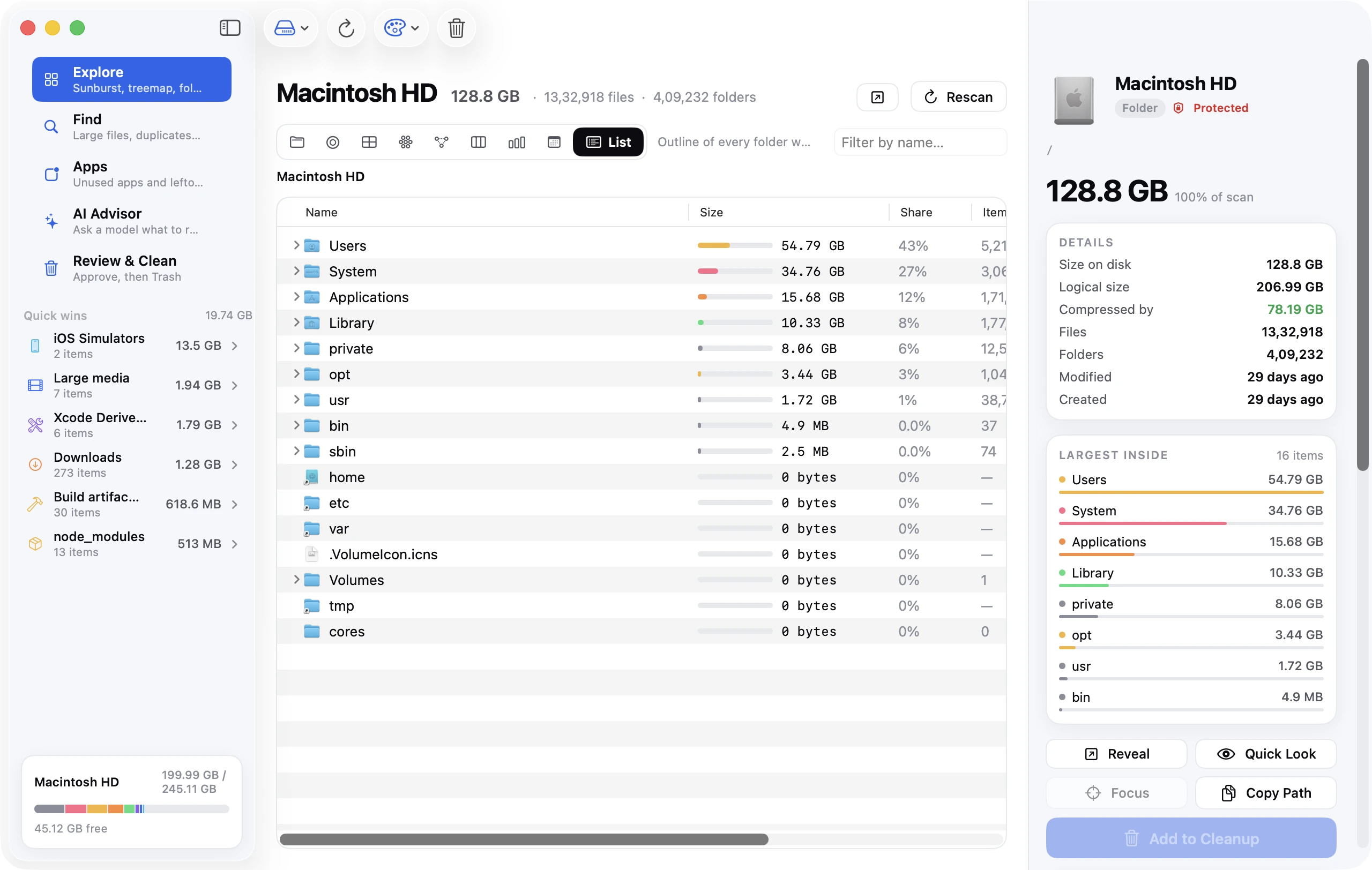
Select your Mac's disk, press ⌘I, and the Get Info window says something like "Available: 210.4 GB (63.2 GB purgeable)". Disk Utility shows the same number. But when you try to install a macOS update or copy a large folder, the Mac behaves as if only 147 GB were free. This guide explains what purgeable space on a Mac is, why the number is often wrong, why you can't delete it directly, and the handful of things that actually reclaim it.
The short version
- Purgeable space is storage holding files macOS is allowed to delete by itself when it needs the room: optimised iCloud files, certain caches, and other data it can re-download or rebuild.
- You can't delete purgeable data by hand. Apple's definition says so explicitly: it's under macOS's control, not yours.
- The Finder's purgeable number is frequently inflated. Restarting your Mac recalculates it and often makes most of it vanish (as reported free space, not as reclaimed data).
- The only reliable way to force macOS to purge is to fill the disk until it has to, which is a hack. The better approach is to reduce the sources of purgeable data and to clean the real space hogs that were never purgeable to begin with.
- Time Machine local snapshots are not purgeable space, despite what many guides say. They're counted as used space and you delete them with
tmutil.
What "purgeable" actually means
Apple's definition, from the Disk Utility user guide, is precise: purgeable space is "space that macOS can free up when needed by removing files from your computer (you can't manually remove the files that are designated purgeable, but macOS removes them as space is required)."
Two things follow from that.
First, purgeable files are ones whose loss costs nothing permanent. They're either stored somewhere else (iCloud, the App Store, Apple's servers) or can be regenerated (thumbnails, indexes, caches). macOS keeps them locally because having them is faster than not having them, and it marks them purgeable so that when an app or installer asks for more space than is strictly free, the system can throw them away in the background to satisfy the request.
Second, because the decision is macOS's, there's no Delete button. Nothing in System Settings, Finder or Disk Utility purges on demand. That's the single most searched question about purgeable space and the answer is genuinely "you can't, directly."
What's in it
Apple doesn't publish a list, and community explanations tend to include things that aren't actually purgeable. Based on what macOS reports through its own APIs, purgeable data is drawn from:
- iCloud Drive files that have been downloaded locally when Optimise Mac Storage is on. The file exists in iCloud; the local copy can be evicted.
- iCloud Photos originals when "Optimise Mac Storage" is on in Photos. Full-resolution versions can be evicted and replaced with smaller ones.
- Mail attachments downloaded for offline use, when Mail is set to download attachments.
- Music, TV and Books content that's purchased or in iCloud and can be re-downloaded.
- Certain system caches and derived data that macOS marks as low-priority, such as font caches, some Spotlight artefacts and app-generated thumbnails.
- The sleep image and swap files in
/private/var/vm, which are recreated on demand.
Things people assume are purgeable but aren't:
- Time Machine local snapshots. Snapshots are managed by Time Machine, not the purge mechanism. They count as used space, typically inside System Data, and they never disappear by being "purged." The snapshot guide covers how to remove them.
- App caches in
~/Library/Caches. These are just files. macOS doesn't purge them; you or the app does. - The Trash. It's counted as used until you empty it.
- Files in iCloud Drive that are cloud-only (the ones with a cloud icon). Those aren't on the disk at all, so they're neither used nor purgeable.
Why the purgeable number is often wrong
The Finder and Disk Utility compute "Available" as free space plus purgeable space. The purgeable figure comes from an estimate that macOS caches and doesn't refresh continuously, and it's known to be wildly off. A widely-cited example from The Eclectic Light Company showed a Finder claiming 83.71 GB purgeable on a disk where the underlying API reported essentially zero. After a restart, the Finder's figure dropped to match.
This is why "I have 60 GB purgeable but the installer says not enough space" happens. The installer asks macOS how much space is available for important usage. That figure excludes purgeable space that isn't really there. The Finder was showing you a number that was never real.
The practical implication: don't plan around the purgeable number. Treat the smaller "available for important usage" figure as your actual free space. You can see it with df:
df -h /
The Avail column is free space before purgeable data, which is the conservative and usually correct figure.
Step 1: Restart, then re-check
Restarting your Mac forces a recalculation of the space figures and clears the swap files and sleep image in /private/var/vm, which can be several gigabytes on a Mac that's been awake for weeks. After the restart, open Disk Utility and check the purgeable figure again. If it's shrunk dramatically, the "purgeable" data you were worried about was largely an accounting error, not files on disk.
If free space is still short after that, move on. Restarting doesn't purge real purgeable data; it only corrects the estimate.
Step 2: Reduce the sources of purgeable data
You can't purge, but you can stop macOS from keeping so much purgeable data around in the first place. Each of these turns a chunk of purgeable space into free space by removing local copies of things that live in the cloud.
Remove downloaded iCloud Drive files
If Optimise Mac Storage is on (System Settings → your name → iCloud → iCloud Drive), macOS is allowed to evict files, but it's cautious about doing so. You can evict manually: in Finder, right-click any iCloud Drive folder or file and choose Remove Download. The file stays in iCloud with a cloud icon next to it, and the local space is freed immediately, not "eventually." Doing this on a large Documents or Desktop folder is the fastest way to convert tens of gigabytes of purgeable space into real free space. The iCloud Drive guide goes into this in detail.
Let Photos optimise storage
Photos → Settings → iCloud → Optimise Mac Storage. Photos will begin replacing full-resolution originals with smaller versions over the following hours. It won't purge everything at once and it can't be forced, but on a large library it eventually releases a lot of space. The Photos library guide covers the tradeoffs and how to move the library instead.
Stop Mail from downloading every attachment
Mail → Settings → Accounts → select the account → Account Information → Download Attachments: Recent or None. Then Mail → Settings → Accounts → Mailbox Behaviours and consider not storing junk and deleted messages locally. Attachments already downloaded stay purgeable until macOS decides; the Mail guide explains how to remove them outright.
Remove downloaded Music, TV and Podcasts content
In Music, right-click an album with a downloaded icon and choose Remove Download. In TV, right-click a show → Remove Download. In Podcasts → Settings, set episodes to delete after playing. Each removes purgeable local copies that would otherwise sit there.
Step 3: Forcing a purge (the hack, and why you probably don't need it)
The old trick, still circulating on Reddit and Stack Exchange, is to create a huge file so the disk fills up and macOS is forced to purge. The usual recipe:
- Open Disk Utility.
- File → New Image → Blank Image. Set the size to slightly less than the reported free (not available) space, format APFS, save it to the Desktop.
- Repeat, if needed, until the disk is nearly full. macOS purges to make room.
- Delete the disk images and empty the Trash.
Or, in Terminal, mkfile 50g ~/Desktop/filler.dmg on older macOS versions (the mkfile command was removed from recent versions; dd if=/dev/zero of=~/Desktop/filler bs=1g count=50 does the same thing).
It works, in the sense that macOS will purge real purgeable data when cornered. But three caveats:
- Filling an APFS disk to the brim can make macOS unstable. Leave at least 5 to 10 GB of true free space at all times.
- If the purgeable figure was inflated (the common case), the disk fills up and nothing is purged, because there was nothing to purge. You've just spent ten minutes to learn what a restart would have told you.
- Purged iCloud files and Photos originals get re-downloaded the next time you open them, so the space is temporary unless you also change the settings above.
If the free space you need is for a macOS update or a large file copy, the installer or Finder will trigger the purge itself. You rarely need to do it manually.
Step 4: Clean what was never purgeable
In practice, when someone's disk is full and they see a large purgeable figure, the real problem is elsewhere: data that's counted as used and that macOS will never remove on its own. That's where the meaningful space is.
- Time Machine local snapshots:
tmutil listlocalsnapshots /to see them,tmutil deletelocalsnapshots /to clear them. Regularly 10 to 100 GB after big deletions. - App caches in
~/Library/Caches: safe to clear with apps closed; the cache guide covers which ones matter. - iOS device backups in
~/Library/Application Support/MobileSync/Backup/: often 30 to 100 GB of phones you no longer own. See the iOS backups guide. - Developer leftovers: Xcode DerivedData and simulators, Docker's disk image, node_modules. The developer Mac guide has the commands.
- Large forgotten files: old disk images, exported videos, downloaded installers. The large files guide shows four ways to find them.
None of these are purgeable, all of them are yours to delete, and together they usually return far more than the purgeable figure ever promised.
Frequently asked questions
Is it safe to delete purgeable space on Mac? It would be if you could, but you can't directly. Purgeable data is, by definition, safe for macOS to remove, because it's all recoverable from the cloud or regenerable. Anything macOS purges will be re-downloaded or rebuilt if you need it.
Why does my Mac say storage is full when it shows purgeable space available? Because the purgeable estimate is unreliable and because some operations, particularly macOS installers, only count guaranteed free space. Restart to correct the estimate, then free real space using the steps above.
Does purgeable space slow down my Mac? No. Purgeable files are ordinary files; having them doesn't cost performance. A disk that's actually nearly full (under 10% free) can slow things down because APFS and swap need headroom, but purgeable data isn't the cause.
How do I check purgeable space in Terminal?
df doesn't show purgeable. The figure comes from the Finder's Get Info (⌘I on the disk) or Disk Utility → select the volume, where "Available" is broken into free and purgeable. Third-party tools that read the NSURLVolumeAvailableCapacityForImportantUsageKey API show the number that installers actually use.
Purgeable space on an external drive: what is it?
External APFS drives can carry purgeable data too, usually from Time Machine or from iCloud Drive if you relocated it. The same rules apply: restart, check again, and look for snapshots with diskutil apfs listSnapshots /Volumes/DriveName.
Is purgeable the same as "Other" or System Data? No. System Data (formerly Other) is a category of used space in the Storage settings. Purgeable is a status that any file can have. Some System Data is purgeable; most isn't. The System Data guide explains what's in that category.
The takeaway
Purgeable space is a promise from macOS ("I can get this back for you if I have to"), not a pile of junk you're allowed to sweep up. When the promise looks bigger than reality, restart. When you need the space now, evict cloud copies yourself and clear the categories macOS will never touch on your behalf. Those are where the disk actually went.