12 min read
How to Free Up Space on Your Mac: The Complete Guide
A step-by-step guide to freeing up space on a Mac: what's safe to delete, where the big files hide, built-in macOS tools, Terminal commands and how to avoid doing it again next month.
- Storage
- How-to
Your Mac says the disk is almost full, yet you can't point at what's taking the space. That's normal: the biggest offenders on a modern Mac are rarely the documents you made. They're caches, old backups, forgotten downloads, leftover app files and a mysterious System Data slice that seems to grow on its own.
This guide walks through everything in the order that pays off fastest. Start at the top, stop when you have the room you need. Every step is safe on macOS 14 Sonoma and later, on Apple silicon and Intel Macs.
First, find out where the space went
Before deleting anything, look at the breakdown. Open System Settings → General → Storage. The coloured bar shows how much is used by Applications, Documents, Photos, Mail, Messages, iCloud Drive, macOS and System Data.
Two things are worth knowing about this bar:
- "System Data" is a catch-all for everything macOS couldn't put in another category: caches, logs, Time Machine local snapshots, virtual machine images, app support files and more. If it's over about 30 GB, it's your first target — we cover it in a separate guide.
- The numbers lag. macOS recomputes the categories in the background, so the bar can take minutes to catch up after you delete something. Don't panic when it doesn't move immediately.
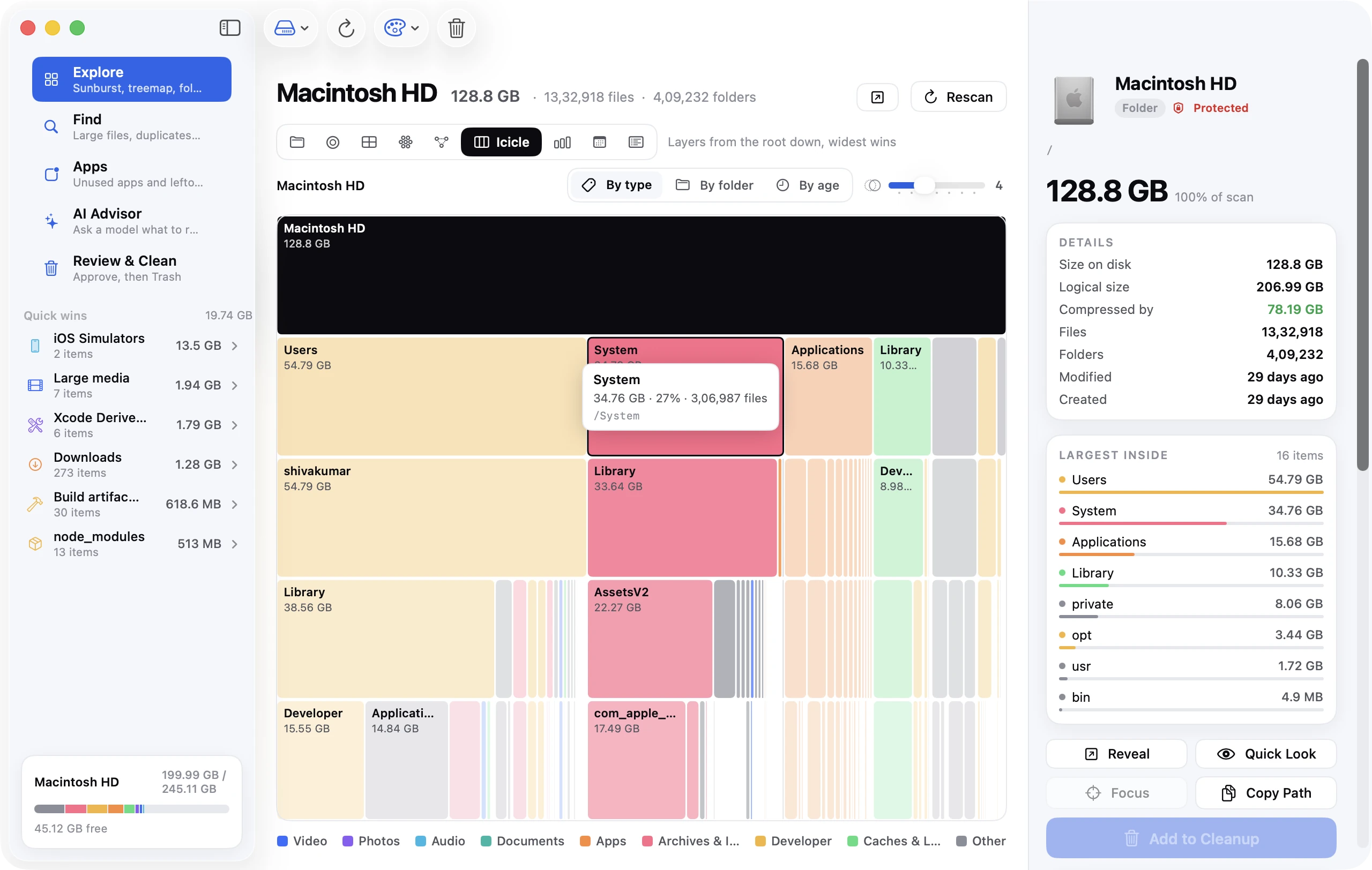
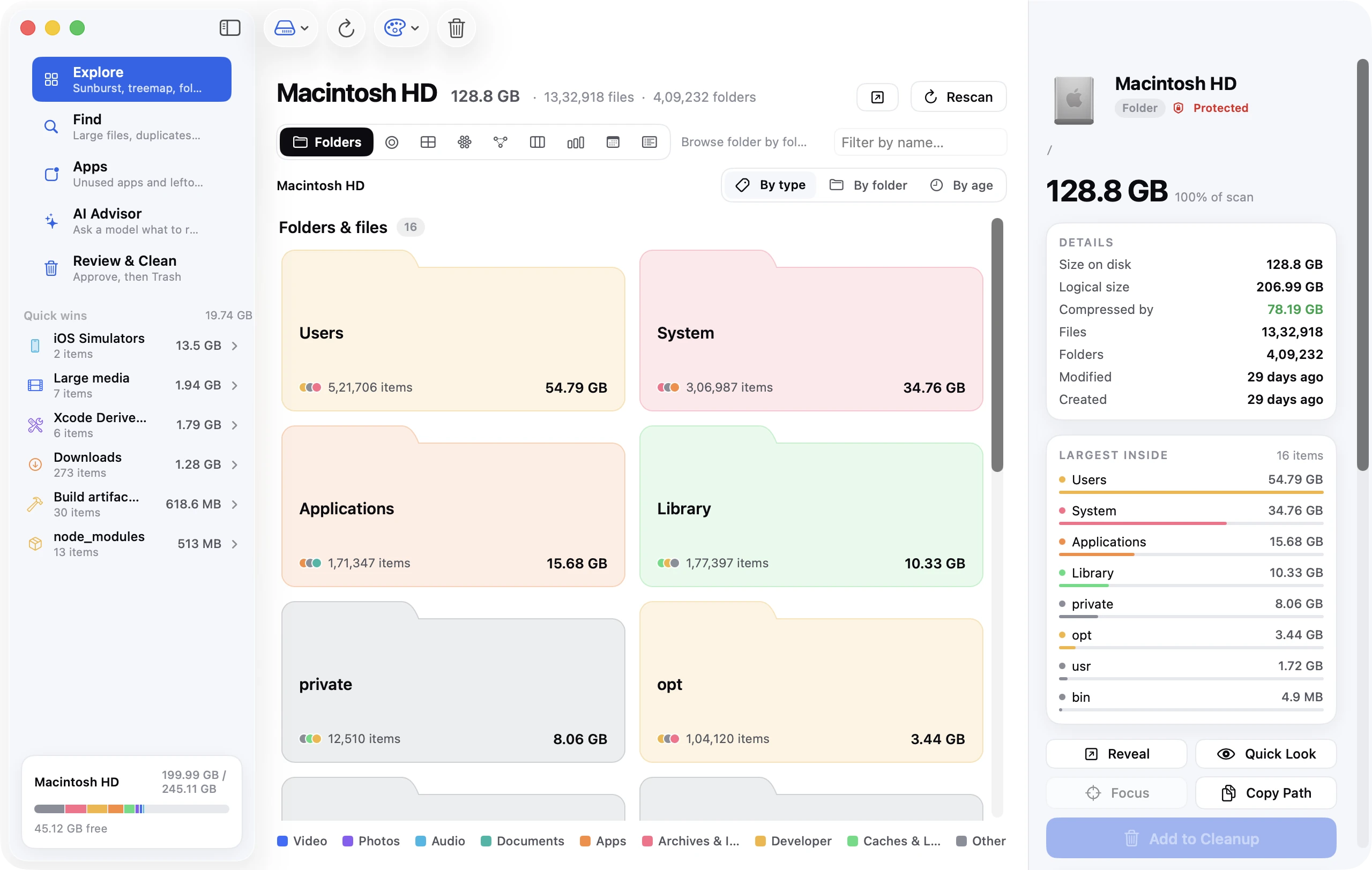
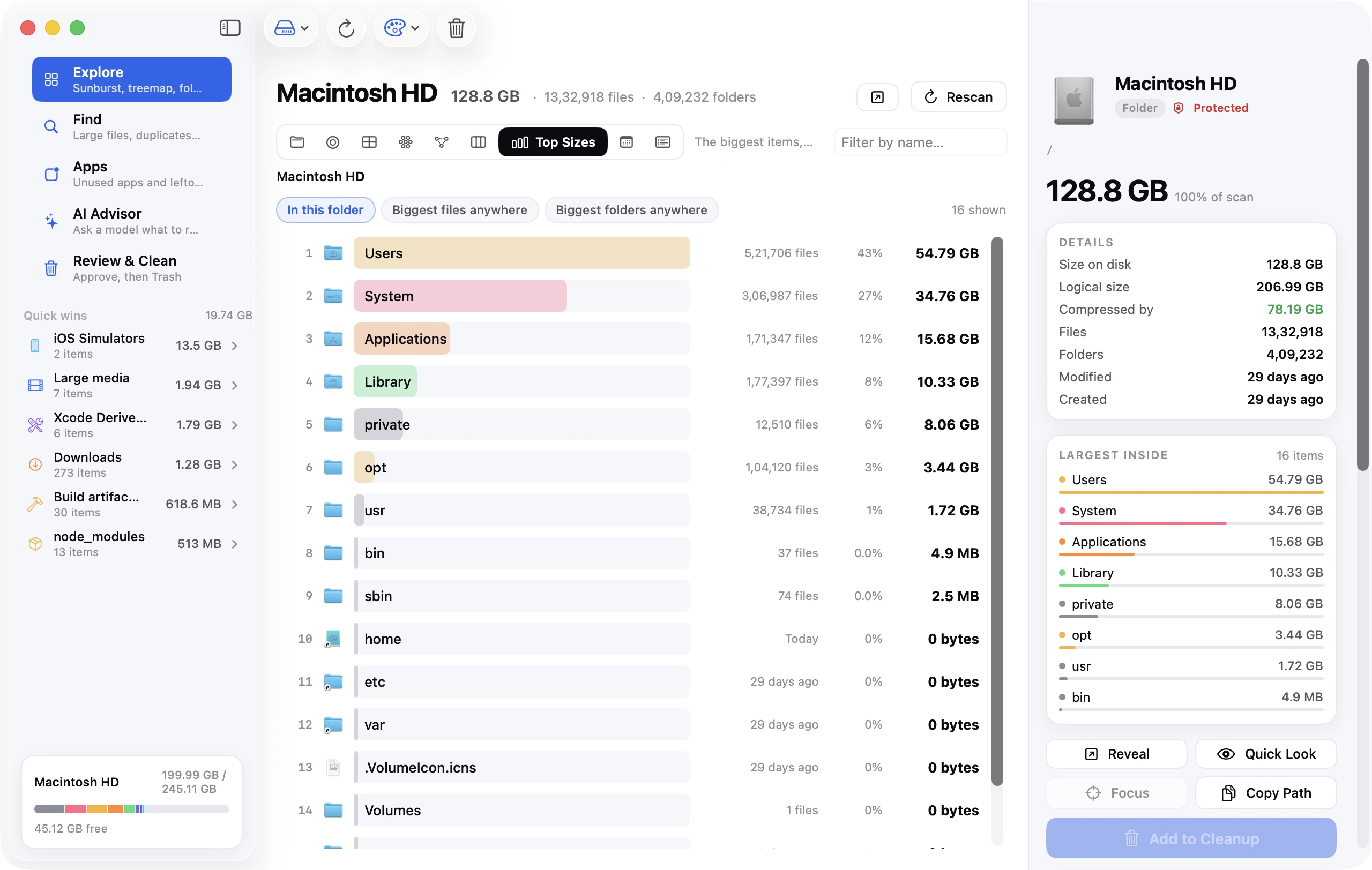
The Storage pane only tells you which category is full, not which folders. For that you need a disk map. Disk Clean AI's Explore view draws your disk as a sunburst, treemap or bubble chart so the heaviest folders jump out; free tools like GrandPerspective and OmniDiskSweeper do a plainer version of the same job. Or, in Terminal:
du -sh ~/* ~/Library/* 2>/dev/null | sort -h | tail -25
That prints the 25 heaviest items in your home folder and your Library, smallest to largest.
Step 1: Empty the Trash (properly)
Files in the Trash still take space until you empty it. Right-click the Trash icon in the Dock and choose Empty Trash. Two extra places people forget:
- Photos has its own Recently Deleted album (Photos → sidebar → Recently Deleted) that keeps items for 30 days.
- Mail keeps deleted messages until you choose Mailbox → Erase Deleted Items.
If you want macOS to handle this for you, turn on Empty Trash Automatically in the Storage settings; anything in the Trash for more than 30 days is removed.
Step 2: Clear Downloads
~/Downloads is where installers, zip files and half-finished projects go to die. Open it in Finder, switch to list view (⌘2), sort by Size, and work from the top. Disk images (.dmg) and .pkg installers can go the moment the app is installed — the app itself lives in /Applications.
If Downloads is enormous, sort by Date Added instead and delete everything older than a few months in one sweep. You've clearly managed without it.
Step 3: Uninstall apps you don't use — and their leftovers
Open System Settings → General → Storage → Applications (click the ⓘ next to Applications). Sort by size and by Last Accessed. Games, trial software and old versions of tools often sit at the top of both lists.
Dragging an app to the Trash removes the bundle but not its support files, which live in ~/Library/Application Support, ~/Library/Caches, ~/Library/Containers and a few other places. For big apps those leftovers can be gigabytes. Our complete uninstall guide lists every location; Disk Clean AI's Apps tool shows each app with its support-file size and last-used date so you can remove both in one go.
Step 4: Find and remove large files
A handful of large files usually account for more space than thousands of small ones. Old movie downloads, virtual machine disks, exported videos, raw photo dumps and disk images are the usual suspects.
Quick Finder method: press ⌘F in Finder, click the + button, change the first dropdown to File Size, choose is greater than and type 500 MB. Sort the results by size.
Terminal method:
find ~ -type f -size +500M -not -path "*/Library/*" -exec ls -lh {} \; 2>/dev/null | sort -k5 -h
There's a dedicated guide to finding large files with more options, including how to sort by age so you find big and forgotten files.
Step 5: Deal with duplicates
Downloads you saved twice, photos imported from the same camera card three times, project folders copied "just in case". Duplicates are invisible to the Storage settings because each copy looks like a legitimate file.
Photos (macOS Ventura and later) finds duplicate pictures for you: open Photos and look for Duplicates under Utilities in the sidebar. For everything else you need a tool that compares file contents rather than names — see how to find duplicate files on Mac.
Step 6: Clear caches and logs
Apps keep caches in ~/Library/Caches so they can reopen quickly. Most rebuild themselves when deleted, which makes caches safe to clear when you're short on space. The real bloat is usually from a few apps — browsers, Spotify, Slack, Xcode, Adobe products and package managers.
To look: in Finder press ⇧⌘G, type ~/Library/Caches and press Return. Sort by size. Delete the contents of the big folders rather than the folders themselves, then restart the app.
Don't touch /System/Library/Caches — it belongs to macOS and is protected anyway. Our cache guide goes deeper, including browser and developer caches.
Step 7: Old iPhone and iPad backups
If you've ever backed up an iPhone to your Mac in Finder, the backup lives in ~/Library/Application Support/MobileSync/Backup. Each one is roughly the size of the used storage on the device, and old backups for phones you no longer own stick around forever.
Open Finder, connect the device (or not — this works without it), choose the device in the sidebar, then Manage Backups… to see and delete them. If you back up to iCloud now, local backups are redundant.
Step 8: Mail attachments
Apple Mail downloads every attachment for every message it syncs, then keeps them in ~/Library/Mail. On an account with years of history that's easily 10–20 GB. Two fixes:
- In Mail → Settings → Accounts → your account → Account Information, set Download Attachments to Recent or None. Attachments still open on demand.
- In System Settings → Storage → Mail, review what's stored. Deleting the local copy doesn't delete the email from the server.
Step 9: Time Machine local snapshots
When Time Machine is on but the backup disk isn't connected, macOS keeps hourly local snapshots on your startup disk. They show as purgeable and macOS deletes them when you run low on space — but "low" means very low, and the snapshots can hold onto tens of gigabytes you thought you had freed.
To see them:
tmutil listlocalsnapshots /
To thin them down (this asks macOS to free about 20 GB, with urgency level 4):
tmutil thinlocalsnapshots / 20000000000 4
You can also delete a specific snapshot with tmutil deletelocalsnapshots 2026-09-01-120000 using a date from the list. Connecting your Time Machine disk and running a backup has the same effect.
Step 10: Let iCloud hold the originals
If you pay for iCloud storage, two switches move the bulk of your photos and files off the Mac while keeping them one click away:
- Photos → Settings → iCloud → Optimise Mac Storage keeps small previews locally and the full-resolution originals in iCloud.
- System Settings → Apple ID → iCloud → iCloud Drive → Optimise Mac Storage does the same for Desktop and Documents files you haven't opened recently.
These are the "Store in iCloud" recommendations in the Storage pane. They trade disk space for a network dependency, so skip them if you often work offline.
Step 11: Developer clutter (if that's you)
Xcode's DerivedData, old simulator runtimes, Docker's disk image, Homebrew's download cache, npm/pnpm/pip caches and dozens of node_modules folders can quietly consume 50–150 GB. There's a whole guide for developer Macs, but the two highest-value commands are:
rm -rf ~/Library/Developer/Xcode/DerivedData
xcrun simctl delete unavailable
What you should not delete
A few things look like clutter and aren't:
/System,/usr,/bin,/private/var— macOS itself. On modern Macs the system volume is sealed and read-only anyway.~/Library/Application Supportfor apps you still use — deleting it resets the app and may delete its data (notes, chat history, licences).~/Library/Mobile Documents— that's your iCloud Drive. Deleting from here deletes from iCloud.- Anything in
~/Library/Keychainsor~/Library/Preferencesunless you're deliberately resetting an app. - Photos Library (
~/Pictures/Photos Library.photoslibrary) — never edit its contents in Finder; use the Photos app.
When in doubt, move the item to the Trash rather than deleting it outright, and use the Mac for a few days before you empty it.
Keep it that way
Storage fills up again because the same habits refill it. Three settings that prevent most of the regrowth:
- Turn on Empty Trash Automatically (Storage settings).
- Delete installers as soon as the app is installed — a
.dmghas no purpose once the app is in/Applications. - Run a scan once a month. Disk Clean AI groups the usual suspects into a Quick Wins list — Downloads, caches and logs, the Trash, large media, and developer folders like node_modules and DerivedData — so the monthly clean-up takes two minutes and nothing is removed without your approval.
Frequently asked questions
How much free space should a Mac have?
Aim for at least 10–15% of the disk, or 20 GB, whichever is larger. macOS needs room for swap, updates and the local snapshots described above; below a few gigabytes the machine slows down and updates fail.
Why does the free space not change after deleting files?
Either the files are still in the Trash, or they've been captured in a Time Machine local snapshot. Empty the Trash, then run the tmutil commands in Step 9. Also give the Storage pane a few minutes to recalculate.
Is it safe to delete System Data?
Not as a blob — there's no folder called "System Data". It's a category made up of many things, most of which you can reduce safely: caches, logs, snapshots, old iOS backups, app leftovers. See what System Data is for the breakdown.
Do Mac cleaner apps actually help?
Good ones save time by showing you the breakdown and grouping the safe removals; they don't do anything you couldn't do by hand with this guide. Avoid any that promise to "speed up" your Mac by clearing RAM or that install kernel extensions. We compare the options in best Mac cleaner apps.