See what’s filling your disk, from big files and duplicates to old apps, plus the logs, caches and models your AI tools hide in dot-folders. Disk Clean AI says what’s safe to clear.
Pro is a one-time $19 (usually $39). No subscription, no account.
Real screenshots of Disk Clean AI’s AI Tools and Explore screens.
More Mac apps from us
Two more Mac apps from the same maker.
We also make MacTodo and MacWriteBuddy. Like Disk Clean AI, each one is a native Mac app that’s free to start, needs no account, and sells Pro as a single payment.
Type to-dos the way you’d say them and keep today in the menu bar and on your desktop. Notes, links, documents, AI prompts and a private vault live right alongside.
“Call mum tomorrow 6pm” sets the date and the reminder
Select text anywhere and press ⌃⌥G: spelling and grammar are fixed right where you typed. Use a model that runs on your Mac, or bring your own AI provider.
Works in Mail, Slack, Notes, browsers and editors
Make it clearer, shorter, friendlier, or translate it
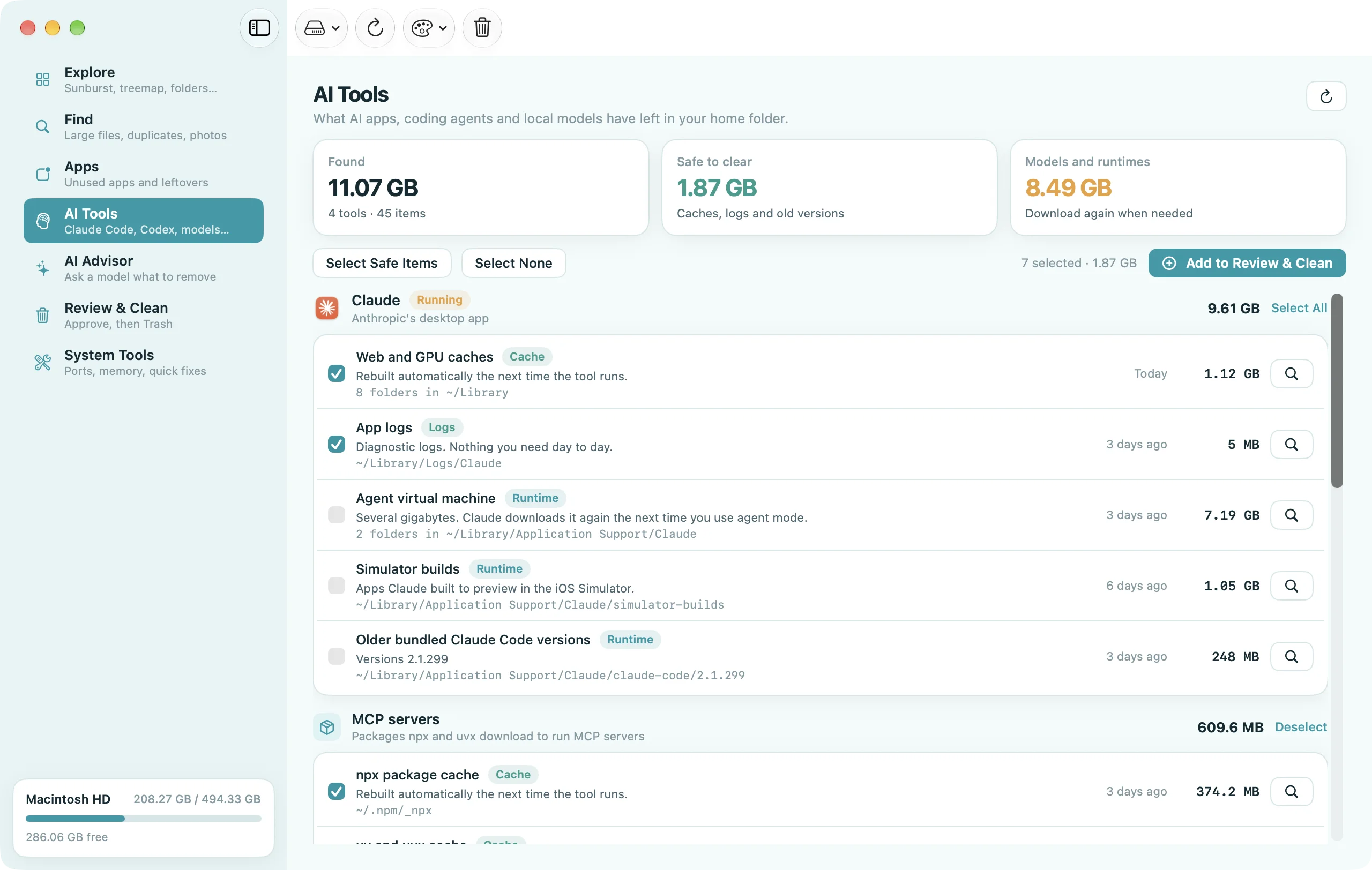
Coding agents keep every session, AI desktop apps cache like browsers and download whole virtual machines, and each local model weighs gigabytes. Disk Clean AI knows where all of it lives and what clearing it costs.
A real scan of one developer’s Mac.
On one real Mac
Found
11.07 GB
4 tools, 45 items
Safe to clear
1.87 GB
Ticked for you
Opt-in
8.49 GB
Models, runtimes
Claude: agent virtual machineRuntime7.19 GB
Claude: web and GPU cachesCache1.12 GB
Claude: simulator buildsRuntime1.05 GB
MCP servers: npx package cacheCache374 MB
Claude alone held 9.61 GB, most of it an agent VM the app downloads again when you need it. That’s why it isn’t ticked: you decide.
Every item says what clearing it costs.
Pure leftovers start selected. Anything you’d miss, like chat history or a model you’d have to download again, waits for you to tick it.
CacheSelected for you
Rebuilt automatically the next time the tool runs.
LogsSelected for you
Diagnostic logs. Nothing you need day to day.
Old versionsSelected for you
Superseded copies. The version in use is kept.
HistoryOpt-in
Past sessions and chats. Once cleared, you can't resume or search them.
ModelsOpt-in
Downloaded model weights. They download again if you use the model.
RuntimeOpt-in
Downloaded again the next time you use the feature.
What it looks for, tool by tool.
Claude Code
Session transcripts per project, rewind checkpoints, to-do lists, shell snapshots and caches, debug and MCP server logs, and old versions of the native install (it keeps the newest and the one you run).
Claude
The desktop app's web and GPU caches, logs, older bundled Claude Code, the multi-gigabyte agent virtual machine and simulator builds.
OpenAI Codex
CLI and app: session transcripts, prompt history, generated images, caches and logs.
ChatGPT
The desktop app's caches.
Cursor & Windsurf
Editor caches and update downloads, logs, and per-project workspace state including chat history.
Gemini CLI
Checkpoints and chat logs.
Ollama
Downloaded models, as one item (drop a single model with ollama rm), and server logs.
LM Studio
Downloaded models, one item per model.
Hugging Face
Hub models one by one, datasets, and the download chunk cache used by transformers, MLX and friends.
PyTorch, Whisper & llama.cpp
torch.hub checkpoints, Whisper models and models fetched with llama-cli -hf.
Draw Things, DiffusionBee & GPT4All
Local image and chat models, listed per model where the app keeps them separately.
MCP servers
The npx and uv/uvx package caches MCP servers run from. Packages download again when needed.
It only measures
Looking is read-only and takes seconds, straight from your home folder. No full disk scan needed.
Flags running apps
If Claude, Cursor or another app is open, it says so: quit it first so nothing is in use.
Trash, never delete
Your picks go through Review & Clean to the Trash, and Undo puts the whole batch back.
Free to see, Pro to clean. Anyone can see what each tool uses. Adding it to Review & Clean is part of Pro, a one-time $19.
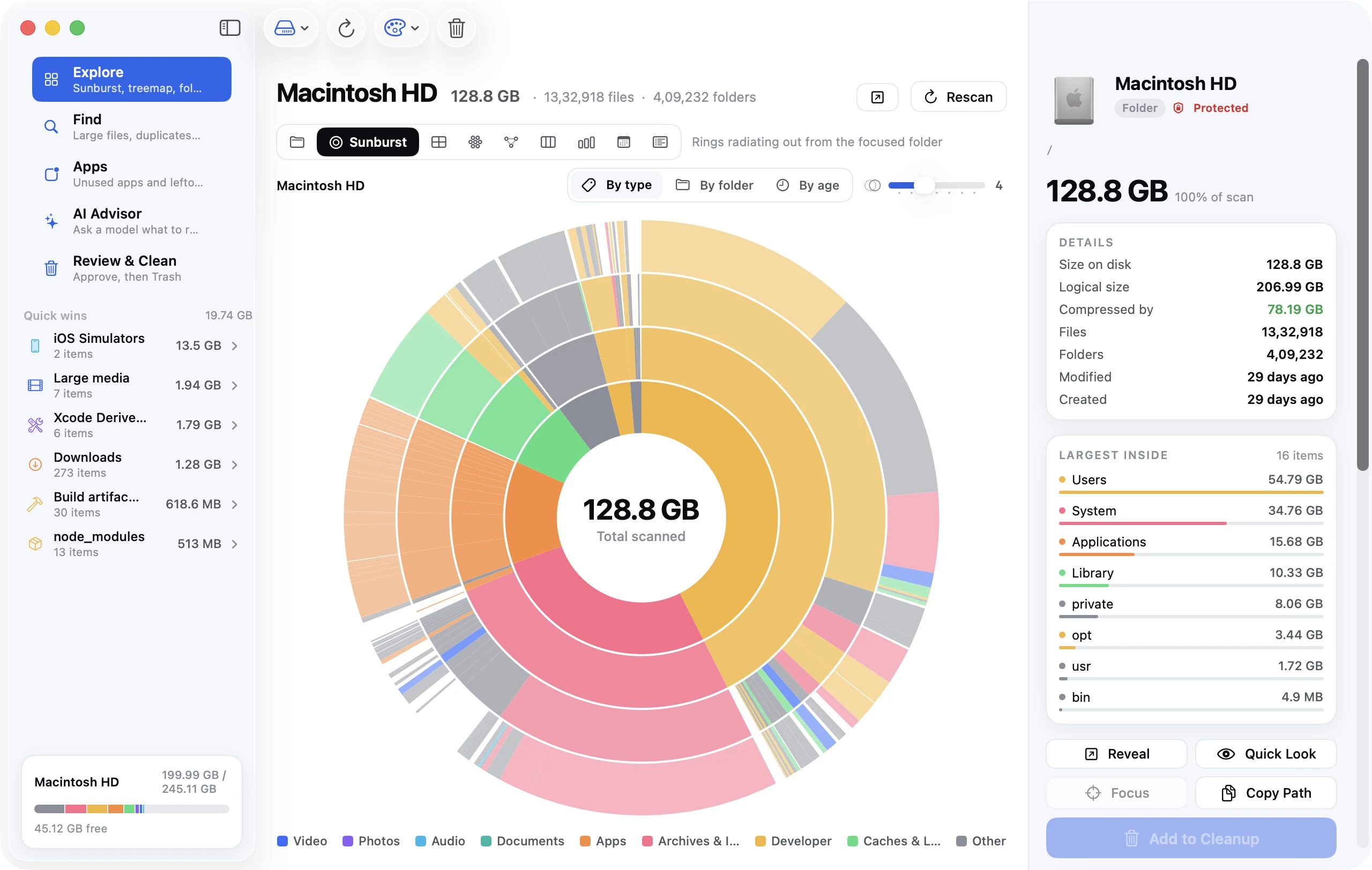
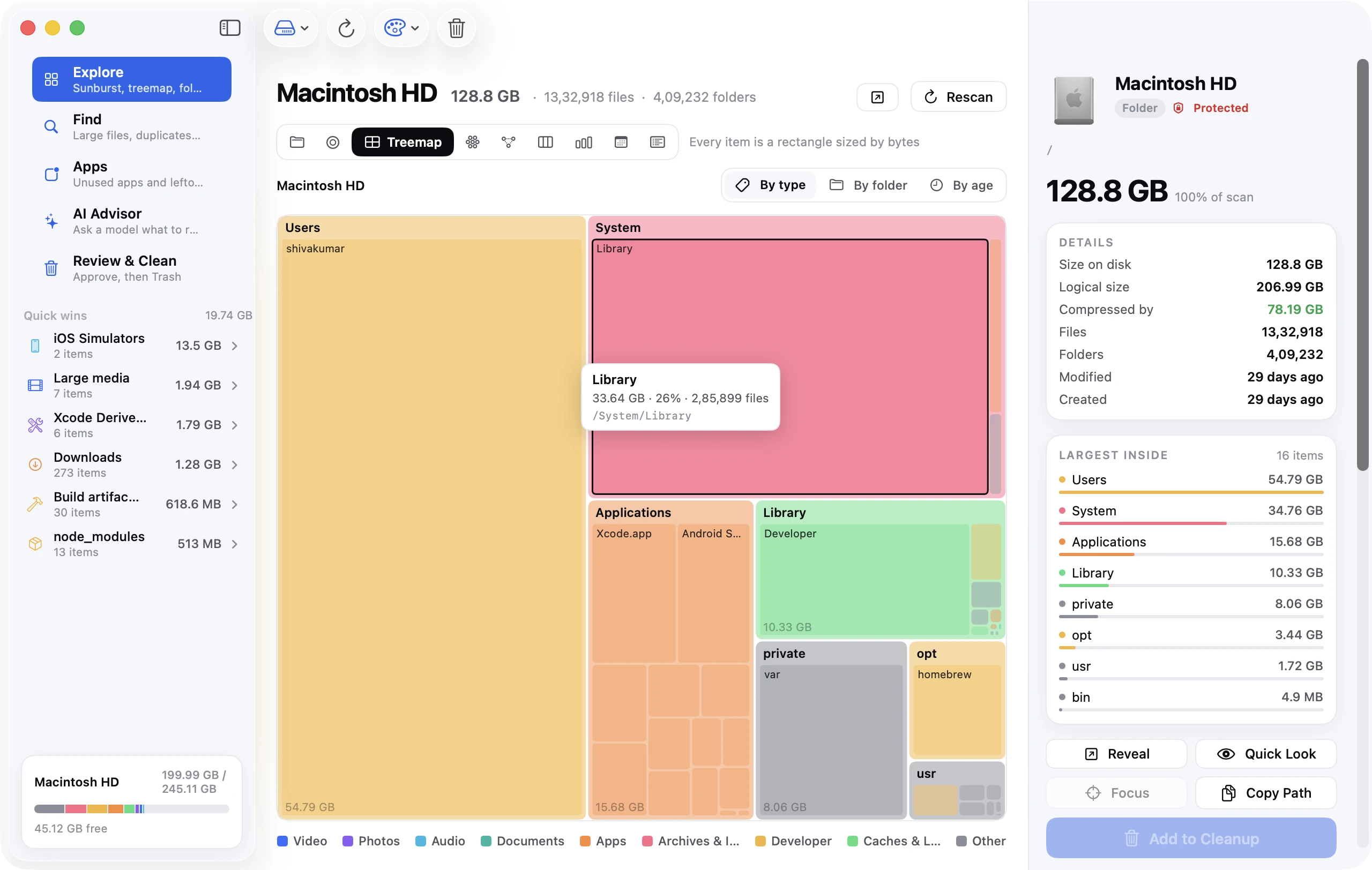
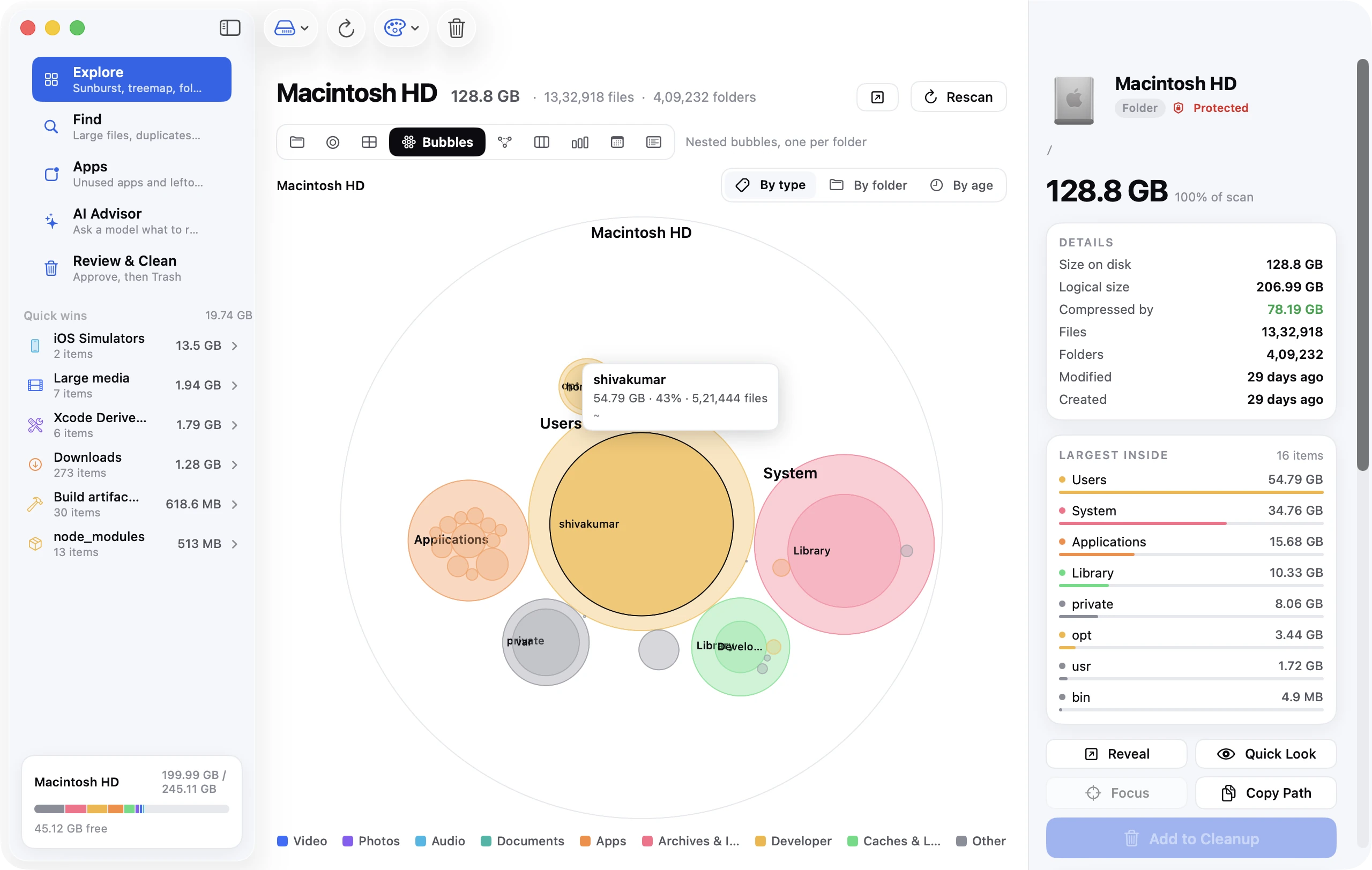
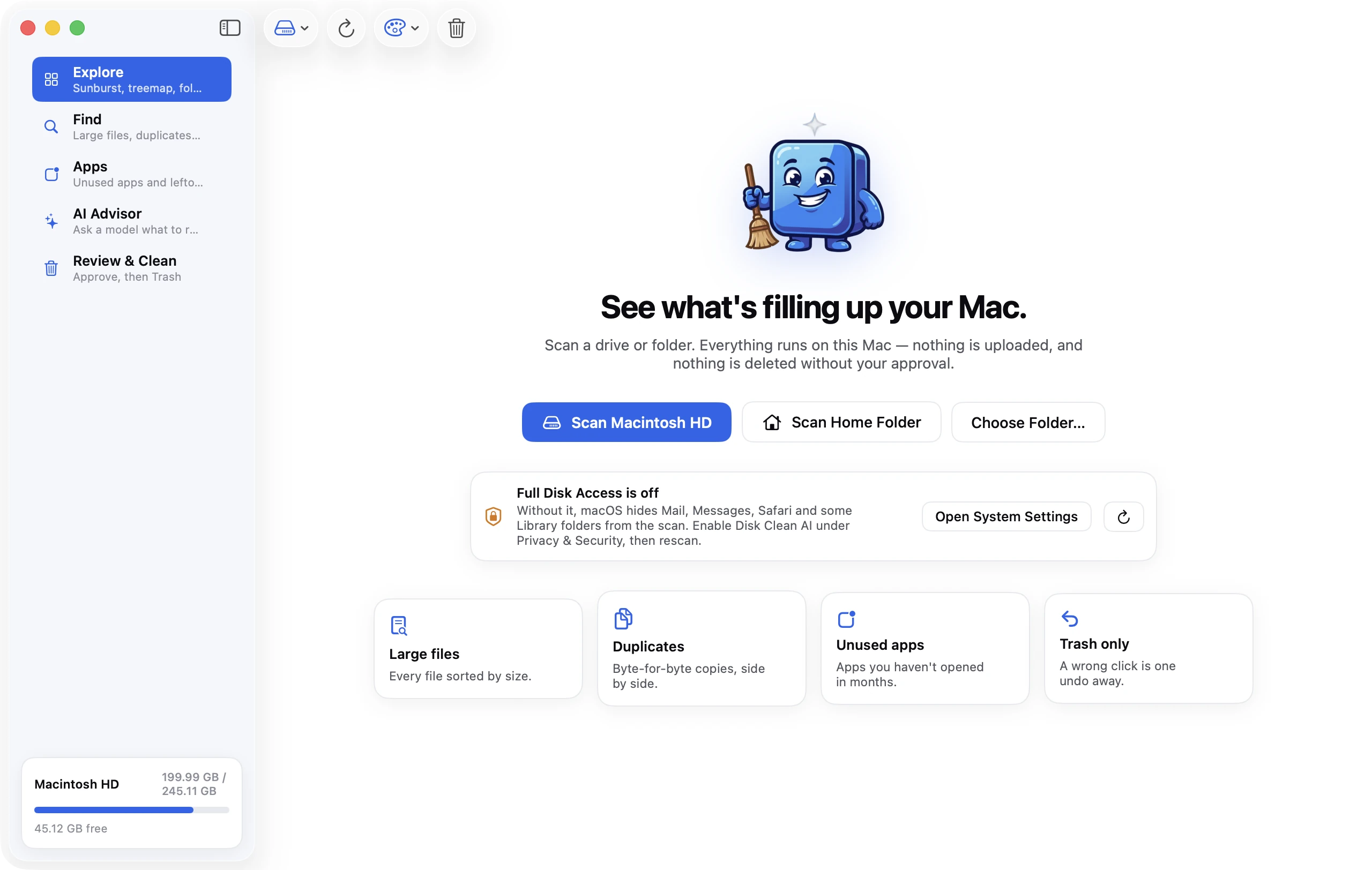
Disk Clean AI also scans your whole drive on your Mac, then groups what it finds into things you can actually act on. Every screenshot below is the real app.
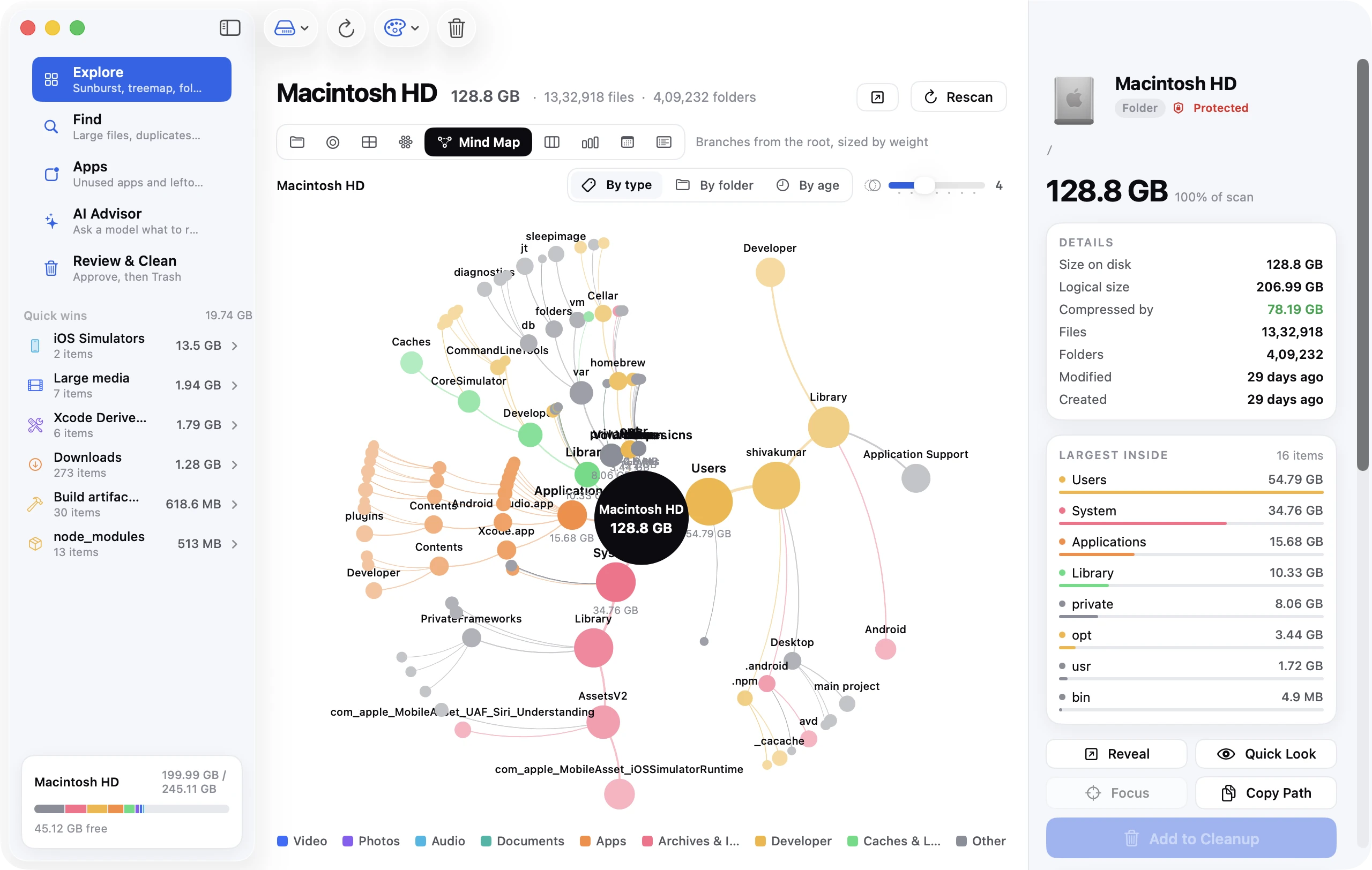
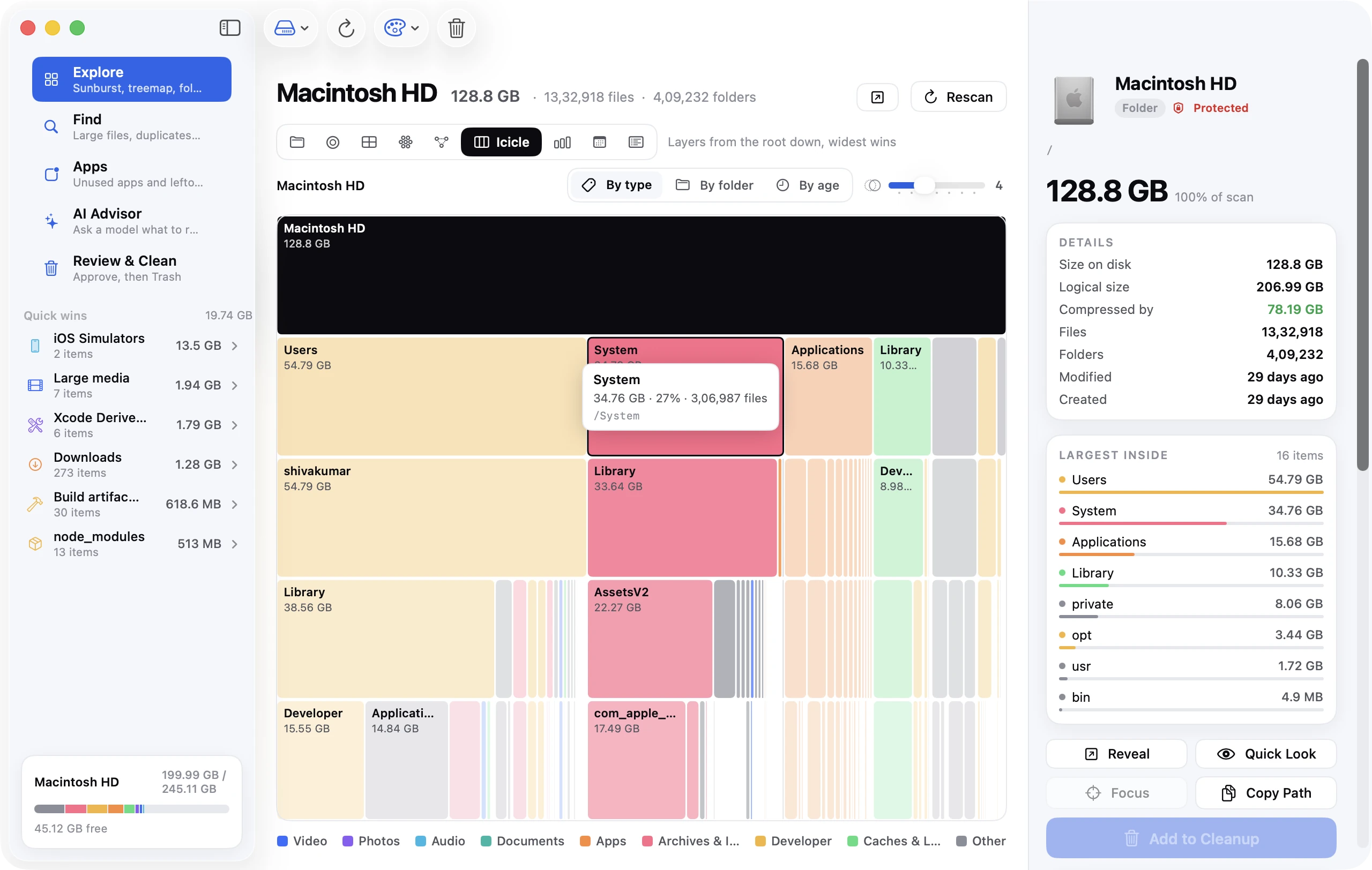
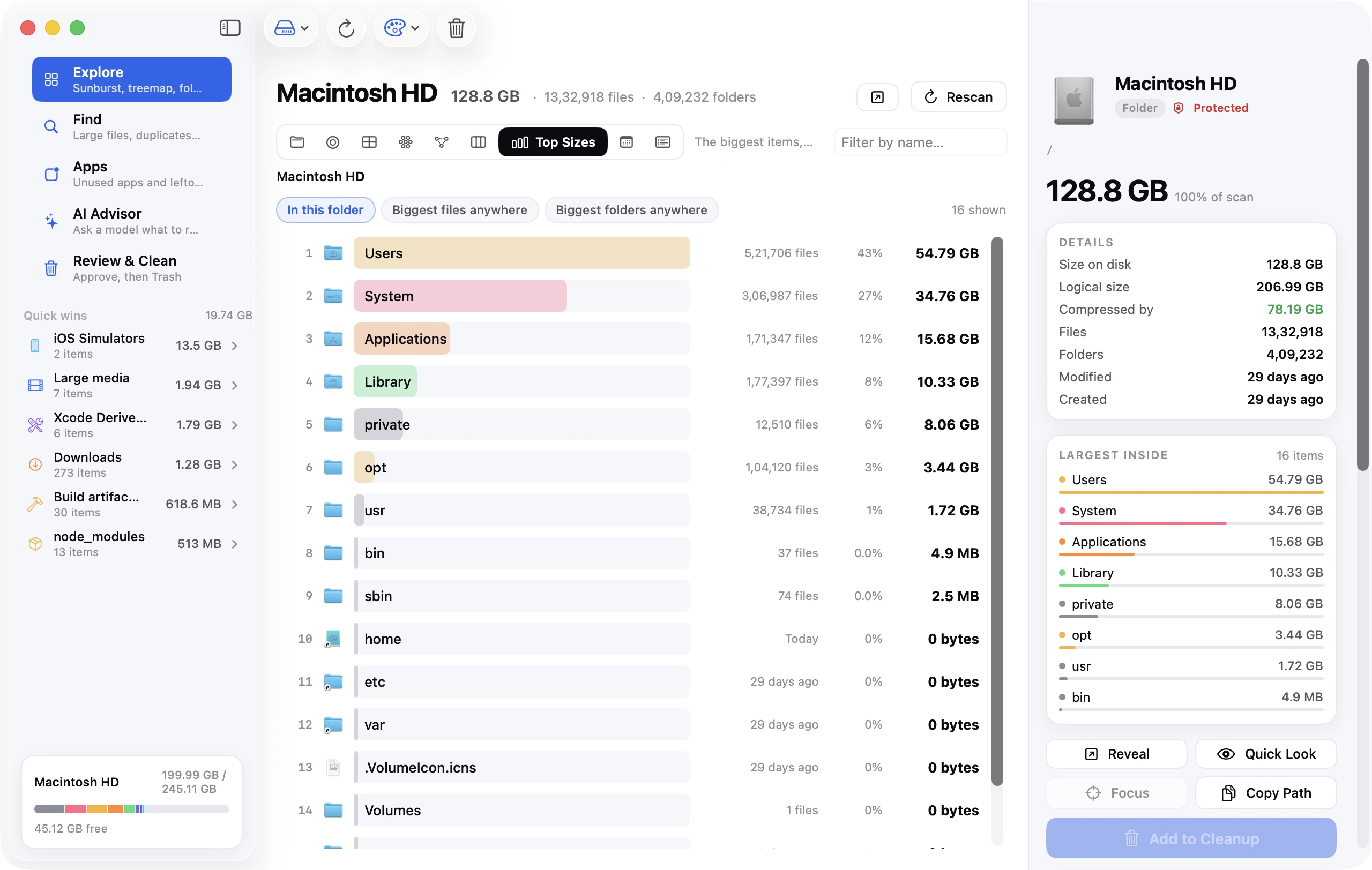
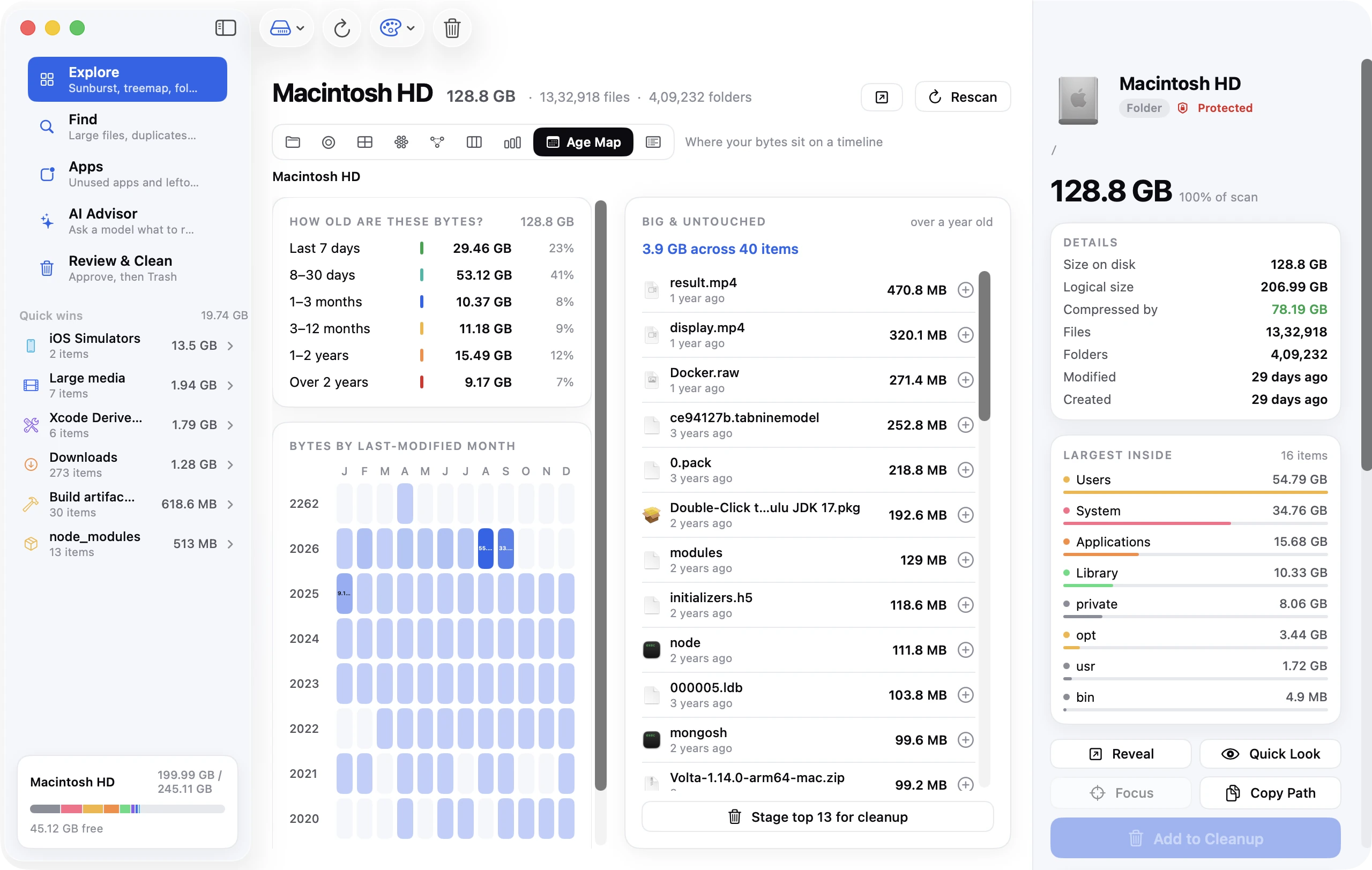
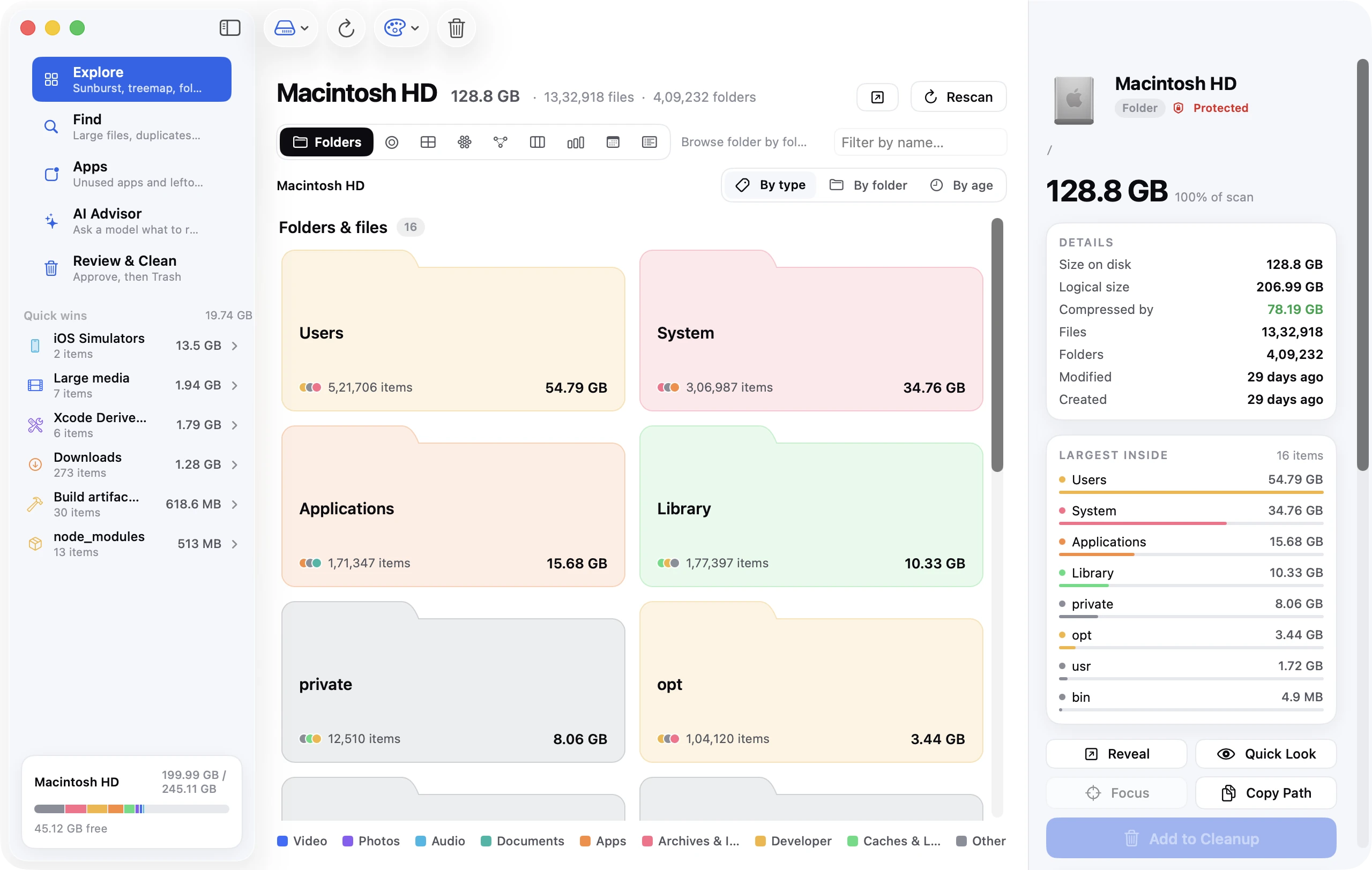
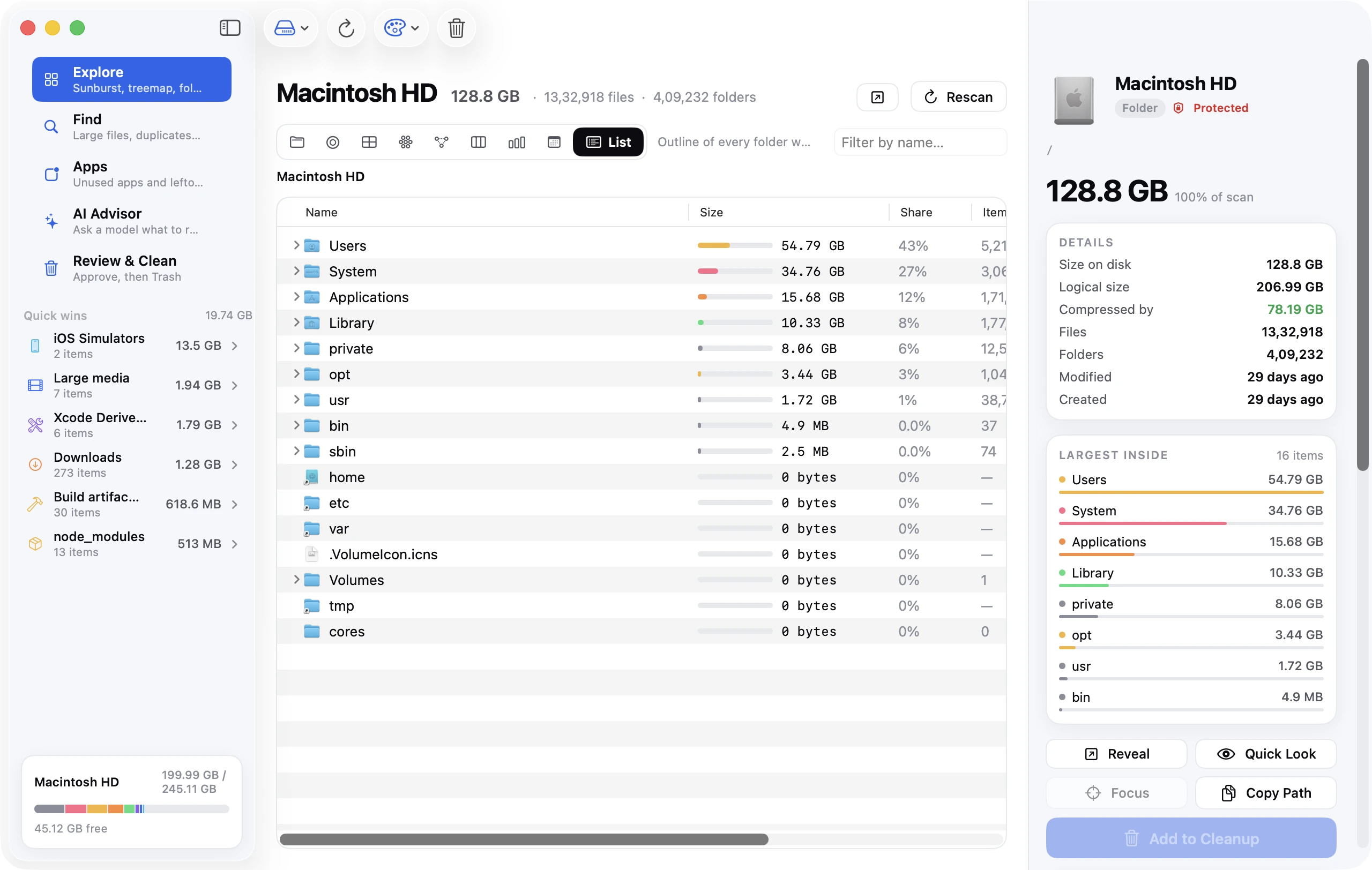
The whole tree, drawn for you. Click any slice, rectangle or bubble to focus on it and read the details in the inspector on the right. Sunburst, Top Sizes and List are free; Pro adds the other six views and colouring by file type, folder or age. Anything you select can be revealed in Finder, previewed with Quick Look, or added to the cleanup queue.
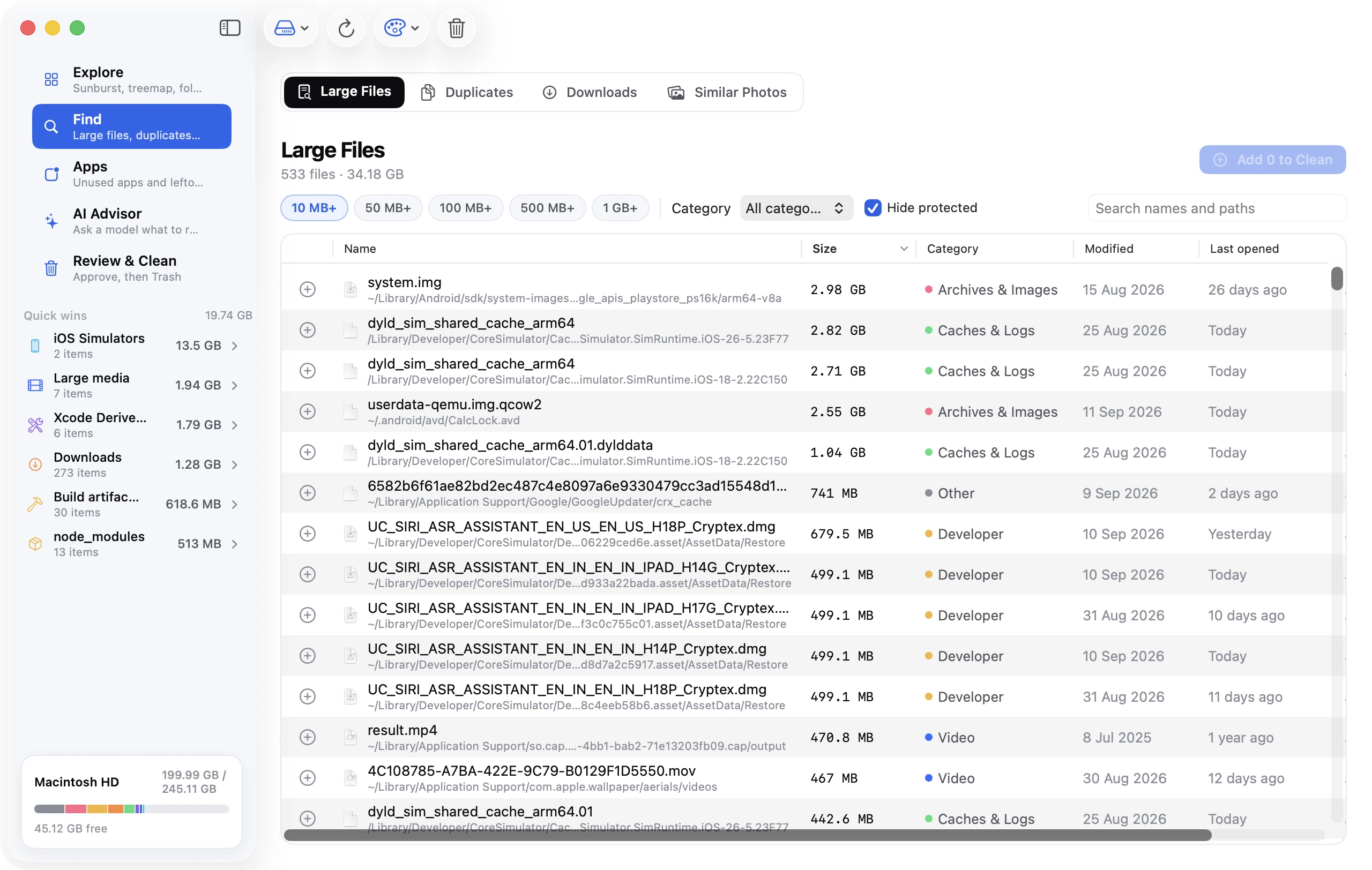
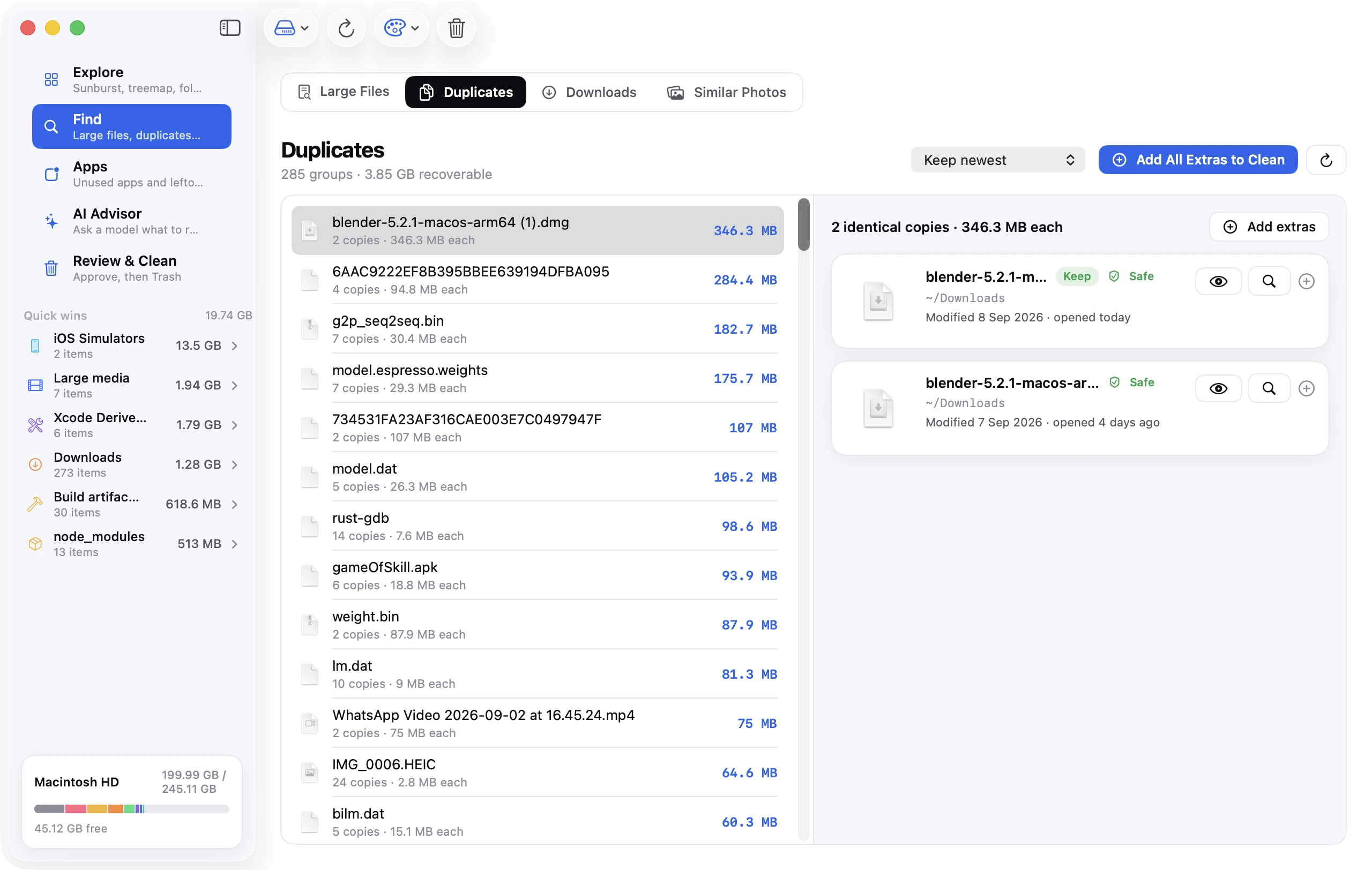
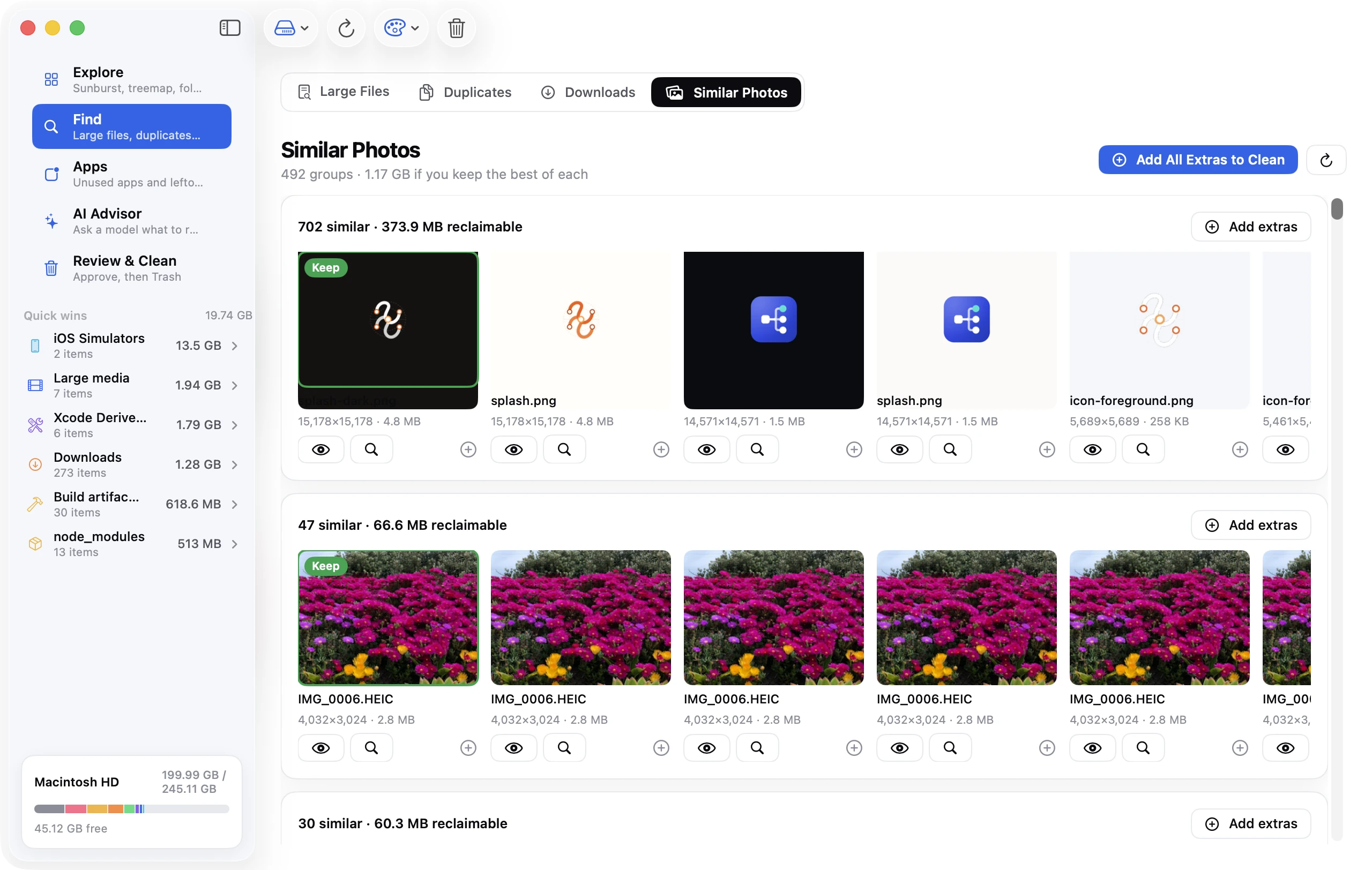
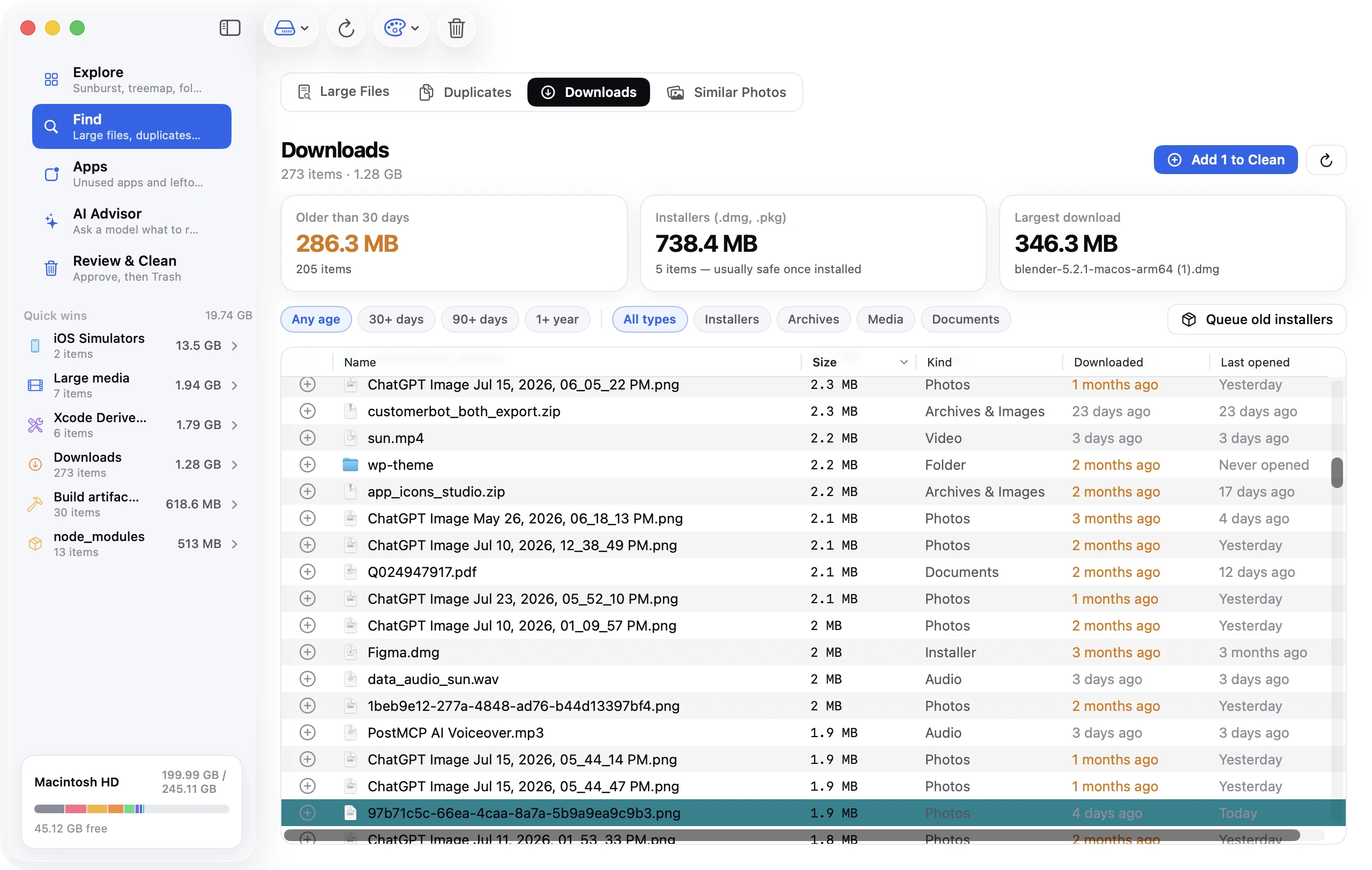
Large files, duplicates, similar photos, stale downloads.
Four searches under one roof, each hunting a different kind of clutter. Large Files and Downloads are free. With Pro, duplicates are matched by size, a partial hash, then a full SHA-256 — so a match is a byte-for-byte copy — and similar photos are grouped by a perceptual hash, with the best copy marked Keep. Every result has a + to stage it for review.
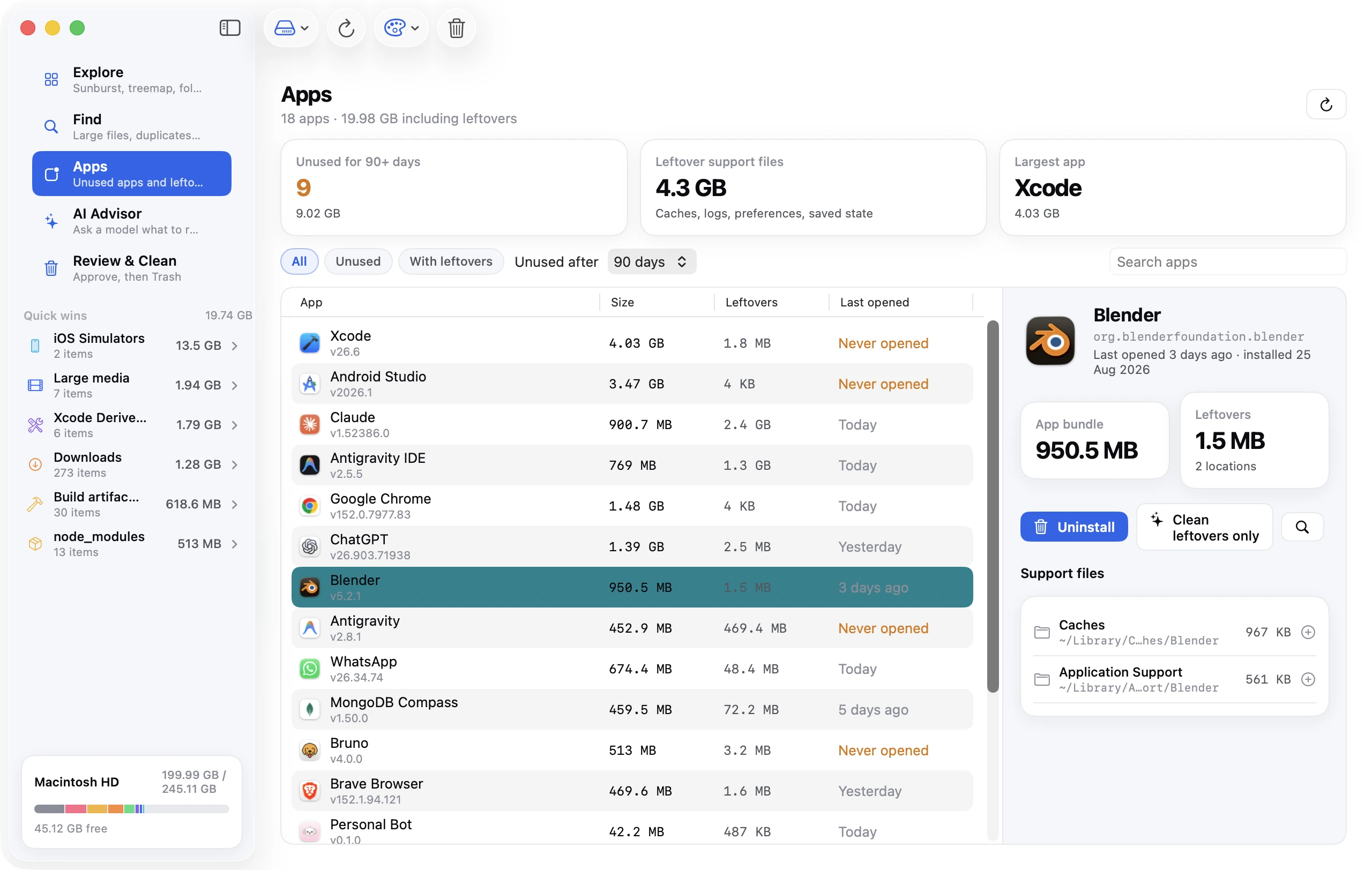
Every installed app with its size, version and the last time you opened it. Each one lists the caches, logs and support files it keeps in your Library — so you can uninstall the whole thing, or just sweep the leftovers.
Filter to apps unused for 30, 60, 90, 180 days or a year.
See leftover support files per app, with their paths.
Uninstall, or clean leftovers only and keep the app.
Quick wins
Developer clutter, already sorted.
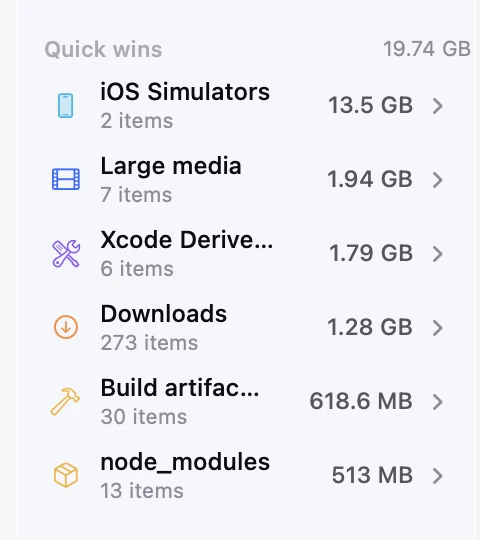
The moment a scan finishes, the sidebar surfaces the usual suspects — with totals. Click one and Explore jumps straight to those folders so you can see exactly what you'd get back.
iOS Simulator runtimes and Xcode DerivedData.
node_modules and build folders, outermost only.
Downloads, caches and logs, large media, the Trash.
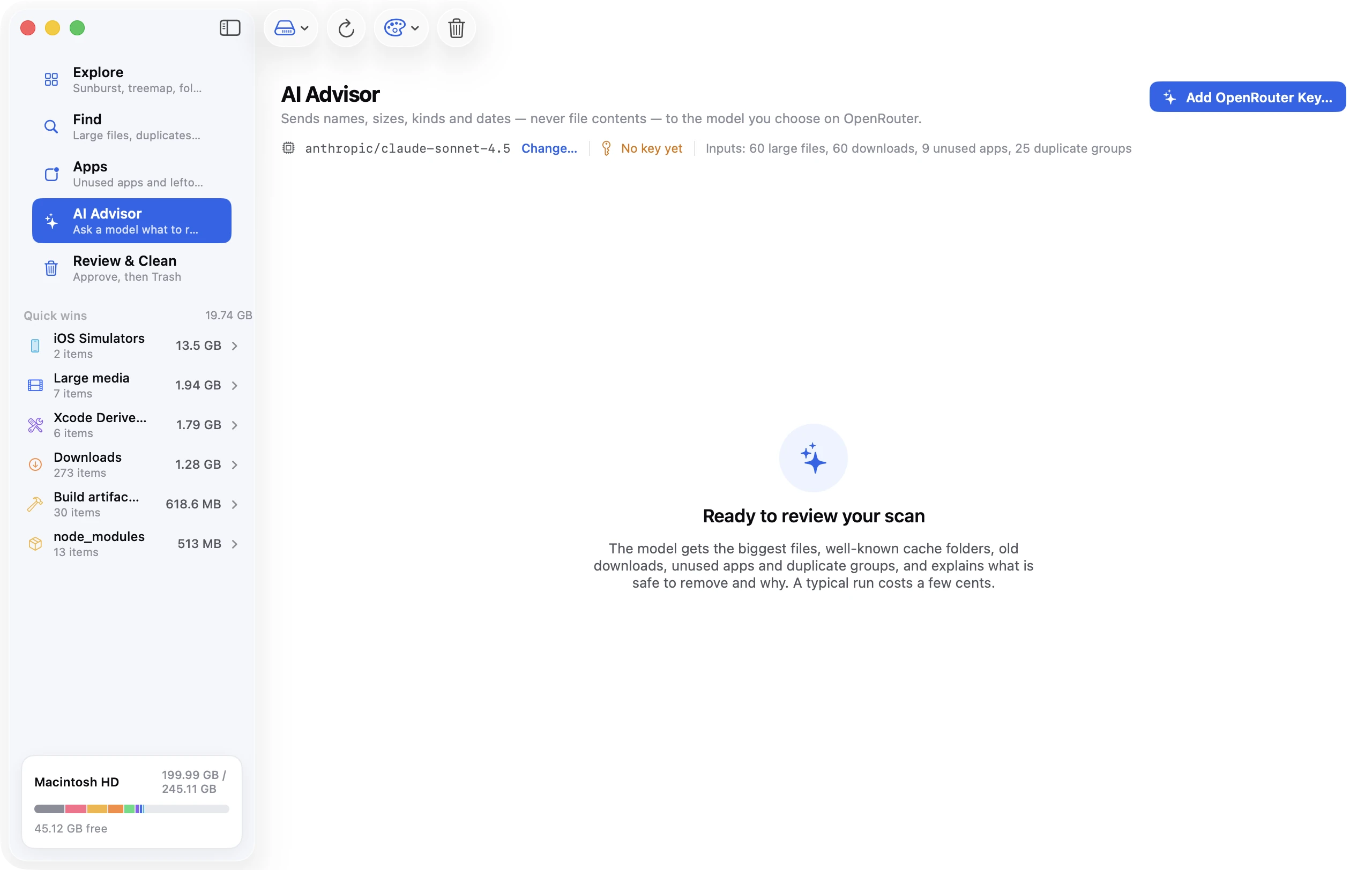
Add an OpenRouter key, pick any model, and the advisor reviews your biggest files, well-known cache folders, old downloads, unused apps and duplicate groups. It explains what's safe to remove and why, with a confidence level on every suggestion.
Sends names, sizes, kinds and dates — never file contents.
A checkbox shows you exactly what was sent.
A typical run costs a few cents, billed to your own key.
Review & Clean
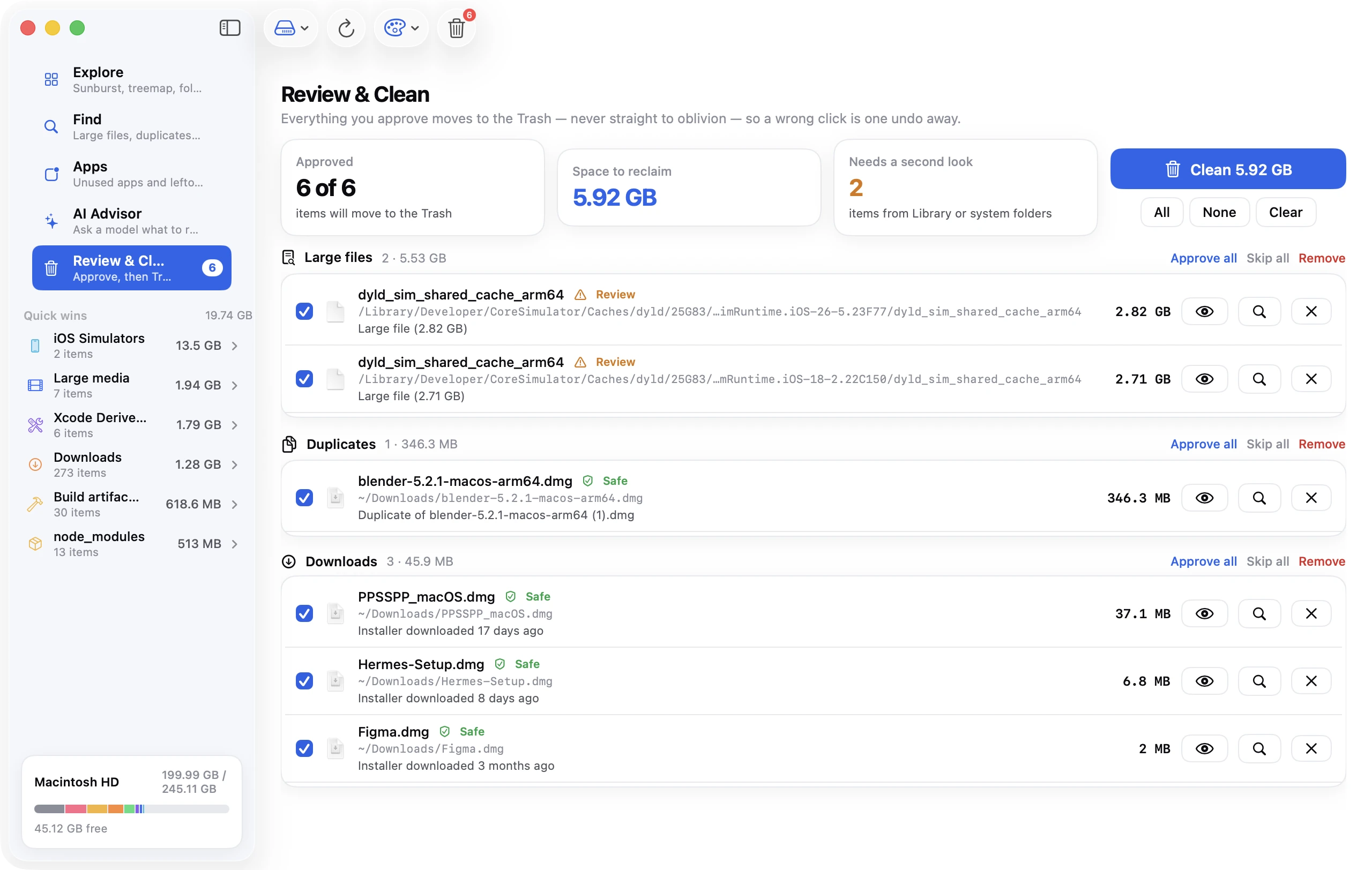
Nothing moves until you say so.
Everything you stage lands here first, grouped by where it came from. Items from your Library or system folders are flagged for a second look; the rest are marked Safe. Tick what goes, hit Clean, and it all goes to the Trash — never straight to oblivion.
Approve, skip or remove items one by one or per group.
Quick Look or reveal any item before deciding.
Undo the whole batch with one click.
Scan anything
The startup disk, an external drive, your home folder, ~/Library, or any folder you pick.
Protected paths
The OS, frameworks, keychains, Mail, Photos and anything inside a package can never be queued.
Quick Look & Reveal
Preview any file with Quick Look before deciding, or jump straight to it in Finder.
Undo a whole batch
Each cleanup is one batch. Changed your mind? Undo puts every item back where it was.
Nine themes
Ocean comes free. Pro adds Daylight, Midnight, Graphite, Nord, Solar, Dusk, Forest, Sakura — or follow the system.
No account, no telemetry
Your scan never leaves your Mac. The app only sends the AI request you choose to run, a daily update check and, with Pro, a daily license check.
How it works
Three steps. You stay in control of each one.
Step 1
Look
Open AI Tools to see in seconds what Claude Code, Codex, Cursor and your local models have left in your home folder, or scan a whole drive. Everything runs on your Mac; nothing is uploaded.
Step 2
Pick what goes
Caches, logs and old versions start ticked; chat history and models wait for you. Add Quick Wins, large files and downloads, and with Pro, duplicates, unused apps and the AI Advisor's suggestions.
Step 3
Approve and clean
Tick what goes, skip what stays, hit Clean. Everything lands in the Trash, so you can still change your mind.
AI Advisor · Pro
Your key. Your model. Your bill.
The AI Advisor is part of Pro, and it runs on your own key: Disk Clean AI never proxies or resells AI credits. Paste an OpenRouter key, choose any model it supports — Claude, GPT, Gemini, Llama — and pay OpenRouter directly. A typical scan costs a few cents.
Your key lives in the macOS Keychain and is only ever sent to OpenRouter.
Switch models any time — a cheap one for everyday scans, a stronger one for tricky calls.
Scanning, cleaning and every other tool work without a key. AI suggestions are the only part that needs one.
Download Disk Clean AI to see what your AI tools use and clean up the usual suspects for free. When you want to clear the AI-tool clutter, duplicates, apps and the rest, Pro is a one-time purchase: no subscription, no account.
Free
$0forever
See what’s filling your disk and clear the safe wins.
See how much space each AI tool and model uses
Scan your startup disk, home folder or any folder
Explore in Sunburst, Top Sizes and List views
Quick wins: caches & logs, Downloads, Trash, node_modules, DerivedData, simulators, build folders, large media
AI Tools cleanup: clear what Claude Code, Codex, Cursor, Ollama, LM Studio, Hugging Face and more leave behind
All nine Explore views, colour by type, folder or age, and depth control
Duplicate finder and Similar Photos
App uninstaller with leftover files
AI Advisor with your own OpenRouter key
System Tools and the menu-bar monitor
All ten themes, custom thresholds and scan exclusions
One key, up to 3 Macs
Key arrives by email in about a minute
FAQ
Questions people ask before installing.
What does AI Tools cleanup clear?
What AI apps, coding agents and local models leave in your home folder: Claude Code session transcripts, checkpoints, caches, logs and old versions; the Claude desktop app's caches, agent virtual machine and simulator builds; ChatGPT caches; Codex sessions, prompt history and caches; Cursor and Windsurf caches and workspace state; Gemini CLI checkpoints; Ollama, LM Studio, Hugging Face, PyTorch, Whisper, llama.cpp, Draw Things, DiffusionBee and GPT4All models; and the npx and uvx caches MCP servers run from.
Is it safe to delete Claude Code or Codex caches?
Yes. Caches, logs and old versions are rebuilt automatically or no longer used, and they're the only things Disk Clean AI ticks for you. For Claude Code that's shell snapshots, caches, debug and MCP server logs, and old versions of the native install; it always keeps the newest version and the one you're running. If an app is flagged as running, quit it first. Everything goes to the Trash, and Undo puts it back.
Will I lose my chat history?
Only if you choose to. Claude Code transcripts and rewind checkpoints, Codex sessions and prompt history, Cursor and Windsurf workspace state and chats, and Gemini CLI checkpoints are tagged History and never ticked by default. Claude Code transcripts are listed per project; once one is cleared, claude --resume can't reopen those sessions.
Does it delete my Ollama or LM Studio models?
Not unless you tick them. Models are opt-in and listed with their sizes; LM Studio, Hugging Face, Draw Things and GPT4All show one item per model. Ollama's models folder is a single item, so to drop just one Ollama model run ollama rm <model>. A cleared model downloads again the next time you use it.
Can I see how much my AI tools use for free?
Yes. The AI Tools screen shows every tool and item with its size in the free version. Adding them to Review & Clean is part of Pro.
Is Disk Clean AI free?
The download is free, and so is the core job: see how much each AI tool uses, scan any drive or folder, explore it as a sunburst, ranked list or outline, find large files and old downloads, clear the Quick Wins (caches, logs, Trash, node_modules, Xcode DerivedData, simulators) and undo any cleanup. Pro unlocks everything else.
What does Pro add, and what does it cost?
AI Tools cleanup, all nine Explore views with colour and depth controls, the duplicate and similar-photo finders, the app uninstaller, the AI Advisor, System Tools with the menu-bar monitor, every theme and custom thresholds and exclusions. It's a one-time $19 at launch (usually $39). No subscription, no account.
How many Macs can I use it on?
One license key works on up to three of your Macs at once. To move it, choose Settings › License › Remove License from This Mac on the old one, or email us and we'll free a seat.
How do I unlock Pro after buying?
Your license key arrives by email about a minute after checkout. Open Disk Clean AI, choose Settings › License (or click any Pro feature), paste the key and click Activate. Lost it? The Pro page can email it to you again.
Can I get a refund?
Yes. If Pro isn't right for you, email us within 14 days of buying and we'll refund you in full.
Is it still open source?
No. Disk Clean AI used to be open source, but it's now a closed-source app with a free tier, so we can keep working on it full time. Versions that were already published under the MIT license stay that way.
What does the license check send?
About once a day the app checks your license with our license server: only the key, a random ID made for this install, your Mac's name, and the app and macOS versions. Never your files, your scan or anything about what's on your disk.
Do I pay for the AI separately?
Yes, but only what OpenRouter charges. The AI Advisor runs on your own OpenRouter key, and Disk Clean AI doesn't mark up or resell model usage — a typical scan costs a few cents.
Does it ever delete files on its own?
No. Nothing leaves your disk until you review a list and approve it. Approved items go to the Trash, so you can still get them back.
What does the AI actually see?
File paths, names, sizes, types and dates — enough to reason about what's clutter. It never reads file contents and never uploads files.
How do updates work?
The app checks for new versions once a day and installs them in place after verifying the download. You can also check manually from the Disk Clean AI menu, or download the newest version from this site.
Which Macs are supported?
macOS 14 Sonoma or later, on both Apple silicon and Intel.
Guides
Know your Mac before you clean it.
Tested, step-by-step guides to the storage problems people search for most — with the manual method and the one-scan shortcut.
Where Claude Code, Codex, Cursor, Ollama and Hugging Face keep sessions, caches and models on a Mac, what's safe to delete, and the commands that clear them.
How much free space a macOS update really needs, why the installer ignores 'purgeable' space, and a 20-minute sequence that clears 50 GB or more so the update goes through.
Time Machine local snapshots quietly hold on to files you've deleted. Learn what they are, how to list and delete them with tmutil or Disk Utility, and which one to keep.