10 min read
Mail Taking Up Space on Mac? How to Shrink Apple Mail's Storage
Apple Mail downloads every message and attachment in every account and never removes them. Where the data lives, what's safe to delete, and the settings that stop it growing back.
- How-to
- Apps
- Storage
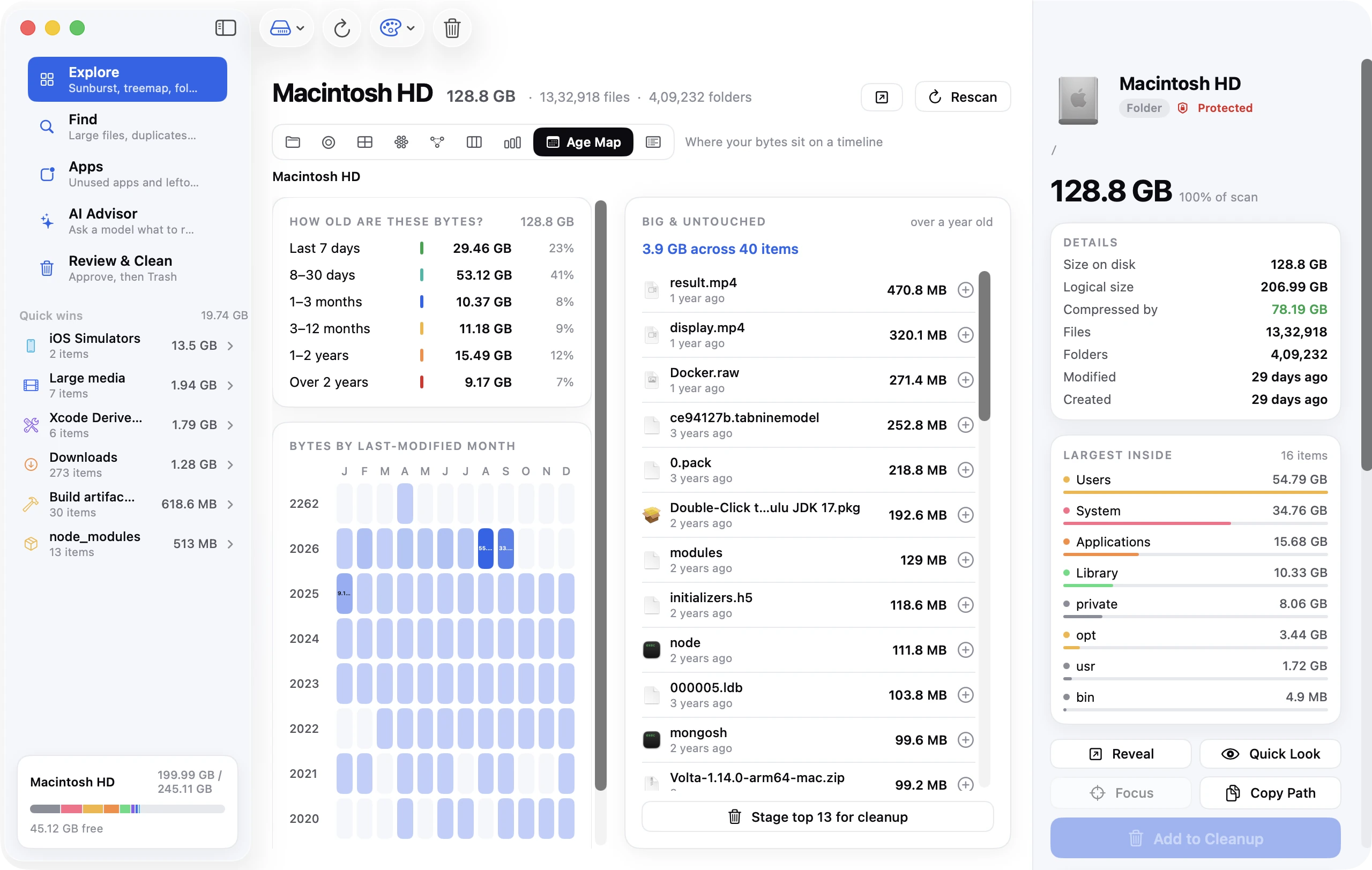
Open System Settings → General → Storage and there's Mail, sitting at 18 GB. Or 40. Or, in the Apple Community thread that started this guide, 200 GB on a MacBook Air the owner had bought three days earlier. The Mail app is one of the most common and least expected space hogs on a Mac, and the reason is simple: by default it downloads a complete copy of every message and every attachment in every account you add, forever, and it never throws any of it away. This guide explains where that data lives, what's safe to remove, and the settings that stop it growing back.
The short version
- Mail keeps a full local copy of every mailbox at
~/Library/Mail/, attachments included. Add a ten-year-old Gmail account and you've just added ten years of attachments to your disk. - Quick wins, in order: empty Mail's Trash and Junk for every account, delete the largest attachment-heavy messages, set Download Attachments to Recent or None, and clear the Mail Downloads folder.
- The nuclear option, removing the account from Mail and re-adding it, wipes the local copy and rebuilds only what you need. Your mail stays on the server.
- Check for a runaway log file. A single Mail log has been known to reach 28 GB when "Log Connection Activity" is left on.
- Gmail accounts often count twice because of the All Mail folder. Hiding it from IMAP can halve the footprint.
Where Mail stores its data
Almost everything is here:
~/Library/Mail/
Inside is a versioned folder (V10 on recent macOS releases; older systems used V7, V8 or V9) containing one folder per account, and inside each of those, a folder per mailbox with the messages stored as individual .emlx files plus their attachments. There's also a MailData folder holding the Envelope Index, the database Mail uses to search and sort, which can itself reach several gigabytes on a large mailbox.
A second, smaller location holds attachments you've opened or Quick Looked:
~/Library/Containers/com.apple.mail/Data/Library/Mail Downloads/
And logs, which are normally tiny but occasionally aren't:
~/Library/Containers/com.apple.mail/Data/Library/Logs/Mail/
To see exactly how big each account is, run this in Terminal:
du -sh ~/Library/Mail/V*/* 2>/dev/null | sort -rh
Each line is one account (named by a long identifier; the largest is usually obvious). Add /* to the path to break it down by mailbox within an account.
Why Mail gets so big
For an IMAP or iCloud account, the mail lives on the server and Mail should only need a cache. But Apple Mail's default behaviour is to download everything, including attachments, so that search and offline reading work fully. That's a good default for a 2 GB mailbox and a terrible one for a 60 GB one.
Three things make it worse:
Attachments are stored in full. Every PDF, photo, ZIP and forwarded video, in every message, in every folder including Sent. Someone who's been emailed a 20 MB deck every week for five years is carrying 5 GB of decks.
Gmail's All Mail folder doubles up. Gmail exposes labels as IMAP folders, and every message appears in both its label folder and in All Mail. Apple Mail downloads both. Effectively your Gmail account is stored twice.
Mail rarely removes anything. Deleted messages go to a Trash mailbox that keeps them locally until erased. Junk accumulates. Messages you archived rather than deleted stay downloaded. The local store only shrinks when you make it.
Step 1: Empty Trash and Junk for every account
This is the safest win and often the biggest.
- Open Mail. In the menu bar choose Mailbox → Erase Deleted Items → In All Accounts.
- Then Mailbox → Erase Junk Mail.
On a mailbox that's never been emptied this alone can return several gigabytes. To stop it building up again, set an automatic schedule: Mail → Settings → Accounts → select the account → Mailbox Behaviours, and under Trash Mailbox set Erase deleted messages to After one week (or one day). Do the same for Junk.
Step 2: Find and delete the biggest messages
Mail can sort by size, which makes attachment-heavy messages easy to spot.
- Select a mailbox (start with Inbox and Sent for your largest account).
- Click the sort control at the top of the message list and choose Sort by Size, largest first. (If you're in classic layout, use View → Sort By → Size.)
- Delete what you no longer need, then erase Deleted Items again.
For a view across every mailbox at once, create a Smart Mailbox: Mailbox → New Smart Mailbox, with the rules Contains attachments and Message size is greater than 5 MB, including messages from Trash unticked. This gives you one list of every large message in every account, sortable by size.
Removing attachments without deleting the message
Select one or more messages and choose Message → Remove Attachments. The message text stays; the attachment is deleted.
Step 3: Stop downloading attachments
This is the setting that matters most for keeping Mail small over time.
- Mail → Settings → Accounts.
- Select an account, then the Account Information tab.
- Set Download Attachments to Recent (attachments from the last year or so) or None (download only when you open the message).
Repeat for each account. Attachments you already have aren't deleted by this change; they're marked purgeable and macOS removes them when it needs space. If you want them gone now, move on to Step 5.
The same effect is available as a one-click switch in System Settings → General → Storage → Optimise Storage, which sets Mail to keep only recent attachments (and removes watched TV shows and films). It's the setting Apple recommends for Macs with small SSDs.
Step 4: Clear Mail Downloads and check for runaway logs
Every attachment you open or preview gets a copy written to the Mail Downloads folder, and Mail doesn't clean it up.
- In Finder press ⇧⌘G, paste
~/Library/Containers/com.apple.mail/Data/Library/Mail Downloads/and press Return. - Select everything (⌘A), move it to the Trash, and empty the Trash.
Nothing here is the only copy; every file is still in its original message.
Then check the logs folder at ~/Library/Containers/com.apple.mail/Data/Library/Logs/Mail/. Normally it holds a few small files. But if Log Connection Activity was ever ticked in Mail's Connection Doctor (Window → Connection Doctor, bottom-left checkbox), Mail writes a verbose log of every message it fetches and the file grows without limit. Six Colors reported a 28 GB log on a 256 GB MacBook Air, and the same log regrew to 9 GB within weeks after being deleted. If you find a multi-gigabyte log, untick that box, quit Mail, delete the log, and it won't come back.
Step 5: Rebuild the local store (the account reset)
If Mail is still far larger than the sum of what's on the server, or you want to apply the new attachment settings to old mail immediately, remove and re-add the account. This deletes the entire local copy and downloads a fresh one under the new rules.
- Make sure the account is IMAP, iCloud or Exchange, not POP. Check under Mail → Settings → Accounts; POP accounts store mail only on the Mac, and removing one deletes it for good. Skip this step for POP.
- Confirm there are no local-only mailboxes under On My Mac in the sidebar that you care about. Those aren't on the server. Export them first: right-click → Export Mailbox.
- System Settings → Internet Accounts, select the account, untick Mail (or delete the account if it's mail-only).
- Quit Mail. Optionally confirm the space came back with
du -sh ~/Library/Mail. - Re-add the account (or re-tick Mail). Set Download Attachments to Recent or None before it finishes syncing, so it never fetches the old attachments.
Mail will download headers and recent messages first and fill in the rest over the following hours. Search may be incomplete until it finishes.
Step 6: Fix the Gmail double-count
If your biggest account is Gmail, hide All Mail from IMAP so Apple Mail stops downloading a second copy of every message:
- In a browser, open Gmail → Settings (gear) → See all settings → Labels.
- Find All Mail and untick Show in IMAP.
- Back in Apple Mail, the All Mail folder disappears after the next sync. The local copy is removed.
Messages still live in Gmail's archive and remain searchable in Apple Mail under their labels and in Gmail on the web. The one thing you lose is a single combined "everything" folder in Apple Mail. Most people don't miss it.
Step 7: Decide whether you need Mail at all
If you read email in a browser or another client and only opened Mail once to set it up, it may be caching accounts you never look at. Remove those accounts from Mail (System Settings → Internet Accounts → untick Mail) and the space goes with them. You can't delete the Mail app itself, but an app with no accounts uses no space.
Frequently asked questions
Why is Mail taking up so much space on my Mac when the account is only a few gigabytes?
Usually because attachments are being counted on the server in compressed form but stored decoded on the Mac, because Gmail's All Mail folder duplicates everything, or because the Trash and Junk mailboxes were never erased. Check du -sh ~/Library/Mail/V*/*/* to see which mailbox is the outlier.
Can I delete the ~/Library/Mail folder? For IMAP, iCloud and Exchange accounts, yes: quit Mail first, delete the folder, and Mail re-downloads from the server when reopened. For POP accounts or On My Mac mailboxes, no: that's the only copy. Removing accounts through System Settings is the cleaner way to get the same result.
Does deleting mail on my Mac delete it from my iPhone? For IMAP and iCloud, yes, because they share the server copy. For POP, no. If you want mail gone from the Mac but kept on the phone, don't delete it; remove the account from Mail on the Mac instead.
Will "Optimise Storage" in System Settings delete my attachments? It changes the Download Attachments setting to Recent, which means older attachments become purgeable and can be removed when the disk is low. The originals stay on the server and download again when you open the message.
Where are Mail attachments stored on Mac?
Inside the message files under ~/Library/Mail/V10/…/Attachments/, plus copies of any you've opened in ~/Library/Containers/com.apple.mail/Data/Library/Mail Downloads/.
How do I stop Mail from downloading everything on a new Mac? Before adding accounts, or immediately after, set Download Attachments to Recent or None in Mail → Settings → Accounts → Account Information. Mail respects the setting from that point on.
Where Mail fits in a full cleanup
Mail is one of a handful of apps that store a private, complete, ever-growing archive in your Library folder without asking. Messages does the same with iMessage attachments, Photos with your library, and Finder with iPhone backups. If you're clearing a full disk, do them together; the complete guide to freeing up space covers all of them in the order that returns the most space fastest.