9 min read
How to Find Large Files on Mac (Finder, Terminal and Visual Tools)
Four reliable ways to find the biggest files on your Mac — Finder search, the Storage settings, Terminal commands like du and find, and visual disk maps — plus what's safe to delete.
- How-to
- Large files
Most full Macs aren't full of small files. They're full of a few dozen enormous ones: a movie you downloaded in 2022, a virtual machine you set up for one project, an exported 4K screen recording, a disk image, an old Photos library copy. Finding those files is the highest-return storage job there is, and macOS gives you several ways to do it. Here are the four that work, from the simplest to the most powerful.
Method 1: Finder search by file size
Finder can search on size, it just hides the option.
- Open a Finder window and press ⌘F.
- In the toolbar, click This Mac so the search covers your whole home folder, not just the current folder.
- Click the + button on the right of the search bar to add a rule.
- Change the first dropdown from Kind to Other…, tick File Size in the list, and click OK. (You only need to do this once; Finder remembers.)
- Set the rule to File Size · is greater than · 500 · MB.
- In the results, switch to list view (⌘2) and click the Size column header to sort largest first.
You can save the search as a Smart Folder (Save button, top right) so it's always one click away in the sidebar. A rule with is greater than 1 GB is a good permanent one.
Limitation: Finder search relies on Spotlight, and Spotlight doesn't index everything. Files inside ~/Library, package bundles (like a Photos library or an app) and some external drives won't appear. For those, use one of the next methods.
Method 2: The Storage settings
System Settings → General → Storage lists categories with an ⓘ button next to each. Documents opens a window with three useful tabs:
- Large Files — every file over a threshold, sorted by size, with a Delete button.
- Downloads — the contents of your Downloads folder, sorted by size.
- Unsupported Apps and File Browser — a size-annotated view of your home folder you can drill into.
It's slower than Finder search and only covers files macOS classes as Documents, but the File Browser is the only built-in way to see folder sizes at a glance.
Method 3: Terminal
Terminal sees everything, including the parts of ~/Library Finder search skips. Three commands cover most needs.
Biggest files anywhere in your home folder
find ~ -type f -size +500M 2>/dev/null -exec du -h {} + | sort -rh | head -30
This lists every file over 500 MB with its size, largest first. Change +500M to +1G for a shorter list, or +100M for a longer one.
Biggest folders
du -h -d 2 ~ 2>/dev/null | sort -rh | head -30
-d 2 limits the depth to two levels so you see folders like ~/Library/Caches rather than every subfolder inside. Increase it to drill deeper into a specific folder: du -h -d 1 ~/Library/Application\ Support | sort -rh | head.
Spotlight query, sorted by size
mdfind 'kMDItemFSSize > 1000000000' | head -50
This uses the same index as Finder search (so it has the same blind spots) but is instant. The number is bytes — 1000000000 is roughly 1 GB.
Whole-disk view, including system folders
sudo du -h -d 1 / 2>/dev/null | sort -rh | head -20
sudo is needed to read other users' folders and some system locations; you'll be asked for your password. On recent macOS you may also need to grant Terminal Full Disk Access in System Settings → Privacy & Security, otherwise ~/Library/Mail, Messages and a few others are silently skipped.
Method 4: A visual disk map
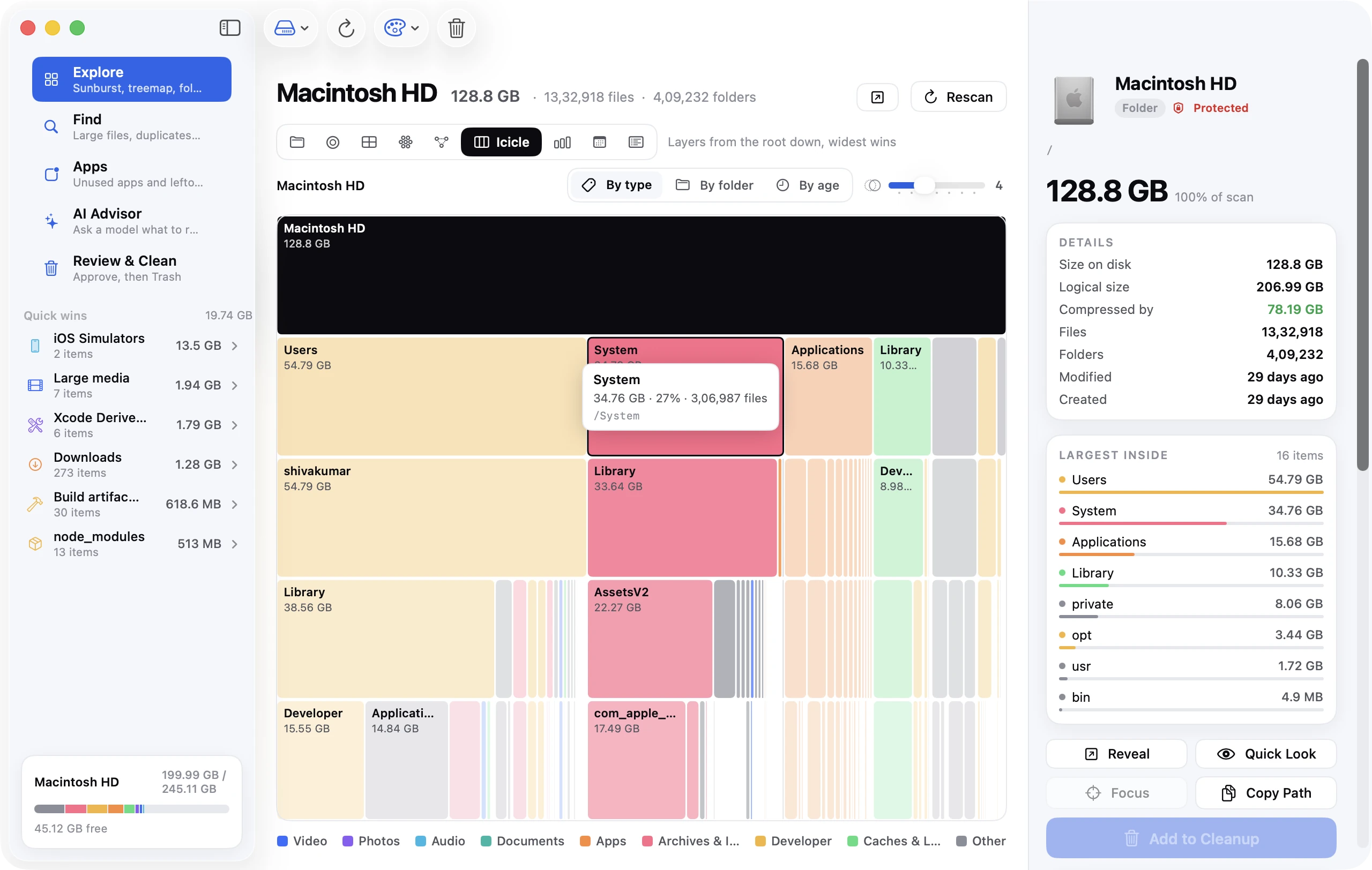
Lists are fine for the top ten files. For understanding why a disk is full — which folder tree is actually heavy — a visual map is faster. A treemap draws every folder as a rectangle sized by bytes; a sunburst draws them as rings. Either way, the heavy branches are obvious at a glance and you can click into them.
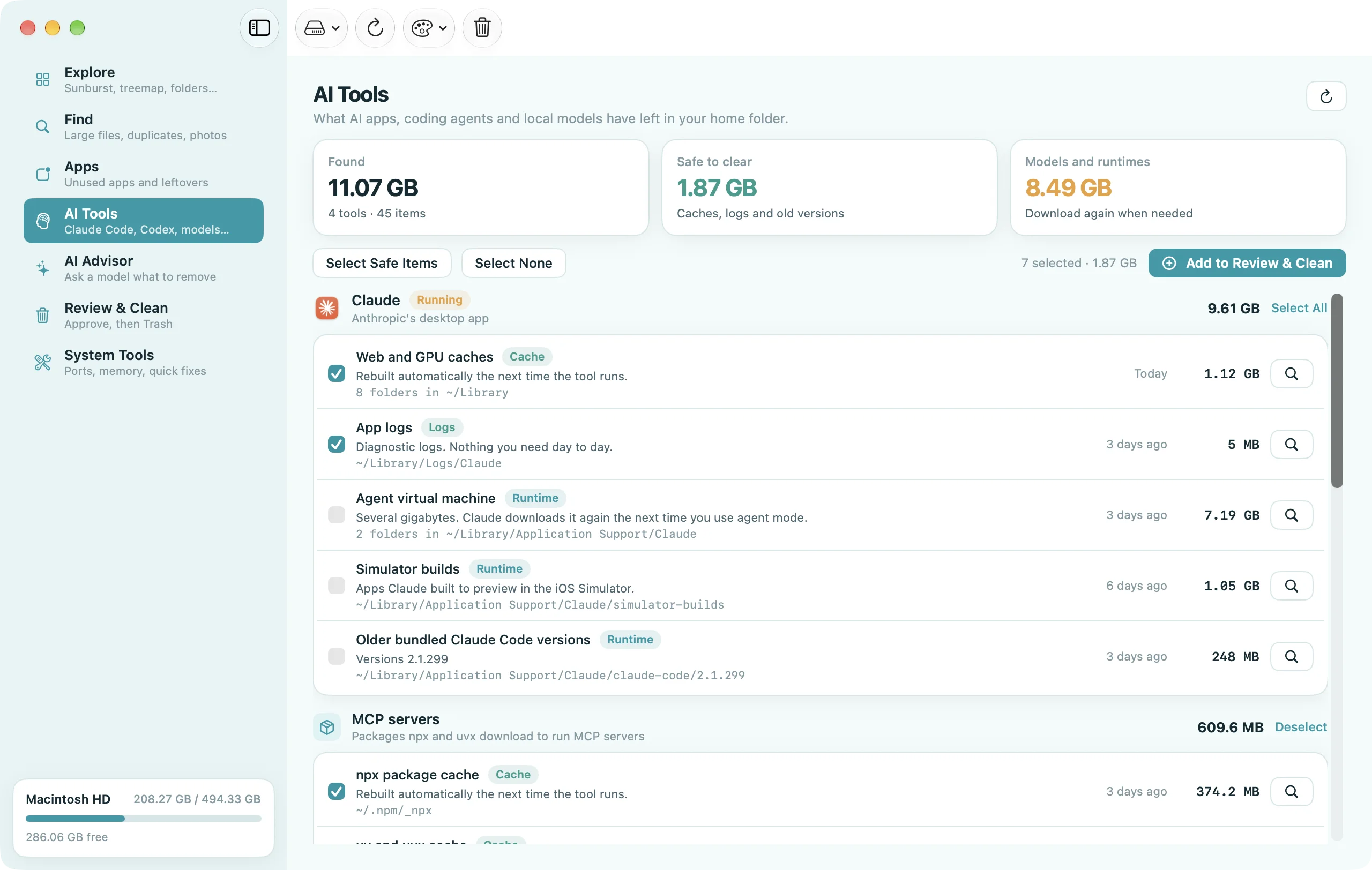
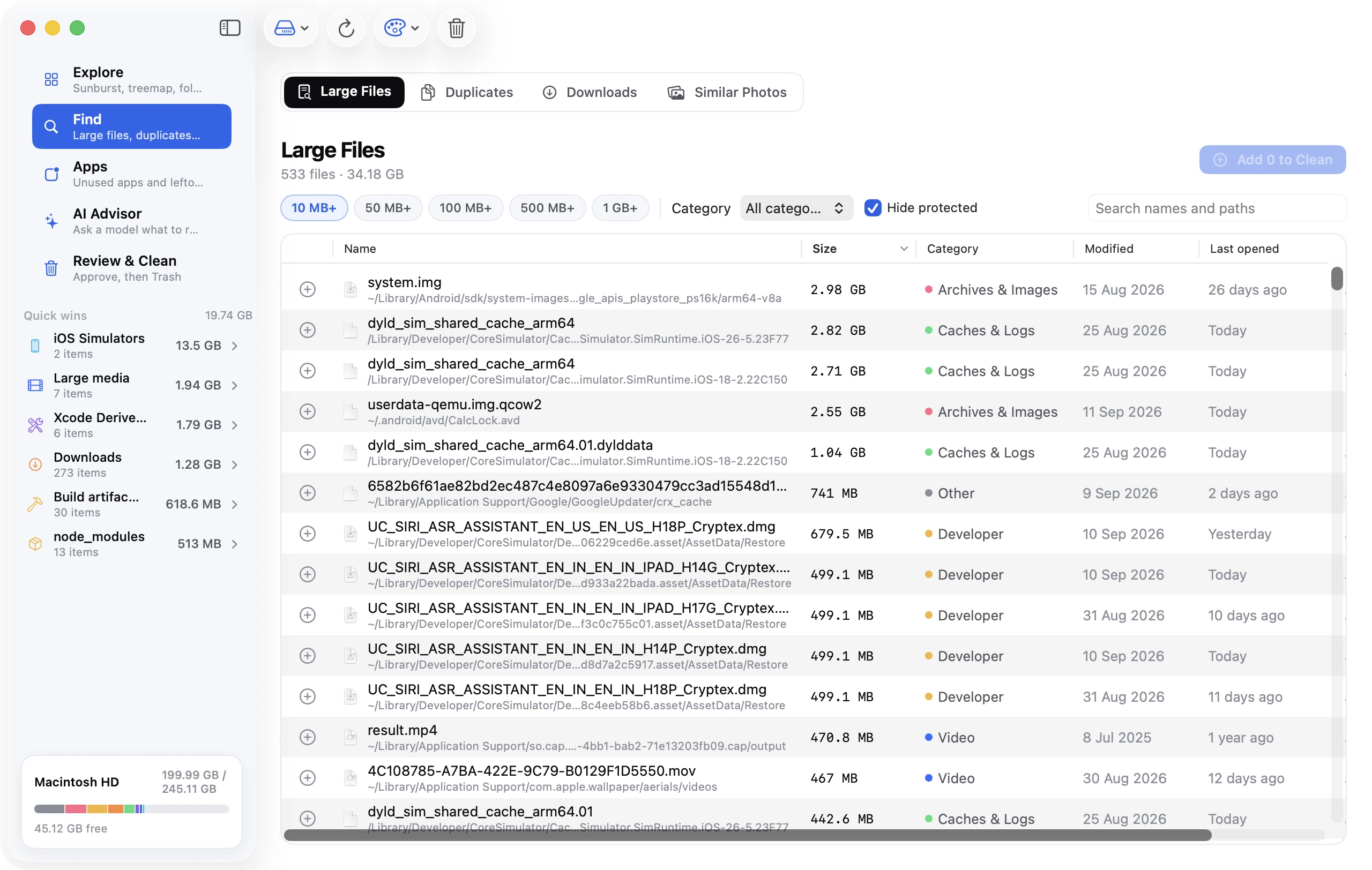
Disk Clean AI's Explore tab offers eight of these views (sunburst, treemap, bubbles, mind map, icicle, top sizes, age map and a folder browser) over the same scan, plus a Find Large Files tool that lists every file above a size you choose, with the path, last-opened date and a one-line explanation of what it is. Free alternatives worth knowing: GrandPerspective (treemap only, no explanations) and OmniDiskSweeper (a column-based size browser). Both are fine tools; they just stop at showing you the numbers.
Where the large files usually are
If you'd rather go straight to the likely spots, check these first:
| Location | What tends to be there |
|---|---|
~/Downloads | Installers, disk images, zip archives, videos |
~/Movies | Screen recordings, iMovie and Final Cut libraries, exported videos |
~/Library/Application Support/MobileSync/Backup | iPhone and iPad backups (several GB each) |
~/Library/Developer/Xcode | DerivedData, archives, simulators — for anyone who has installed Xcode |
~/Library/Containers/com.docker.docker | Docker's virtual disk (Docker.raw) |
~/Parallels, ~/Virtual Machines.localized, ~/Library/Containers/com.utmapp.UTM | Virtual machine disks |
~/Library/Caches | App caches — Spotify, browsers, Adobe, Slack |
~/Pictures | Photos libraries, especially old duplicate ones named "Photos Library 2.photoslibrary" |
~/Library/Mail | Downloaded attachments |
~/Music/Music/Media or ~/Music/iTunes | Local music and movie purchases |
What's safe to delete
Big files are only worth deleting if you don't need them, so use this order of confidence:
- Installers and disk images (
.dmg,.pkg,.iso,.zipof an installer) — safe once the software is installed. - Old iPhone backups — safe if the device is gone or now backs up to iCloud.
- Duplicate exports — a video exported at three resolutions, the RAW plus the JPEG plus the edited copy. Keep the original.
- Caches and DerivedData — safe, they rebuild.
- Virtual machines — safe only if you're sure the VM is finished with; there's no getting it back.
- Your own media and documents — a judgement call. Move to an external drive or cloud storage rather than deleting.
When you're unsure, move the file to the Trash and don't empty it for a week. If nothing complains, empty it. (Remember the space isn't freed until you do.)
Why the space doesn't come back
Two common reasons after deleting large files:
- The Trash. Deleted files sit in
~/.Trashuntil you empty it. - Time Machine local snapshots. If Time Machine is on, an hourly snapshot may reference the file you just deleted, keeping its blocks allocated for up to 24 hours.
tmutil listlocalsnapshots /shows them andtmutil thinlocalsnapshots / 20000000000 4frees space. The System Data guide explains this in detail.
FAQ
How do I find files over 1 GB on Mac?
Finder: ⌘F → add a File Size is greater than 1 GB rule. Terminal: find ~ -type f -size +1G -exec du -h {} + | sort -rh. Or use a disk-map tool and read the top of the list.
Why doesn't Finder show file sizes for folders?
By default Finder's Size column shows "--" for folders. Turn on View → Show View Options → Calculate all sizes in list view. It's slow on big folders, which is why the Storage settings File Browser or a scan-based tool is more practical.
Can I search for large files on an external drive?
Yes: in Finder search, click the drive's name in the search bar instead of This Mac. In Terminal, replace ~ with the drive's path, e.g. /Volumes/Backup.
What is the biggest file on a typical Mac?
Usually a virtual machine disk, a Docker image, a Photos library or an iPhone backup — all in the 5–100 GB range. Individual documents almost never come close.